Deploy an Omarchy Linux desktop
Omarchy is a Linux desktop for development and everyday work. Moltern provides its private desktop console inside your workspace, so you can use the desktop from your browser without publishing a remote-desktop address.
Omarchy is under test and available only to enabled workspaces. Use it for evaluation, not as the only copy of important work. The first launch requires completing the Omarchy installer.
Before you start
You need a workspace with Omarchy beta access, permission to create services and open their consoles, and sufficient compute and storage allowance.
The initial desktop profile is fixed: two CPUs and 4 GiB of guest memory, with additional memory reserved for the runtime. The virtual disk has a 50 GiB capacity. That is its maximum guest-visible size, not 50 GiB of preloaded files or an increase to your workspace storage allowance. Review your workspace's available storage and plan before installing applications or downloading files.
Choose your own Linux account and disk-encryption password during setup. Keep them in a password manager. They are separate from your Moltern login.
Create the desktop
- Open Services and find Omarchy in Virtual Machines.
- Select the target environment and give the desktop a recognizable name.
- Review the deployment's capacity and storage impact.
- Confirm the deployment and wait for the service to become Running.
- Select Open desktop or the Desktop tab.
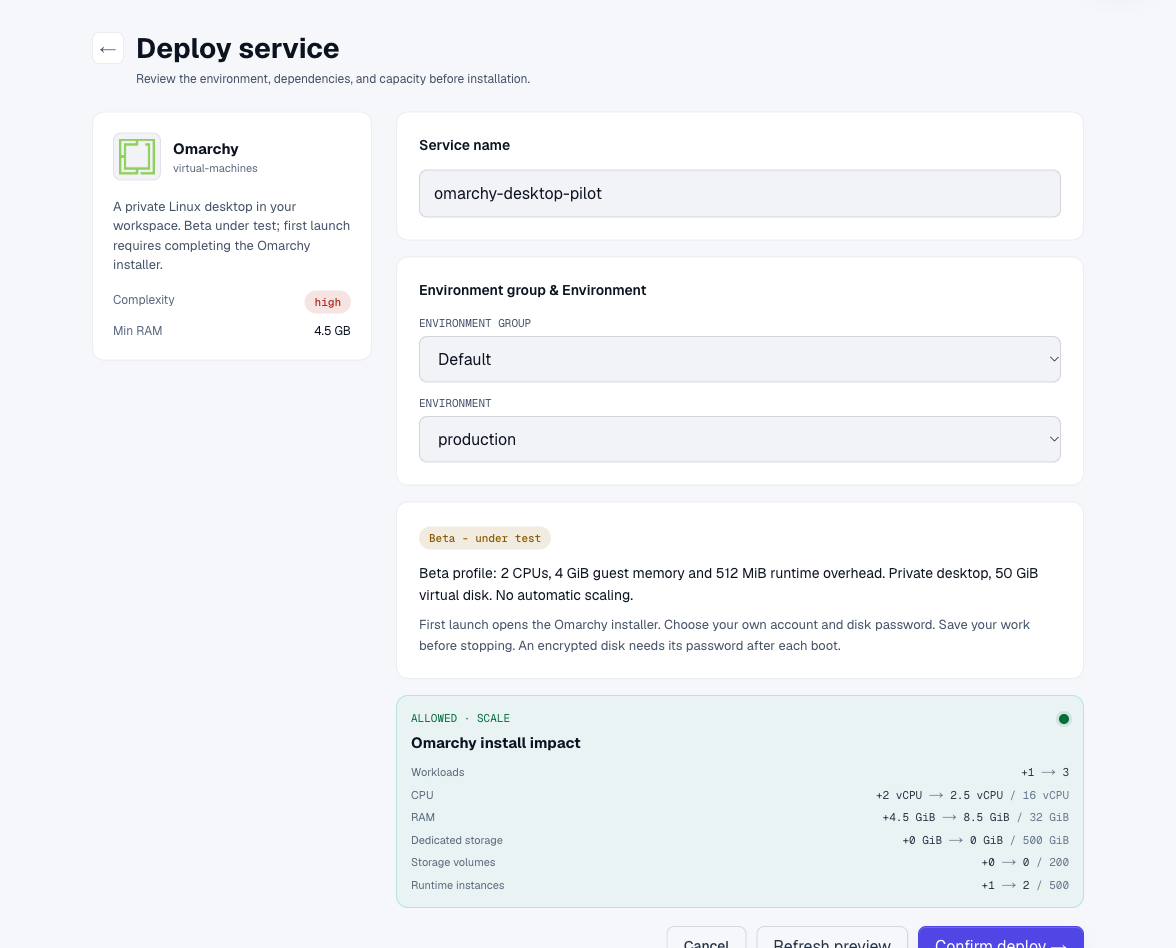
The desktop does not have a public application URL. Reopen it from its Moltern service page. Your Moltern workspace permissions control access to the console.
Running means the desktop runtime can accept a console connection. On a new desktop, the operating system still needs to be installed.
Complete the first-run installer
Click inside the desktop to give it keyboard focus. Use Full screen when the installer text is too small.
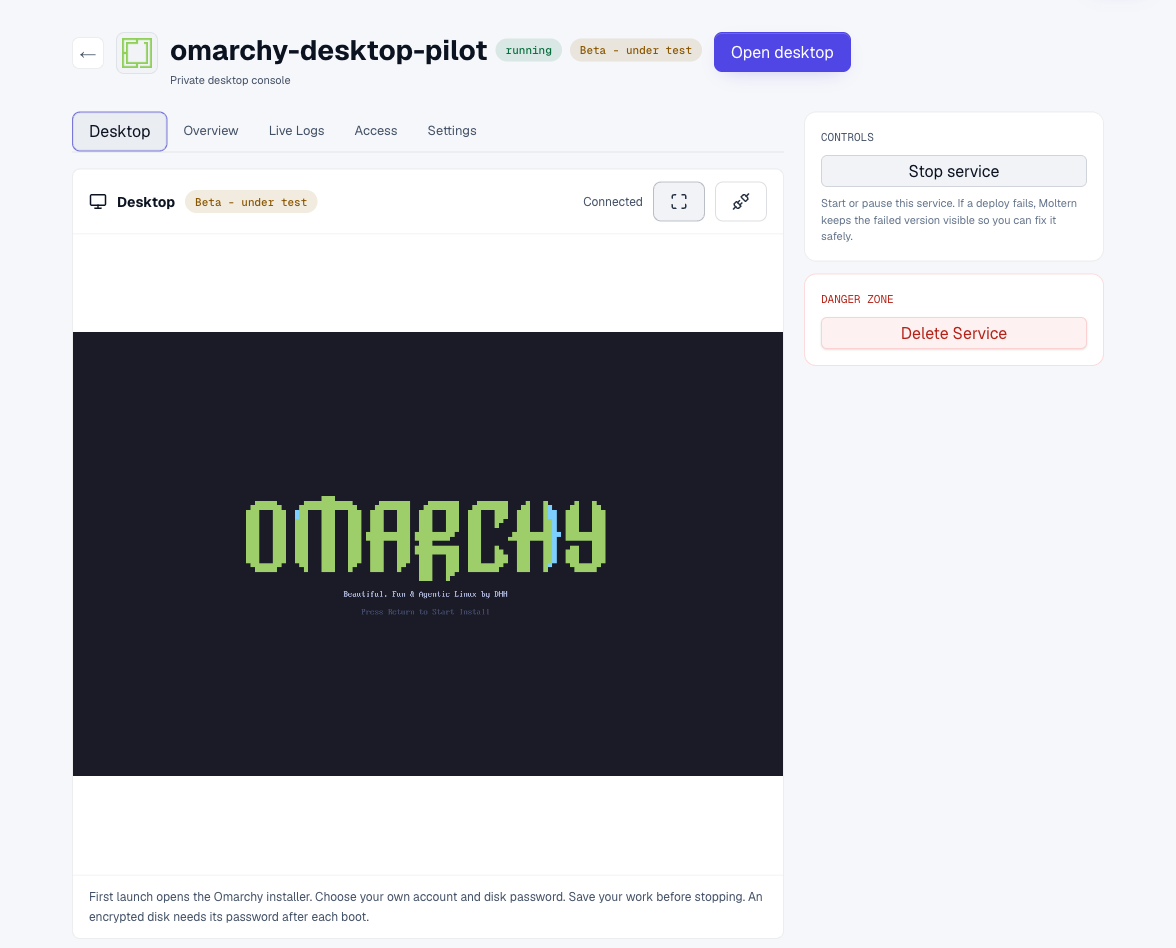
- Start the installer at the Omarchy welcome screen.
- Select your keyboard layout.
- Enter your own username and password, then confirm the password.
- Complete the optional name and email fields if you want to configure them.
- Choose a hostname and timezone.
- Review the account details and select the desktop's virtual disk.
- Read the erase confirmation carefully, then confirm installation on that disk.
- Let installation finish and follow the restart prompt.
The installer's erase action applies to the selected virtual desktop disk. Reinstalling onto an existing desktop disk destroys the files inside that desktop. Do not repeat installation as a troubleshooting step when you already have work saved there.
The installation progress screen may remain visible while files are copied and packages are configured. Do not stop or delete the service during this step.
After installation, the desktop can take a little time to finish its first boot. Unlock the encrypted disk when prompted and wait for the desktop session to load.
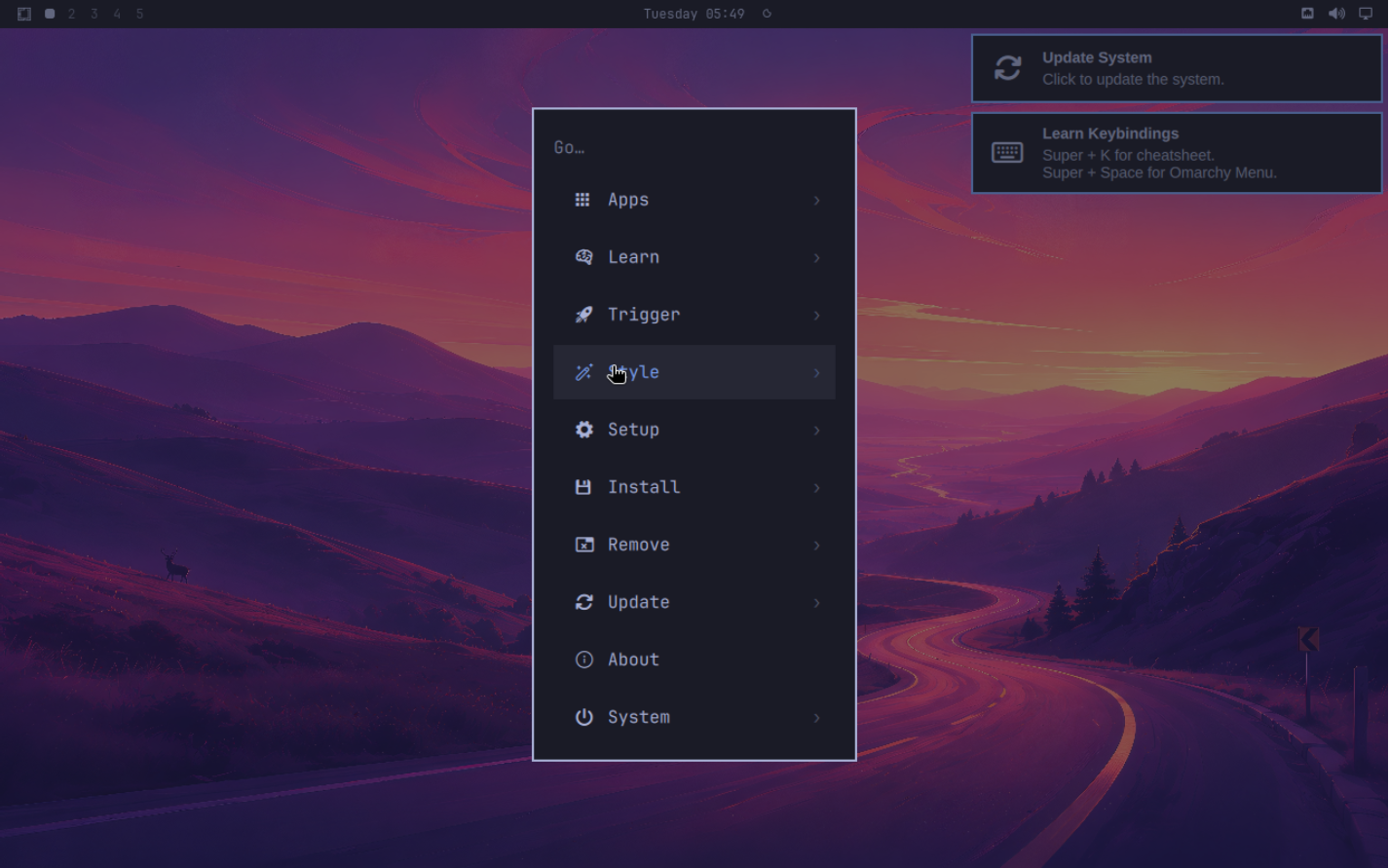
Find your way around the desktop
Omarchy arranges application windows in tiles. Opening a terminal beside your browser can place them side by side automatically; you do not have to drag each window into position.
- Select Full screen in Moltern's desktop toolbar for more room.
- Click inside the desktop, then select the application you want to control.
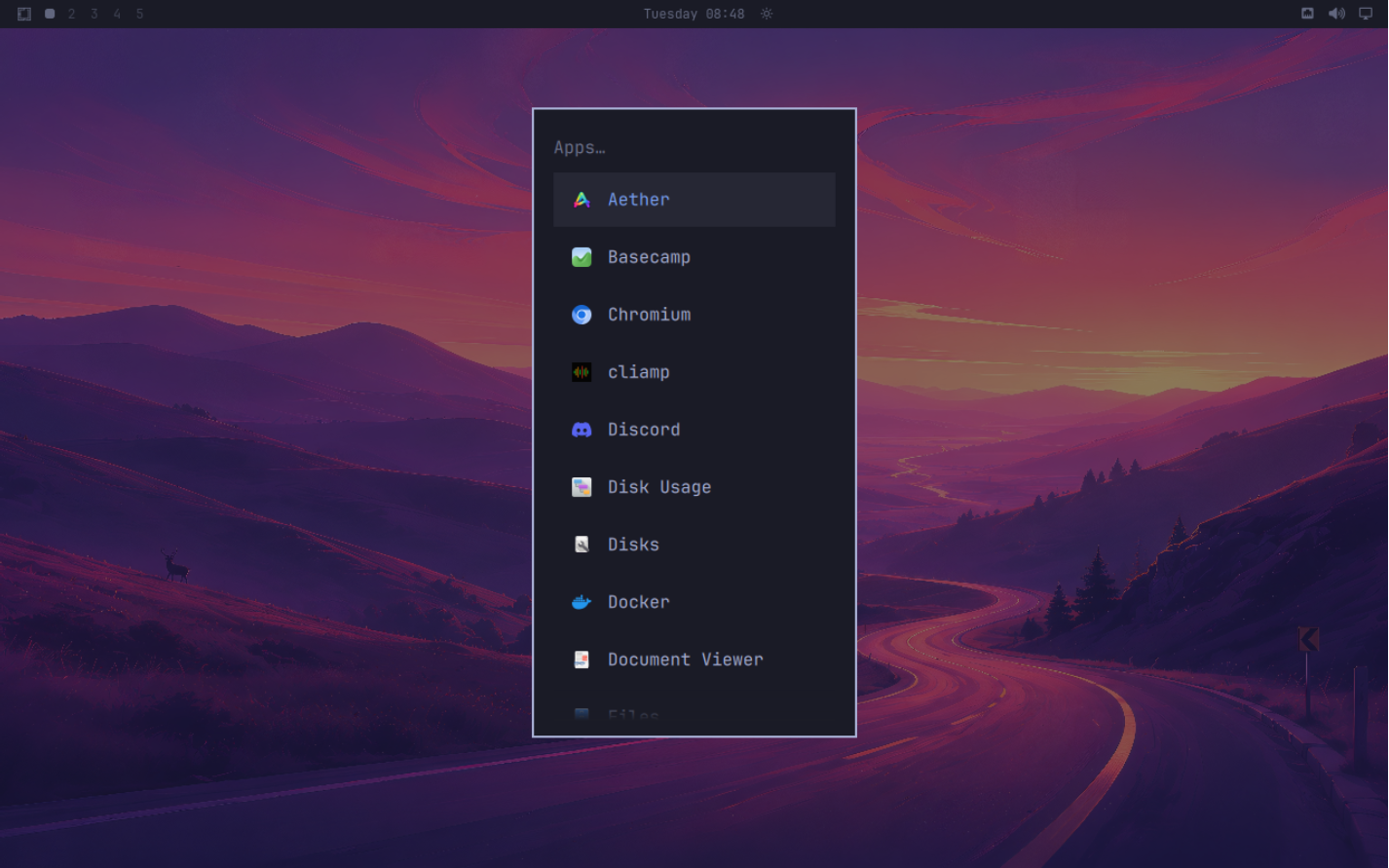
- Open the Omarchy menu with Super + Space. On the desktop shown here, Apps opens the application list.
- Use the arrow keys and Enter to choose an item, or type to filter the list. Press Escape to leave a menu.
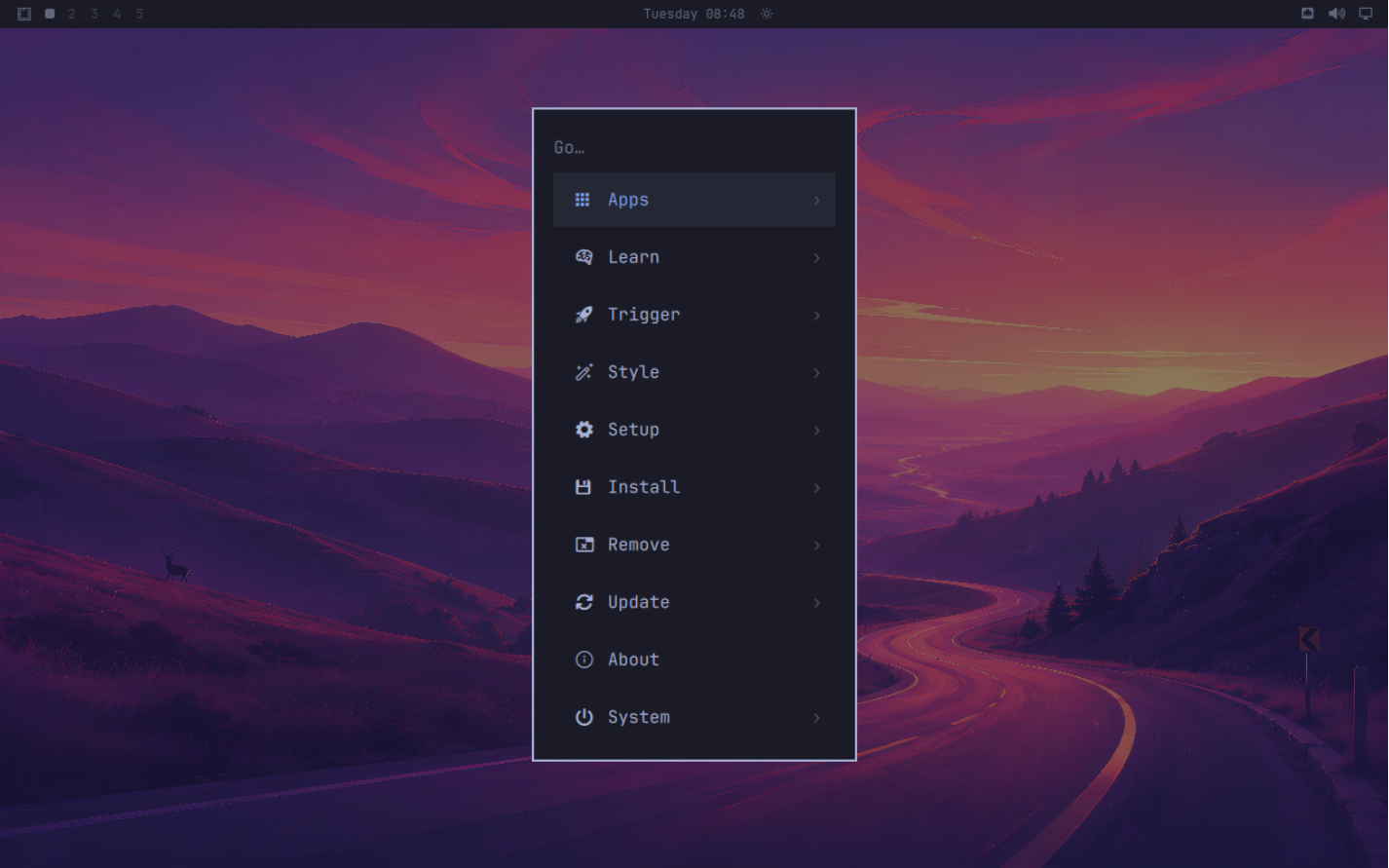
Super means the Windows/Linux logo key, or Command on a Mac when the browser forwards it. Your computer may reserve some shortcuts. If a shortcut acts on your own computer instead, use the menu or select the window with the pointer. Menu labels and bindings can change with Omarchy updates.
Useful keyboard shortcuts
| Action | Shortcut |
|---|---|
| Open the Omarchy menu | Super + Space |
| Open a terminal | Super + Enter |
| Focus the window to the left or right | Super + Left / Right arrow |
| Expand the active application; press again to return to tiling | Super + F |
| Switch between numbered Linux workspaces | Super + 1, Super + 2, and so on |
The numbered workspaces in the desktop's top bar organize open windows. They are not new Moltern workspaces, environments, accounts or storage allocations. For example, keep your browser and Codex on workspace 1 and Files on workspace 2.
Moltern's Full screen button expands the whole remote console. Super + F expands just the selected application inside Linux. These are separate controls.
Do not share control while someone else is entering commands. Opening the same desktop is not a separate Linux session for each person.
Launch and install applications
Open Apps in the Omarchy menu and choose an installed application. The list includes graphical applications such as Chromium and Files. Allow a new application a few moments to open before launching it again.
- Use Chromium for websites and web applications.
- Use Files to browse downloaded files, documents and project folders.
- Use a terminal for command-line tools such as Git and Codex. A CLI may not appear as a graphical application in Apps.
For additional software, open the menu's Install section and follow the application's prompts. Installation may ask for your Linux account password. Use the Update section to review available updates; save your work first. Installed programs consume this desktop's storage and compute allowance.
Only install software you trust. A command run with administrator privileges can change the desktop and its files. GPU-dependent applications are not a fit for the current beta desktop profile.
Browse the internet
- Open Chromium from Apps.
- Select its address bar and enter a public HTTPS address, such as
https://docs.moltern.com. - Wait for the page to load. Open additional tabs inside Chromium as needed.
- Find downloaded files in Files > Downloads inside Omarchy.
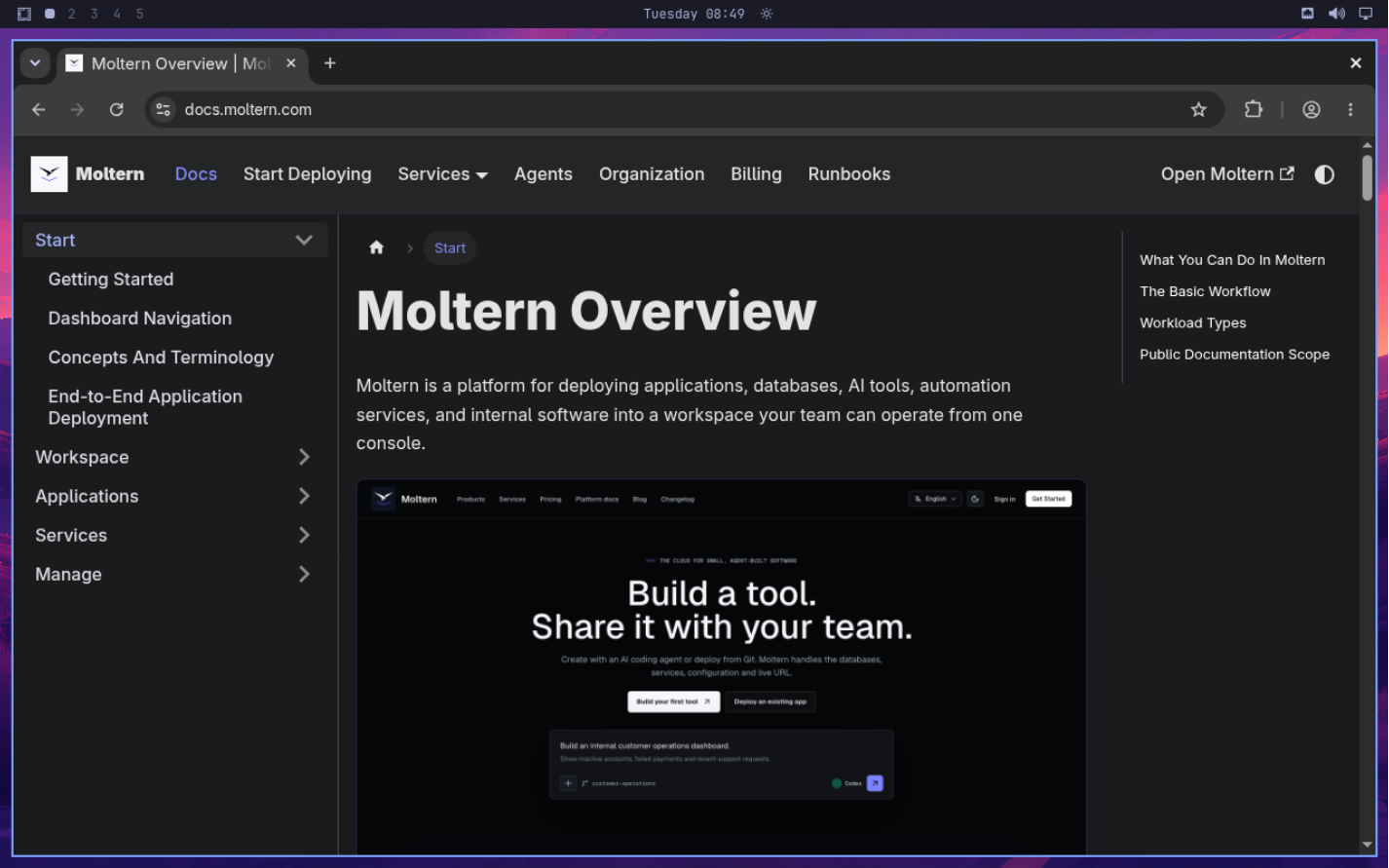
This is a browser inside the remote desktop, not a tab on your laptop. Downloads are saved to the desktop's disk, and websites see traffic from the remote machine. Your laptop's browser sign-ins and extensions are not copied into it. Sign in to external websites with your own accounts.
Public internet access does not grant access to other Moltern services or their credentials. A private database still requires an authorized network connection and the correct database credentials. Do not disable security controls to work around a failed private connection.
If one website fails, try another public HTTPS page first. A single blocked or unavailable site does not mean the desktop has lost all internet access.
Work with files and projects
Keep your work under your Linux home directory. Files > Home contains your
documents and settings; Downloads contains browser downloads. A project
folder such as ~/Projects/omarchy-notes keeps code separate from system files.
To create that folder, open a terminal and run:
mkdir -p ~/Projects/omarchy-notes
cd ~/Projects/omarchy-notes
Open Files, navigate to Home > Projects, and open omarchy-notes. You can also open that location from the terminal:
xdg-open ~/Projects
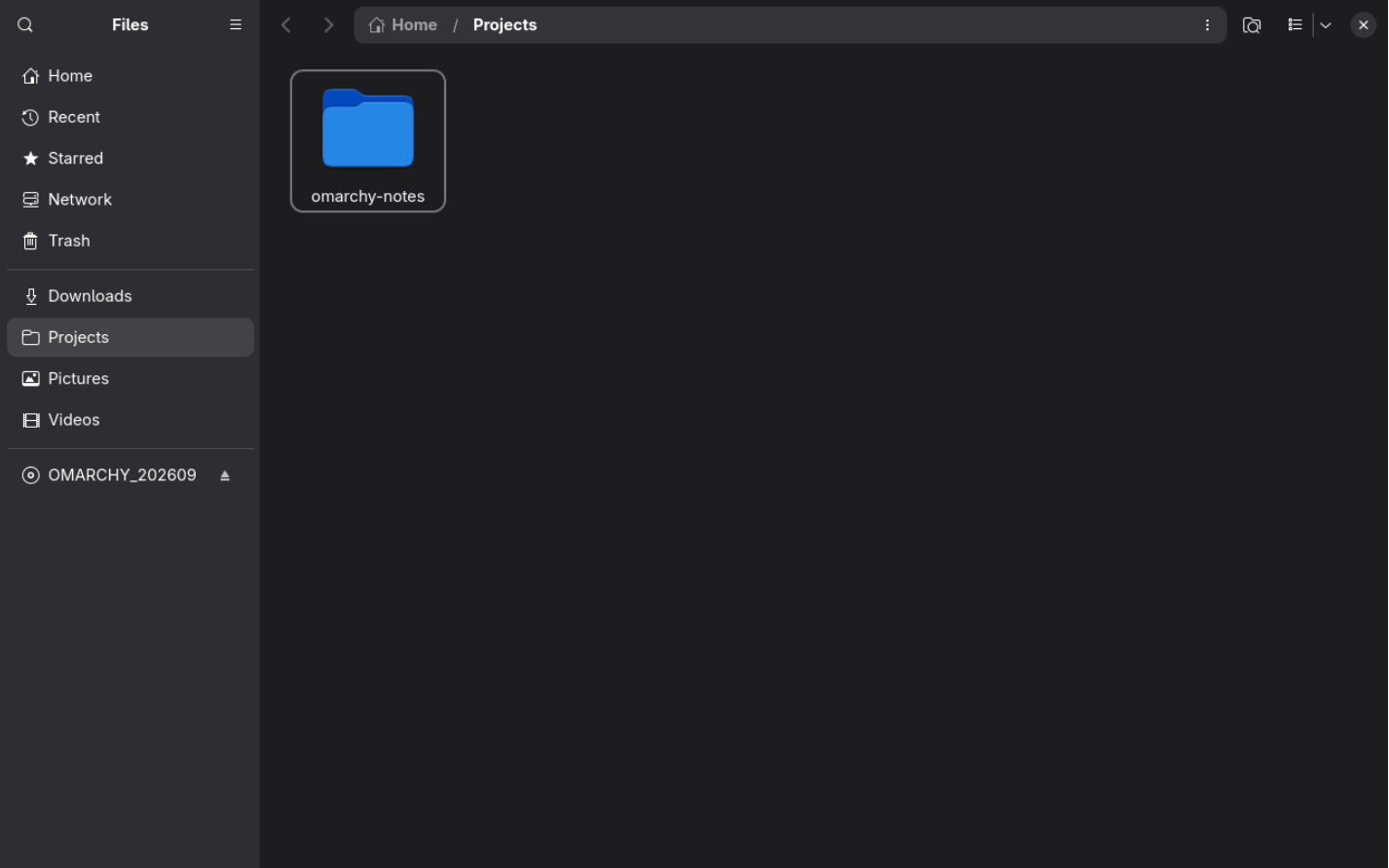
Use Super + Enter for a terminal and Super + Left / Right arrow to move focus between tiled windows. Commands run inside Omarchy, not on your laptop or in another Moltern service.
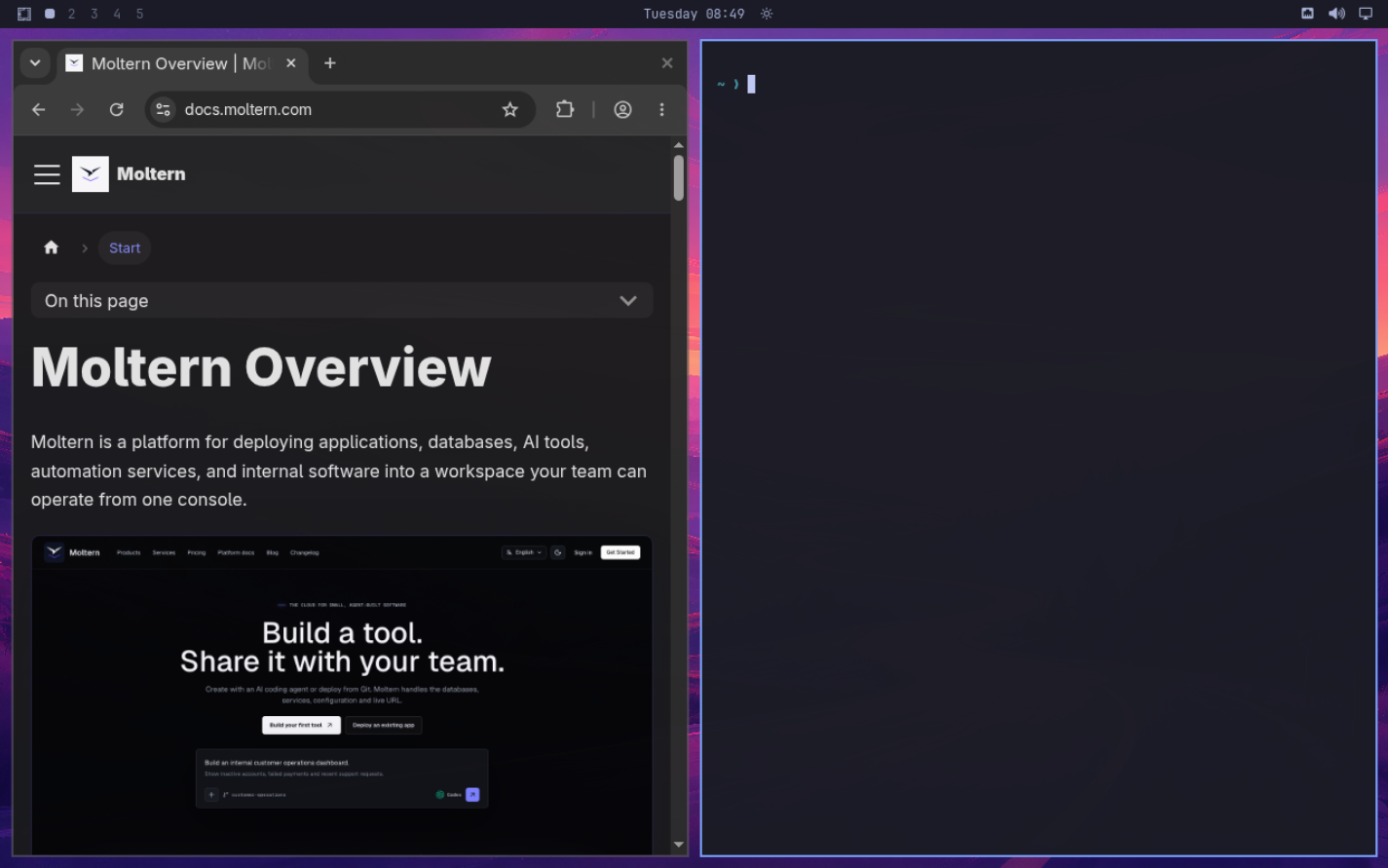
Saved files remain on the same desktop disk after a stop/start. Unsaved editor buffers and running commands are not a backup. Commit code to a repository and keep a separate copy of important documents.
The desktop toolbar on updated beta runtimes includes clipboard and file-transfer controls. They require the optional desktop helper described below. Until that integration is enabled, use a trusted private HTTPS Git remote or an approved file-storage service. Never put secrets into public uploads.
Clipboard and file transfer
These controls require an updated Moltern desktop runtime and a helper running inside your unlocked Linux session. If the buttons are missing or the helper cannot connect, ask your workspace administrator to check the desktop version. Save your work before an administrator updates or restarts the desktop.
Enable the desktop helper
The helper is optional. While it is running, workspace members with the matching desktop permissions can copy text or transfer files. Use it only in a workspace you trust. It runs as your Linux user, not as an administrator.
Inside Omarchy, open a terminal and download the helper:
mkdir -p ~/Downloads
curl --fail --proto '=https' \
  https://moltern.com/api/v1/desktop/helper.py \
  -o ~/Downloads/moltern-desktop-helper.py
Review the downloaded script, then install it for your account:
python3 ~/Downloads/moltern-desktop-helper.py --install
python3 ~/.local/lib/moltern/desktop_helper.py --enable
Installation requests your Linux account password to grant your account
access to the desktop integration device. Do not run the helper itself with
sudo. Keep its terminal open while using the controls. Press Ctrl + C in
that terminal to disable integration. Run the second command again when needed.
Clipboard actions require wl-copy and wl-paste in the desktop. If they are
missing or outdated, install the current wl-clipboard package through Omarchy's
package manager. Unknown or locked desktop-session state blocks transfers.
After a desktop integration update, an older helper may no longer be accepted. Stop it with Ctrl + C, repeat the download and installation steps above, then start the updated helper. This does not reinstall Linux or erase your files.
Paste text from your laptop
- In Moltern's desktop toolbar, select Paste to desktop.
- Paste text into the field, or select Read laptop clipboard and approve your browser's permission request.
- Use Show text to review the contents when appropriate. For multiple lines, use Read laptop clipboard or reveal the multiline field before pasting.
- Select Set desktop clipboard.
- Return to the desired application inside Omarchy and paste there.
This sets the remote clipboard only. It does not type commands, press Enter, or submit a password. The text limit is 8 KiB. Review multiline text before pasting it into a terminal, where a newline may execute a command.
For the other direction, copy text inside Linux, select Copy from desktop, then Read desktop clipboard and Copy to laptop. Your browser may require clipboard permission. There is no automatic clipboard synchronization.
The helper marks transferred clipboard text as sensitive, but a clipboard manager inside Linux or on your laptop may still retain it. Review those applications' settings before copying passwords or keys. Moltern does not store clipboard history. The encrypted-disk unlock prompt appears before the helper can run; continue typing that password manually.
Upload a file
- Select File transfer in the desktop toolbar.
- Choose a file from your laptop, up to 10 MiB.
- Select Upload and wait for File uploaded and verified.
- Open Files > Home > Transfers inside Omarchy.
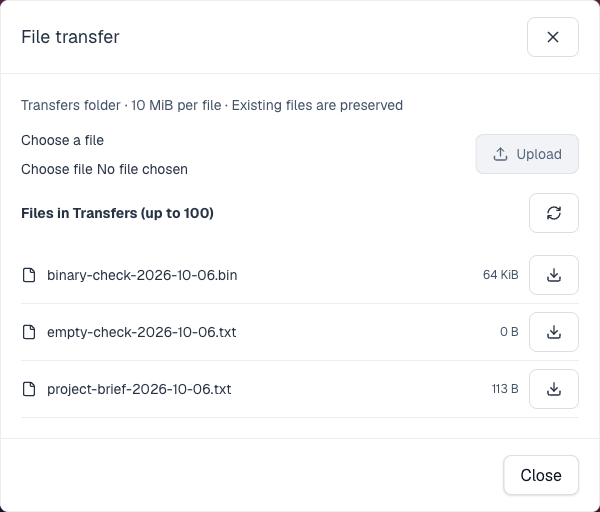
Files are accepted only into ~/Transfers. An existing filename is never
overwritten; rename your local file before trying again. Uploads count toward
your existing workspace storage allowance. They do not create more storage.
Uploads are refused when storage measurements need refreshing, when the workspace allowance is reached, or when the guest disk lacks free space. Review Billing for workspace capacity; deleting a file or adding capacity does not immediately update every usage measurement.
Download a file
- Inside Linux, place the file directly in
~/Transfers. - Open File transfer in Moltern and select Refresh files.
- Select the download icon beside the filename.
- Wait for verification and choose a location using your laptop's browser.
The list shows up to 100 regular files, each no larger than 10 MiB. Folders, hidden files and linked files are not exported. Downloads are attachments, not public sharing links. Downloading a file does not delete the guest copy.
Cancel transfer stops the request. An incomplete upload is discarded; after a successful upload, cancelling or closing the dialog does not delete the saved file. If confirmation was interrupted, refresh the list before retrying.
Disable or remove integration
Press Ctrl + C in the helper terminal. Clipboard and transfer controls stop working, but the normal desktop console and your files remain available. The helper does not start automatically after a reboot.
To uninstall, stop the helper, remove its script at
~/.local/lib/moltern/desktop_helper.py, and ask the Linux administrator to remove
/etc/udev/rules.d/70-moltern-desktop.rules. Do not delete the Transfers folder
unless you intend to delete the files in it.
Use Codex inside Omarchy
Codex runs in a Linux terminal and works on the project folder you open it from. It needs its own provider sign-in. Signing into Moltern, or connecting an account in Moltern's separate Coding Agents area, does not sign Codex into this desktop.
Open Codex in a project
In a terminal, run:
mkdir -p ~/Projects/omarchy-notes
cd ~/Projects/omarchy-notes
git init -b main
codex --version
codex
Run git init only when starting a new repository. For an existing project,
clone your own authorized repository instead, enter its folder, then run
codex. Do not embed access tokens in clone URLs.
Codex is available in the illustrated desktop. If your installed Omarchy version does not include it, follow the current official Codex installation instructions and reopen the terminal afterward.
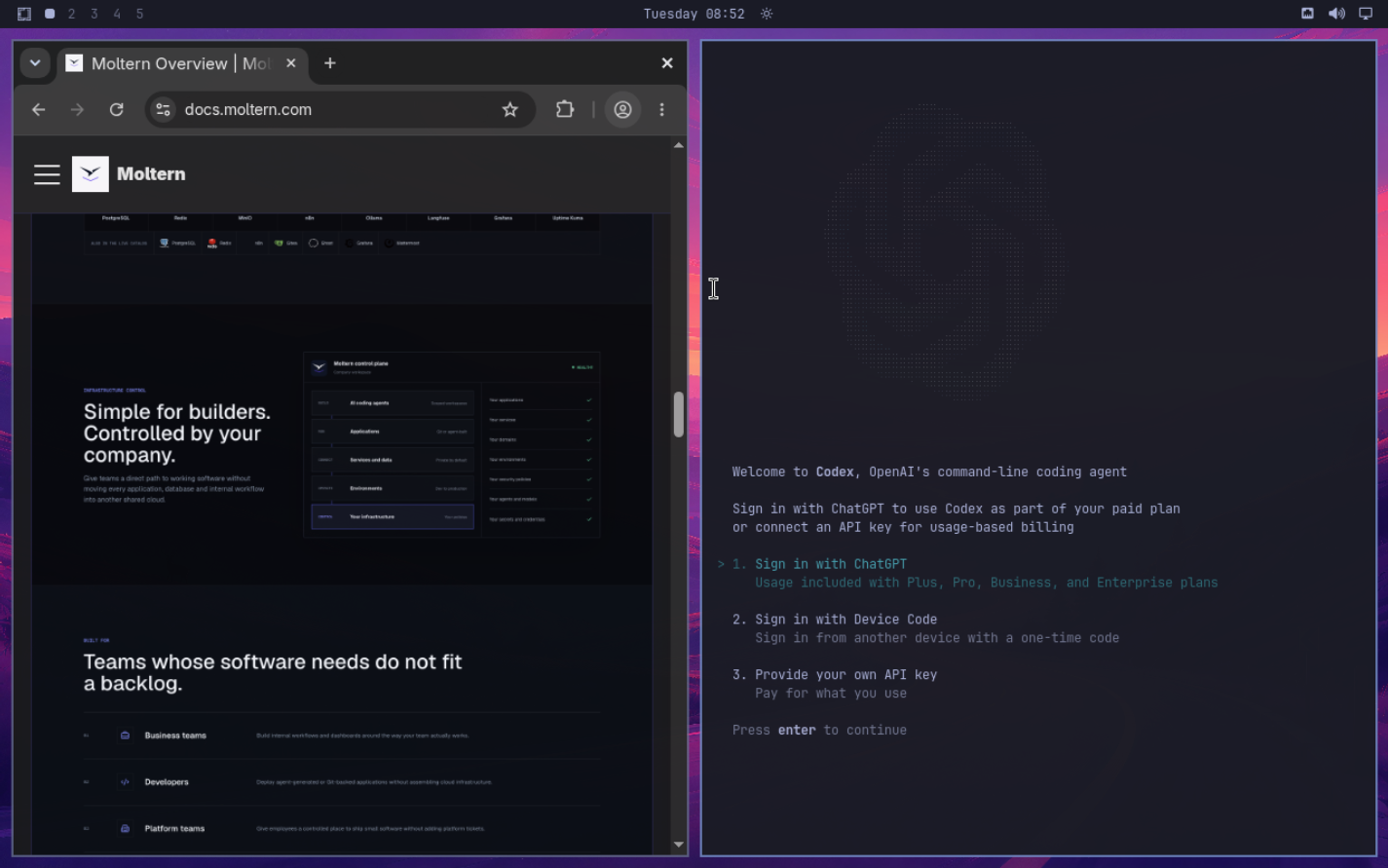
Connect your own account
- Choose a sign-in option in Codex.
- For Sign in with ChatGPT, complete the flow in Chromium inside Omarchy, then return to the terminal. A local callback belongs to this remote machine, not your laptop.
- To sign in from another device, use the device-code option and follow the displayed instructions. Your provider or organization may need to enable it.
- If using an API key, enter it only in the provider's supported sign-in flow. Do not put it in project source, a screenshot or a shell command saved in history.
Outside an active Codex session, check the connection with:
codex login status
Alternatively, start device authentication directly with
codex login --device-auth. See the
official authentication guide
for current options and account requirements.
Codex sign-in can save credentials in your Linux account. Anyone who can use the
unlocked desktop may be able to use that session. Never publish the contents of
~/.codex, API keys, sign-in links or one-time codes. Run codex logout when
handing the desktop to another person. Provider charges and usage limits are
separate from the Moltern desktop's compute and storage charges.
Ask for a small application
After authentication, start with a bounded task in your project folder. For example:
Create a small notes app in this folder using plain HTML, CSS and JavaScript.
Allow adding and deleting notes and keep them in browser localStorage.
Use no external services, credentials or dependencies.
Add a README with instructions for running it locally.
Do not modify files outside this project or publish anything.
This is a suggested first task, not a preinstalled application. Review the changes and any command-approval prompts before continuing. Keep the normal approval and sandbox protections enabled; do not run the agent as administrator or disable its safety checks to get past an error.
Use git status and git diff to inspect the result. Test the app, then commit
only the files you intend to keep. Provider login does not give Codex automatic
access to other Moltern applications, databases or their passwords.
Preview the result in Chromium
Follow the project's README to start its development server in a second terminal. For a plain static project, if Python 3 is installed, a local-only preview is:
cd ~/Projects/omarchy-notes
python3 -m http.server 8000 --bind 127.0.0.1
Open http://127.0.0.1:8000 in Chromium inside Omarchy. Keep the server terminal
open while using the preview; press Ctrl + C there when finished. A framework
project may use a different command and port, as specified in its README.
This address is local to the desktop. It does not create a public Moltern URL, and opening the same address on your laptop connects to your laptop instead. To share a deployed application, push reviewed code to your repository and deploy it through Moltern's Applications workflow.
Open another session
Open the service's Desktop tab and connect. Click inside the screen before typing. Disconnect closes your browser's connection; it does not stop the desktop or discard saved files.
After inactivity, Linux can lock the screen. Click inside the console, wake the display with a key, and enter your Linux account password. Do not reinstall the desktop when you see a lock screen.
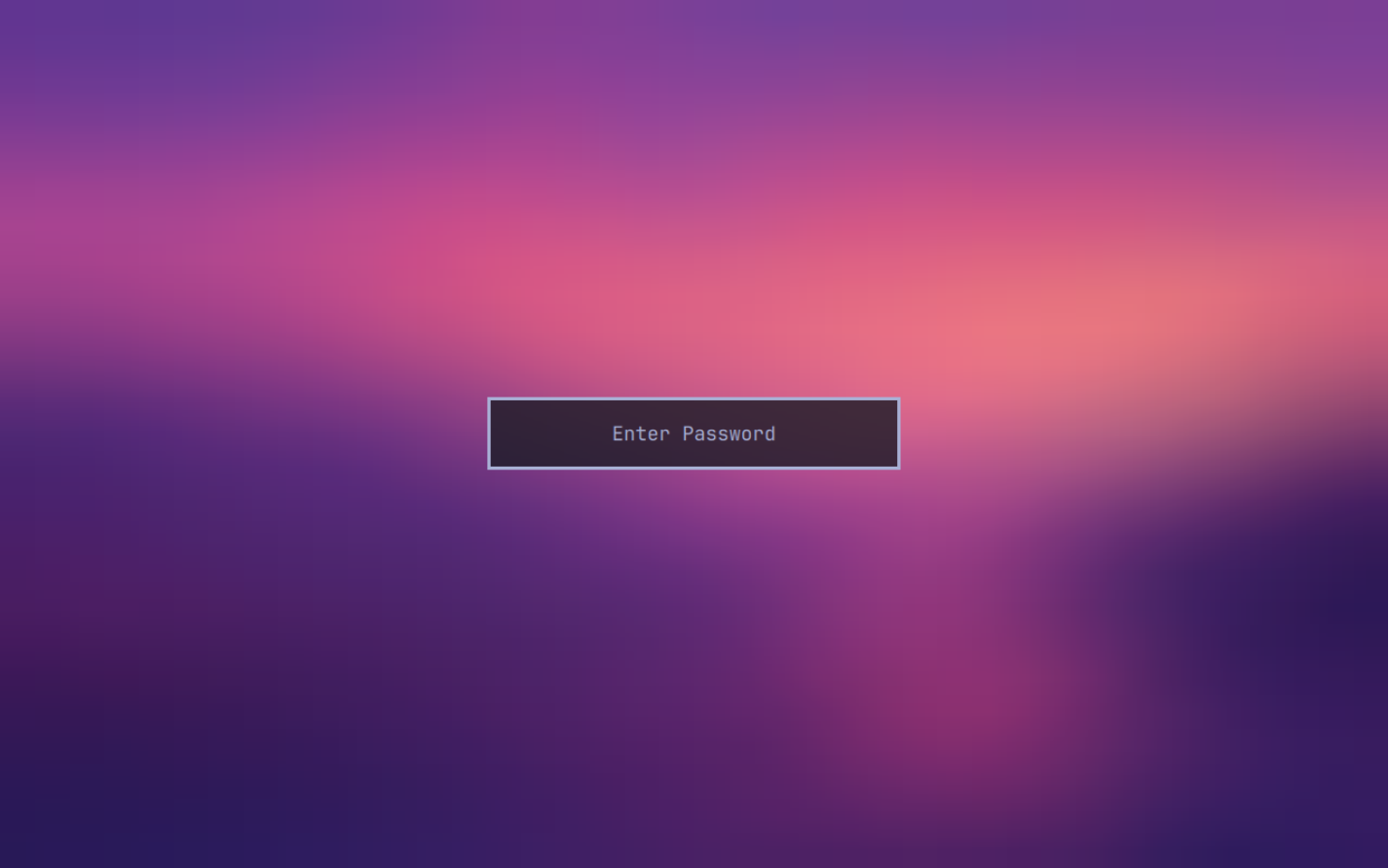
After a full restart, an encrypted desktop asks for its disk password before Linux can start. Enter the password you chose in the installer. Moltern cannot recover a forgotten disk-encryption password.
Keep a second copy of important files outside the desktop. This beta does not provide desktop snapshots, live migration or one-click disk recovery.
Stop, start and delete
Save your files and close work that cannot be interrupted before selecting Stop service. Starting the same service again reuses its desktop disk. You may need to unlock that disk after startup.
Stopping is not the same as deleting: saved desktop data remains stored while the service is stopped. Storage remains subject to your workspace plan.
Use Delete Service only when you no longer need the desktop. Review the data-removal confirmation, and export anything you want to keep first. Deleting the desktop and its stored data is not a way to reset a forgotten password without losing files.
Access and limitations
- The browser console is private to authorized Moltern workspace members.
- There is no public VNC port or desktop URL to share.
- The desktop is a separate machine, not a shell in another service.
- Other service credentials and workspace files are not automatically mounted inside it.
- This beta does not provide GPU acceleration, automatic scaling, desktop cloning or configurable CPU, memory and disk resizing.
- A desktop is not subject to HTTP inactivity sleeping. Stop it when you finish if you do not need it running.
Troubleshooting
| Symptom | What to check |
|---|---|
| Omarchy creation is unavailable | Confirm that the selected workspace has beta access. |
| Open desktop is disabled | Wait for deployment to finish or start the stopped service. Check Live Logs if startup fails. |
| Connected appears before a picture | Allow the guest to finish booting. Reconnect if the picture never appears. |
| Keys do not reach the installer | Click inside the desktop, then try again. Check the keyboard layout selected in the installer. |
| Browser shortcuts run instead of desktop shortcuts | Use full screen and avoid browser-reserved shortcuts. Browser and operating-system key capture varies. |
| Typing does not reach an open application | Select that window. Try Super + Left / Right arrow to focus it. If input remains stuck, disconnect and reconnect the console without stopping the desktop. |
| A menu or application takes time to appear | Wait before opening more copies. Check that the desktop is not busy with installation or updates. |
| The screen locks after inactivity | Wake the display and enter the Linux account password. It is not the Moltern password. |
| An encryption password is requested after restart | Enter the disk password created during installation, not your Moltern password. |
| The console disconnects | Reconnect from Desktop. Sign back into Moltern if your platform session has expired. A disconnected console does not imply lost files. |
| Chromium cannot load a website | Try a known public HTTPS page. Check the URL, the site's availability and any required login. A private service requires separate authorized access. |
codex is not found | Check your installed Omarchy version and follow the official CLI installation guide. Open a new terminal after installation. |
| Codex cannot complete browser login | Use Chromium inside Omarchy for the local callback, or use device authentication when your provider allows it. Never copy another user's credentials. |
| A local app preview does not load | Confirm the development server is running, check its port, and use the browser inside Omarchy. Read the server terminal for errors. |
| Storage is full | Check free space inside the desktop and the workspace's Billing storage section. A virtual disk's size does not override workspace limits. |
Next steps
- Omarchy manual: desktop navigation, applications and Linux configuration.
- Codex CLI: installation and terminal usage.
- Deploy a service: the common Moltern service workflow.
- Moltern platform documentation: application deployment, workspaces and the separate managed Coding Agents experience.