Code Server
Code Server provides a VS Code-compatible development environment in a web browser. Use it to edit a repository, run shell commands, work with Git and add Open VSX extensions without depending on a developer laptop.
Moltern deploys Code Server behind HTTPS with protected access and an isolated, persistent workspace. A new deployment does not require a separate database or another catalog service.
Before You Start
You need:
- a Moltern workspace and environment;
- permission to create services;
- enough plan capacity for
200 mCPU,512 MiBof RAM and one instance; - a browser that supports WebSockets;
- access to Connection details for the generated sign-in password.
Code Server uses fixed capacity. Automatic horizontal scaling is unavailable because one browser IDE owns interactive terminal sessions and workspace state.
Deploy Code Server
- Open Services in Moltern.
- Search for Code Server and select it.
- Choose the project and environment that should own the IDE.
- Enter a unique service name.
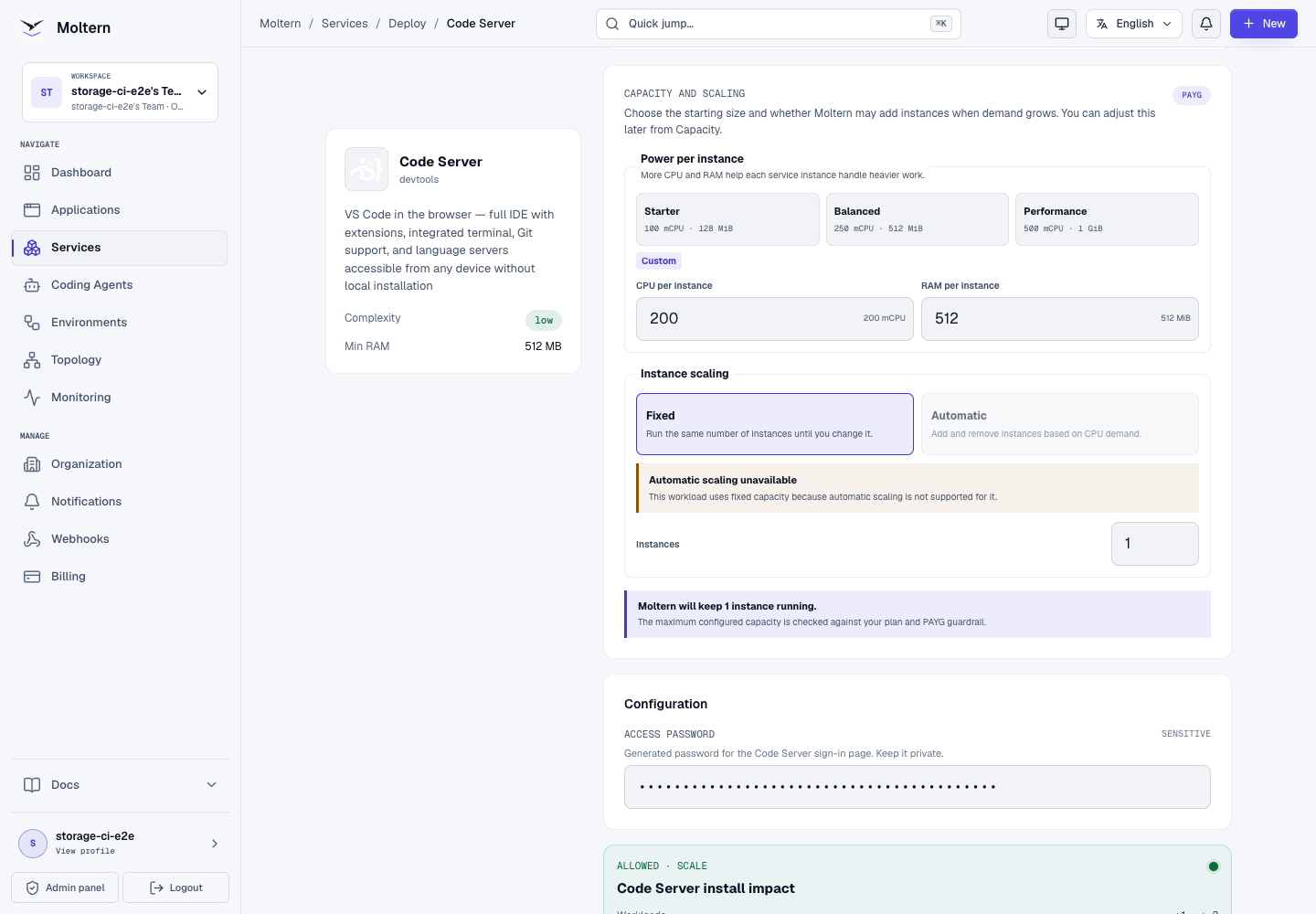
- Keep Balanced capacity, or choose a permitted custom CPU and memory size.
- Select Preview deploy.
- Confirm that the preview shows one workload and no dedicated storage volume.
- Select Confirm deploy and wait for Running.
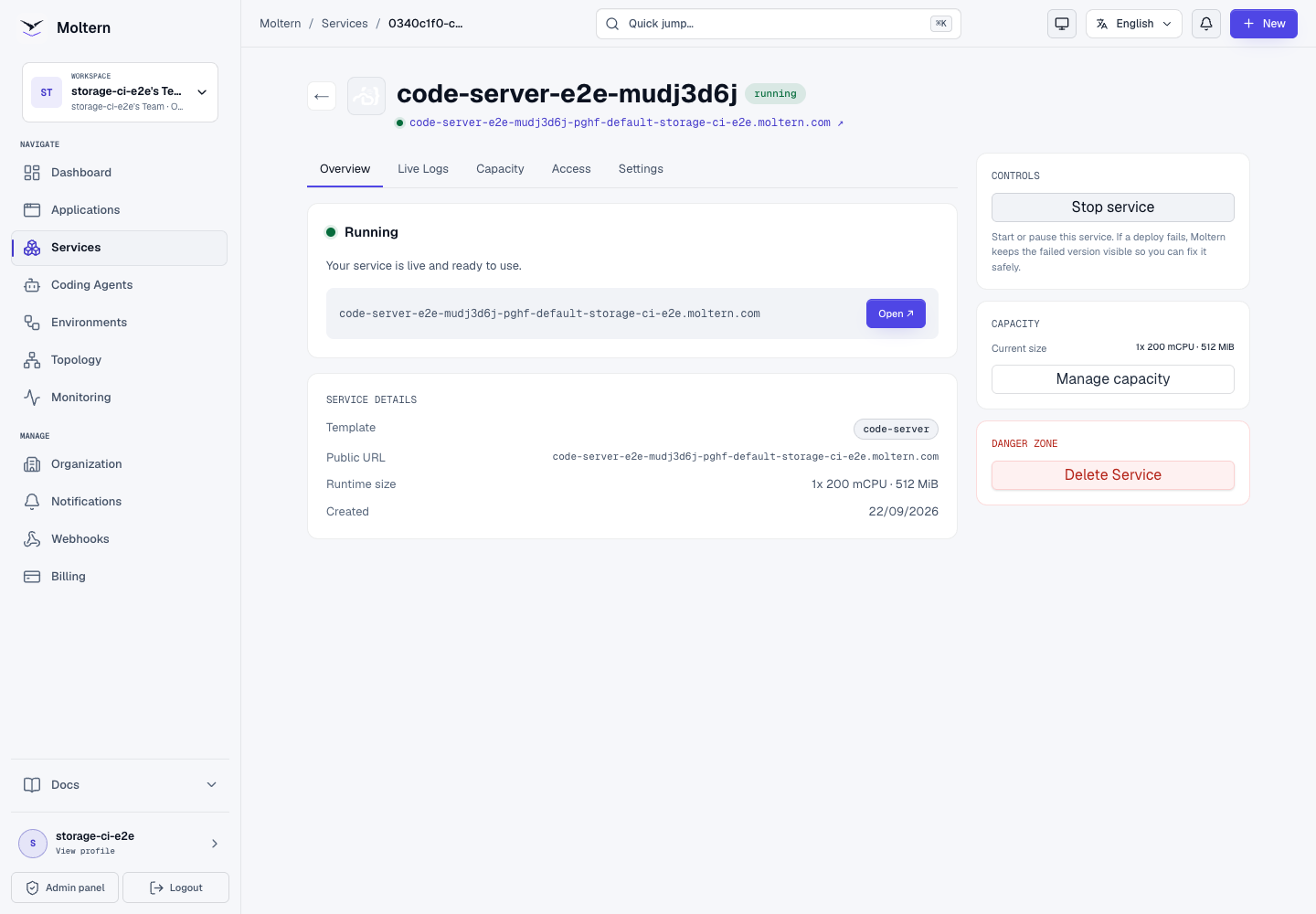
The Overview displays the generated HTTPS address only after the editor passes its health checks.
Sign In
- Open the service Settings.
- Find Connection details.
- Complete the protected account confirmation when prompted.
- Reveal and copy the Access password.
- Return to Overview, select Open, and enter that password on the Code Server sign-in page.
The Code Server password is separate from your Moltern account password. Do not put it in a repository, screenshot, terminal history or client-side source code.
Trust Your Workspace
Code Server can open an untrusted folder in Restricted Mode. Opening a terminal or running workspace code then shows a trust confirmation.
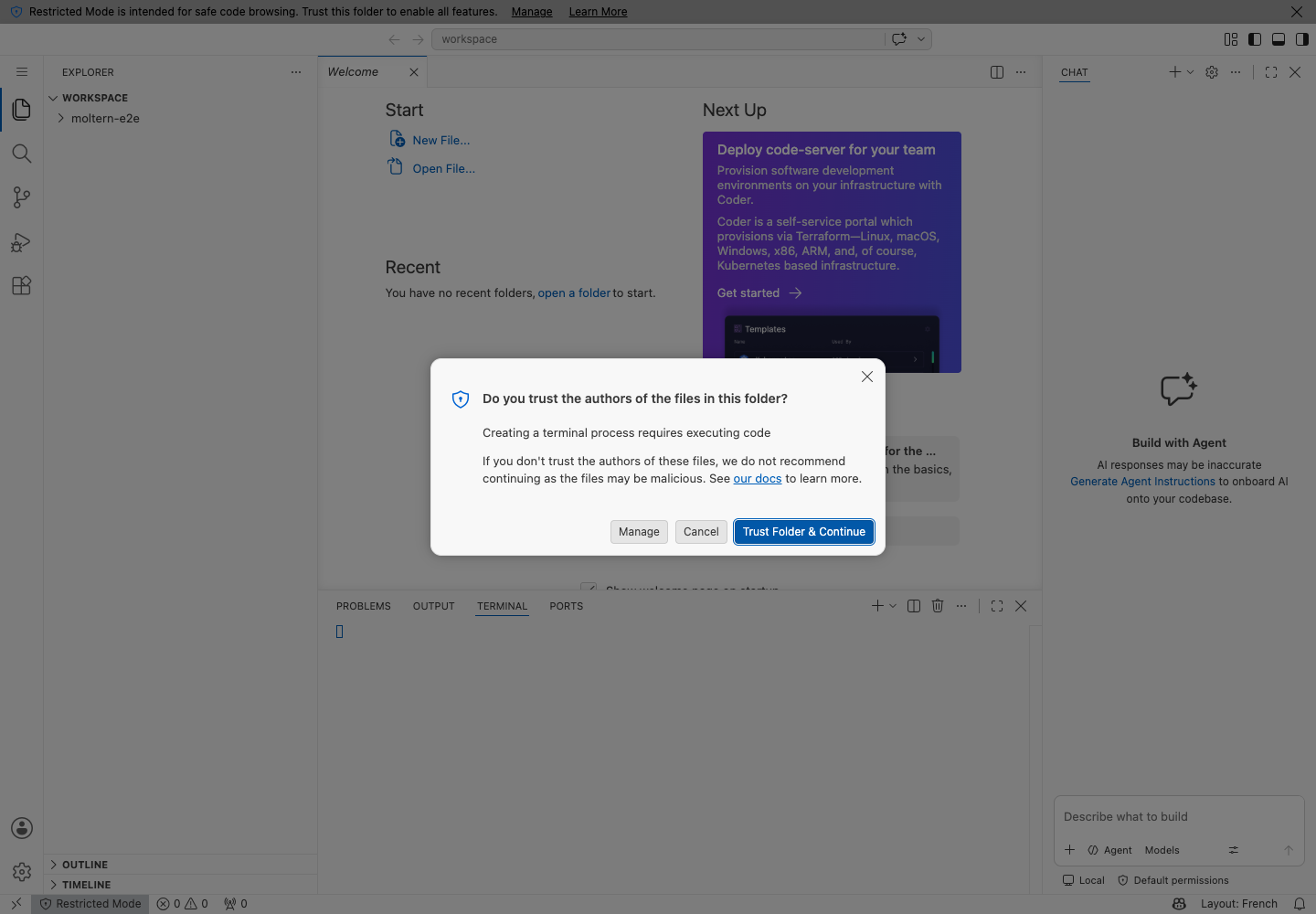
Select Trust Folder & Continue only for a workspace whose files and repository source you trust. A dependency install, task, debug configuration or terminal command can execute code from that folder.
Create A Project In The Terminal
- Open Terminal from the Code Server application menu.
- Select New Terminal.
- Create a project directory under
/config/workspace. - Create or clone the repository.
- Configure the repository's Git author when needed.
- Commit a small change and confirm that the Source Control view detects it.
Example:
cd /config/workspace
mkdir customer-dashboard
cd customer-dashboard
git init
git config user.name "Your Name"
git config user.email "you@example.com"
printf '# Customer dashboard\n' > README.md
git add README.md
git commit -m "Create dashboard workspace"
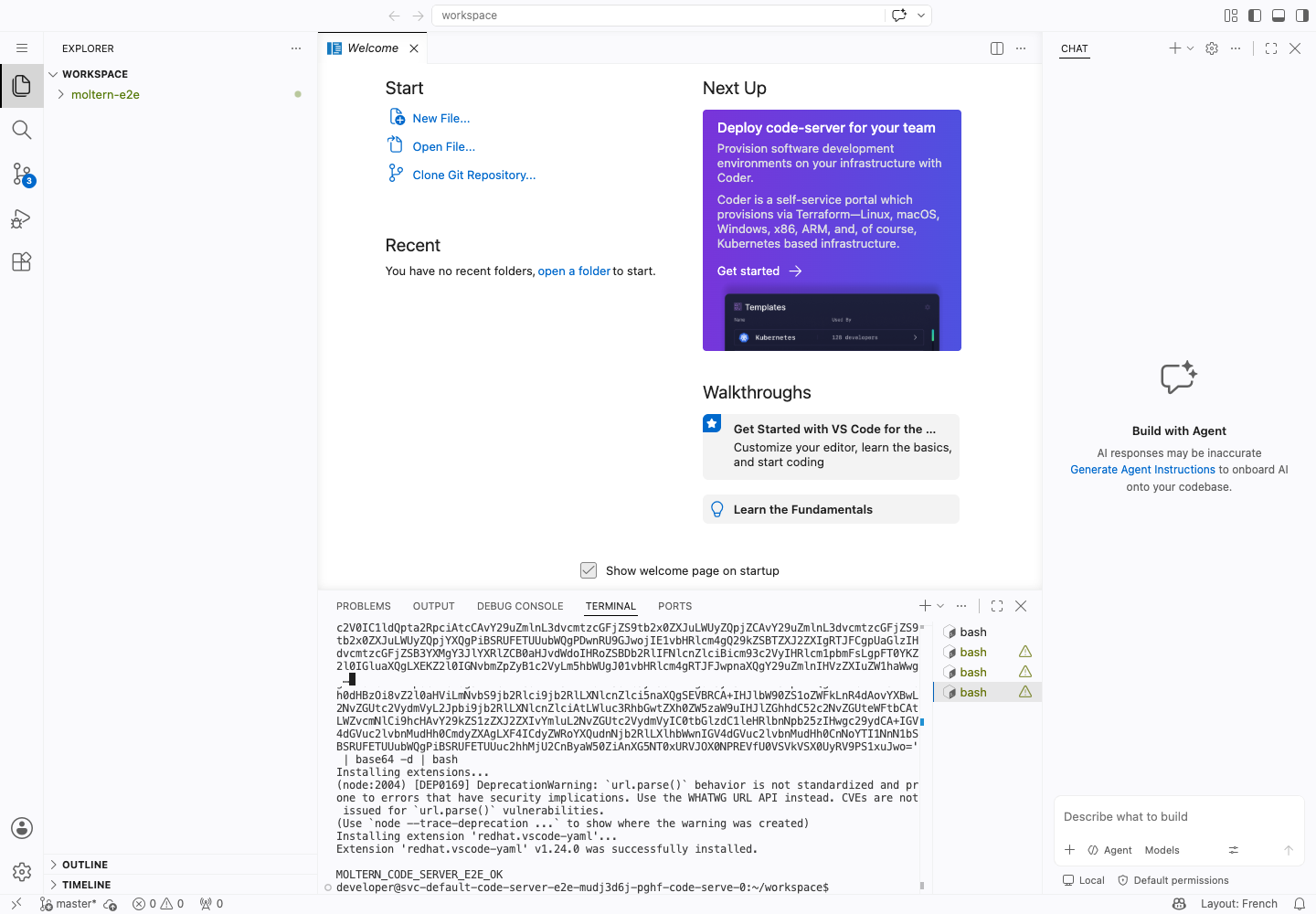
The validated deployment created a Git repository, committed a README and queried a public GitHub remote from the browser terminal. Public HTTP and HTTPS access supports Git remotes, extensions and language tooling. Private workspace and platform networks are not made generally reachable by that public egress.
Open And Edit Files
Open a project folder from File → Open Folder, then select files in the Explorer. The project, Git metadata and editor configuration remain in the service workspace.
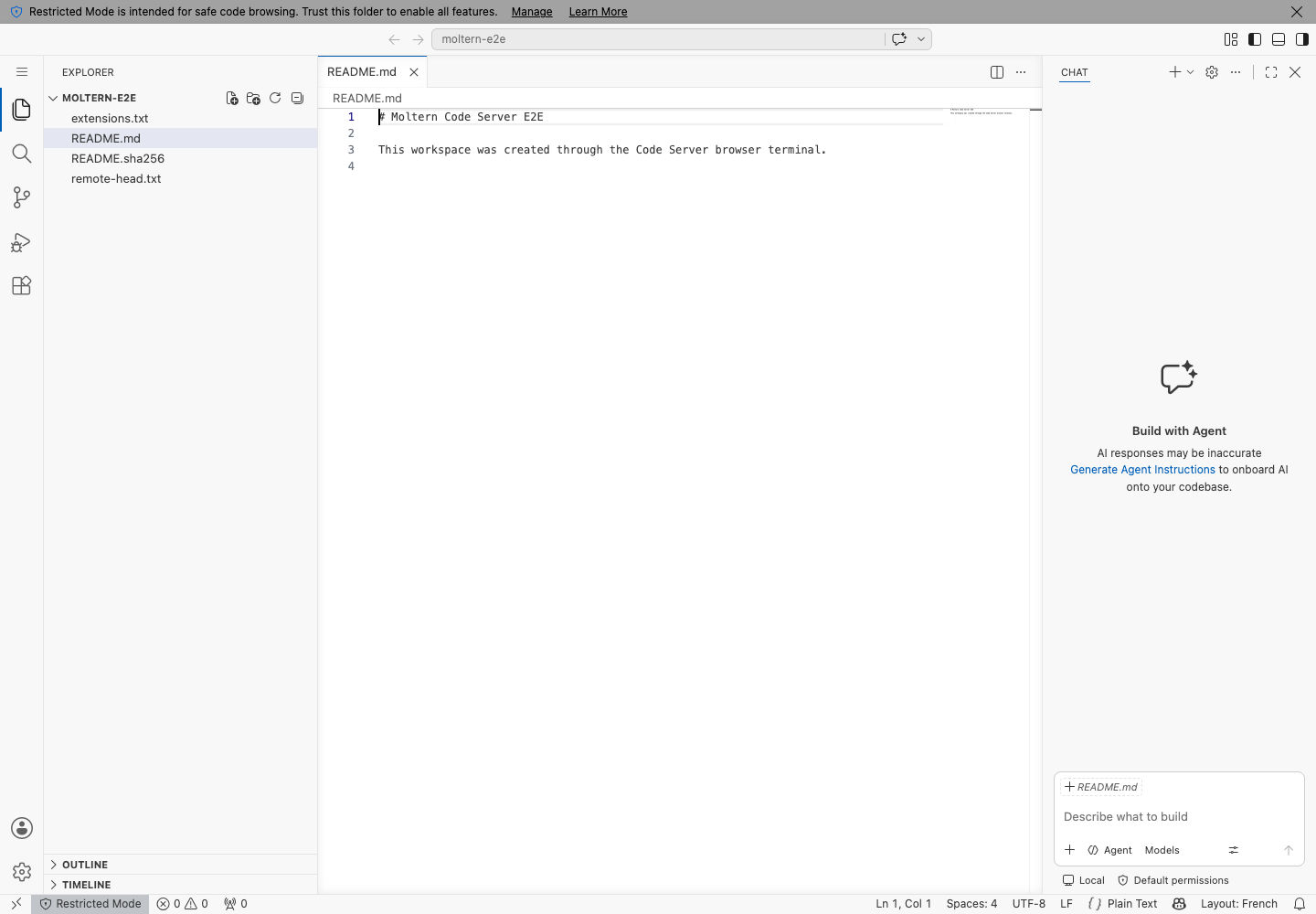
The E2E test reopened the committed README after the runtime was replaced and verified its SHA-256 checksum.
Install Extensions
Use the Extensions view to search the Open VSX registry and install an extension. Review the publisher, permissions and source before installation.
For terminal-based administration, the Code Server CLI is available at:
/app/code-server/bin/code-server --list-extensions
The production test installed redhat.vscode-yaml, verified it in the installed
extension list, restarted the service and confirmed that it remained installed.
Extensions can execute workspace code and access files available to the IDE. Install only extensions you trust.
Runtime Tools And Dependencies
The Code Server image includes the browser editor, Bash, Git and common network utilities. It is not a prebuilt Node.js, Python, Go or PHP development image.
Use a purpose-built developer service when your project requires a maintained language toolchain, system packages or a framework runtime. User-space tools can also be installed in the persistent workspace when their vendor supports that installation model.
Code Server has no managed database dependency by default. Connect an approved service or application through Moltern's access controls instead of placing credentials directly in source files.
Storage And Persistence
Moltern stores the following in Code Server's isolated workspace path:
- files under
/config/workspace; - Git repositories and local Git configuration;
- editor settings;
- installed extensions and extension state.
Code Server does not request a separate cloud disk. It uses the workspace's shared storage allocation while mounting only its assigned service path.
The validated Stop/Start sequence replaced the runtime pod and preserved the repository commit, README checksum, Git remote result, extension and settings. Stopping a service is not a backup. Keep an independent backup and test the restore process before using the workspace for critical source code.
Capacity And Metering
The default reservation is:
| Resource | Default |
|---|---|
| Instances | 1 |
| CPU | 200 mCPU |
| Memory | 512 MiB |
| Dedicated volumes | 0 |
Moltern meters the configured CPU, memory and instance count. Files, Git data, settings and extensions are measured as workspace storage usage.
The production validation recorded 200 mCPU, 512 MiB, one replica and
8,077,311 bytes of shared workspace storage. The collector completed with no
service-list or storage-scan errors, and deletion returned all Code Server
allocation values to zero.
Review Billing before importing a large monorepo or installing large toolchains. Repository history, build output and extension caches can increase storage even when runtime capacity stays unchanged.
Operate Code Server In Moltern
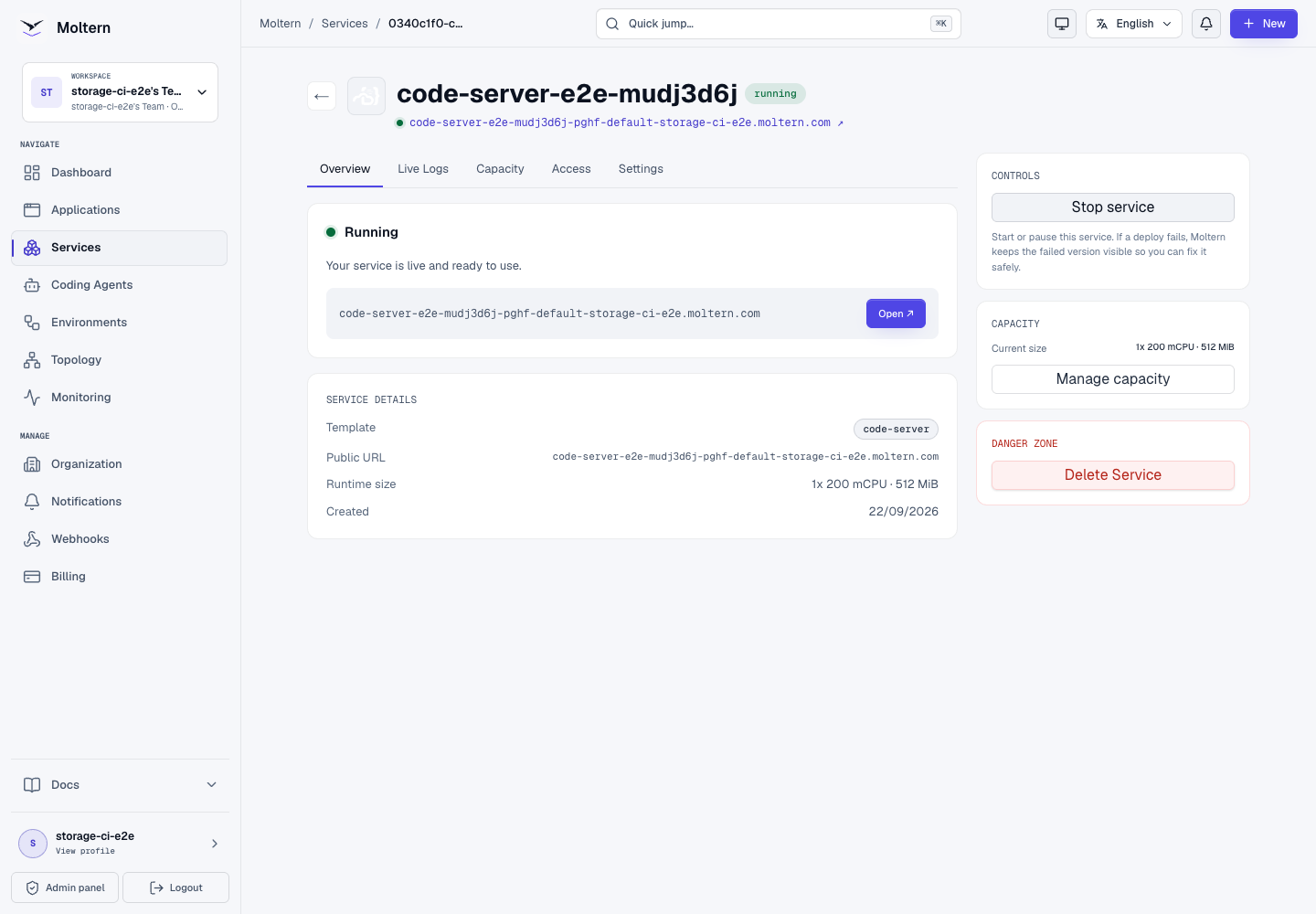
Use the service page for:
- Overview to open the IDE and inspect health;
- Live Logs to investigate startup and WebSocket failures;
- Capacity to change the fixed CPU and memory reservation;
- Access to review approved workload connections;
- Settings to reveal protected connection details and manage variables;
- Stop service and Start service to pause and restore the runtime.
Start keeps the service in Deploying until the replacement runtime is actually ready.
Delete Code Server
- Open the Code Server service in Moltern.
- Select Delete Service.
- Review the runtime, route and stored-data impact.
- Choose whether to retain or delete stored data.
- Complete the protected account confirmation.
Delete stored data removes the repository, extensions and editor settings from this service path. The workspace's shared storage remains available to other workloads.
Troubleshooting
| Symptom | What to check |
|---|---|
| The service remains Deploying | Open Live Logs and review image startup, storage preparation and readiness. Wait for the current operation instead of submitting duplicate deploys. |
| The sign-in page rejects the password | Reveal the current Access password in Connection details. Do not use your Moltern account password. |
| The terminal is unavailable | Confirm that the service uses the current chart, then Stop and Start it once. The current runtime provides a named non-root user and Bash profile. |
| Git reports dubious ownership | Stop and Start an older deployment so the current workspace identity is applied. Do not disable Git safety globally. |
| Git clone or an extension download fails | Check the URL, provider availability and Live Logs. Public HTTP/HTTPS egress is available, but private network targets require an approved connection. |
| A language command is missing | Code Server is an editor image, not every language SDK. Use a supported developer service or install a vendor-supported user-space toolchain. |
| Changes disappear after restart | Keep project files under /config/workspace. Files written elsewhere in the container can be ephemeral. |
| The browser shows Restricted Mode | Review the repository source. Select Trust Folder & Continue only when you trust its code. |
Frequently Asked Questions
Does Code Server need a database?
No. The default deployment has no managed database dependency.
Can I clone a private repository?
Yes, when you configure an approved Git credential inside the IDE. Prefer a scoped provider token or application credential and never commit it. Moltern's Git application integration for application deployments does not automatically sign the Code Server terminal into your repository provider.
Does the service include every programming language?
No. It includes the editor, Bash and Git. Choose a purpose-built developer service or install a supported user-space toolchain for project runtimes.
Will Stop service delete my files?
No. Stop removes the active runtime and retains the service workspace. Delete with Delete stored data is the destructive action.
Is the generated URL public?
The HTTPS route is reachable, but Code Server requires its protected access password. Keep that password private and rotate access after suspected disclosure.
Validated Scope
The current Moltern E2E covers deployment, rejected invalid login, protected valid login, workspace trust, integrated Bash, file creation, Git initialization and commit, public Git remote access, Open VSX extension installation, file rendering, exact checksum verification, runtime replacement, persistent data, metering and protected deletion.
It does not certify private-provider authentication, every extension, every language toolchain, coding-agent attachment, sibling-path denial, concurrent terminal durability, independent backup restoration or elapsed-time billing.