Deploy Windmill
Windmill turns scripts into workflows, scheduled jobs, webhooks and internal applications. Moltern deploys the Windmill server with managed PostgreSQL, a live HTTPS URL and durable workspace storage.
What Moltern Deploys
| Component | Purpose | Access |
|---|---|---|
| Windmill | Script editor, workflow engine, jobs and internal apps | Public HTTPS URL with sign-in |
| Managed PostgreSQL | Users, workspaces, scripts, flows and job metadata | Private to the environment |
| Workspace files | Runtime files retained across replacement | Assigned service path |
The catalog currently uses one standalone Windmill runtime. Production worker separation and multi-replica high availability require a separately validated profile.
Before You Start
You need a workspace, an environment and permission to create services. Decide which APIs and private data sources scripts should access. Use least-privilege service accounts because Windmill code runs with the credentials configured for its workspace.
Deploy Windmill
- Open Services and select Windmill.
- Choose the target environment and enter a unique name.
- Review the managed PostgreSQL dependency.
- Reuse a compatible database when appropriate, or create an owned one.
- Review capacity and storage impact, then confirm the deployment.
- Wait for Running before opening the generated URL.
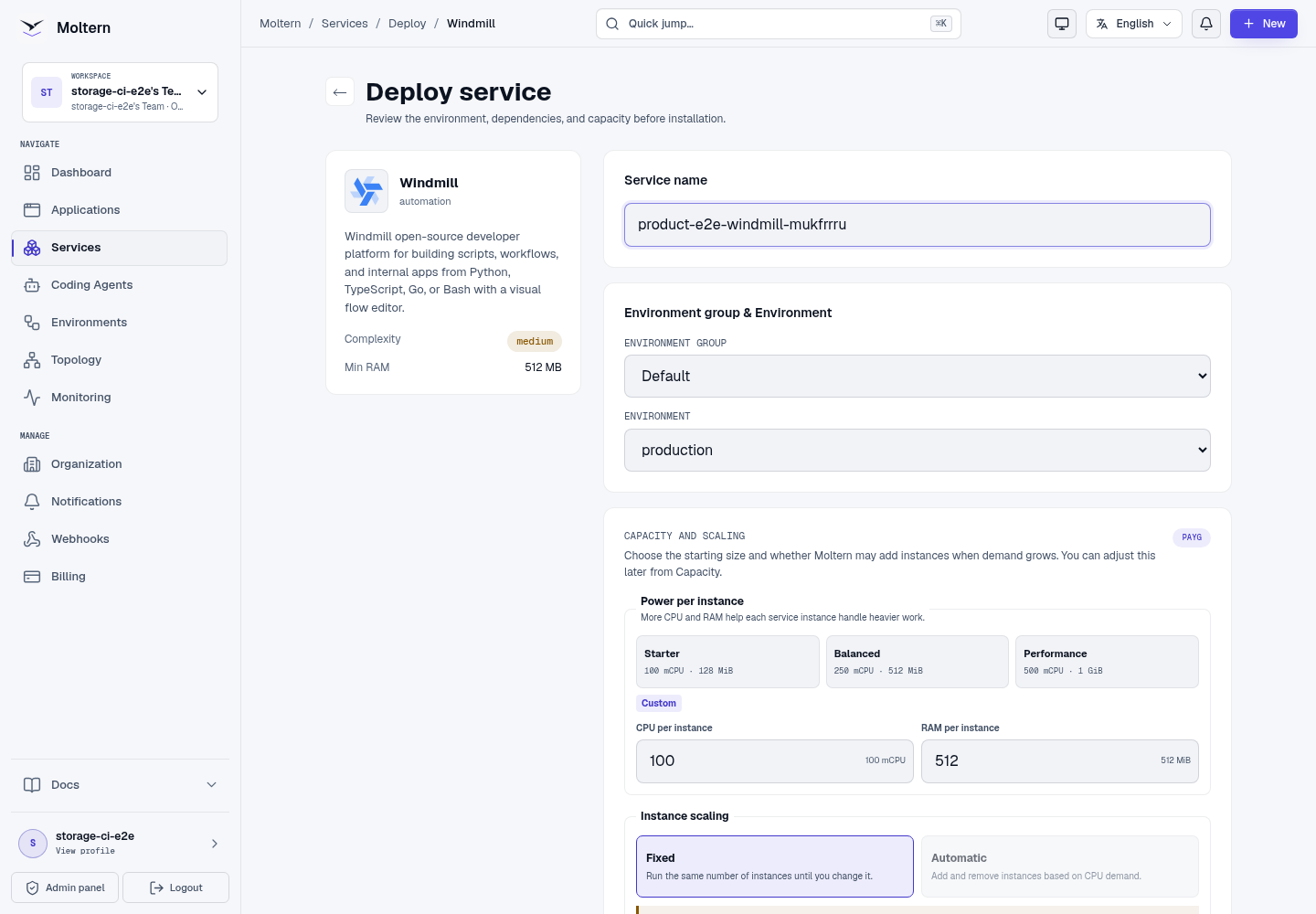
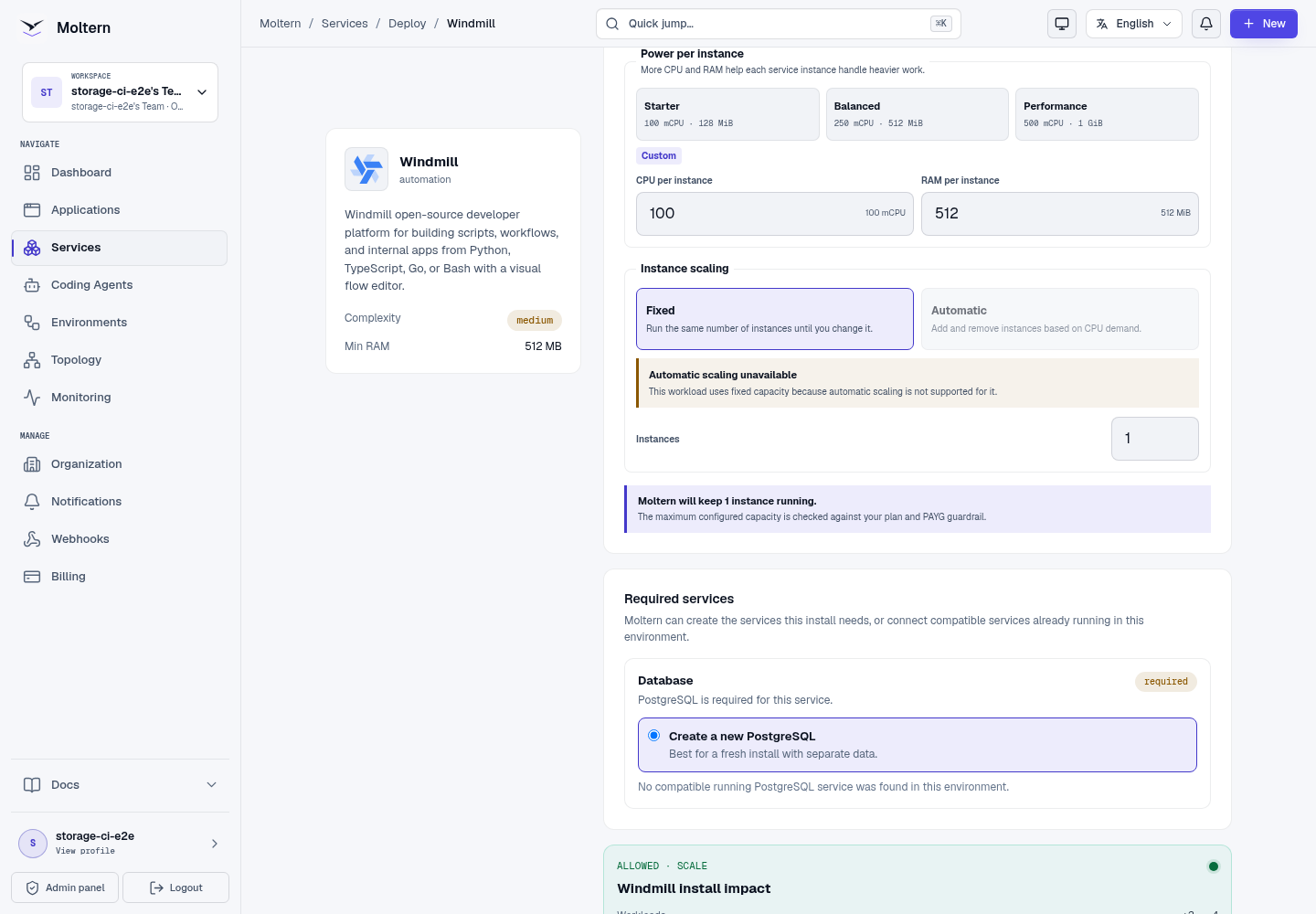
The first start applies database migrations and prepares the default workspace. Follow Live Logs instead of starting a duplicate deployment.
Secure The First Sign-In
Open the generated URL and complete Windmill's first-time administrator setup. The upstream image may show its documented bootstrap account on a fresh database. Treat that value as temporary and replace it before adding resources, users or production scripts.
If the product does not let you complete the security setup, stop the service and contact support. Do not leave a deployment reachable with a documented bootstrap password.
Create And Run A Script
Use a harmless script to verify the complete execution path:
- Open the default workspace and select Scripts.
- Create a Bash or Python script named for the validation.
- Return a unique non-secret marker such as
WINDMILL-MOLTERN-READY. - Save and run the script.
- Confirm the completed job contains the marker.
- Reopen the script from the workspace list.
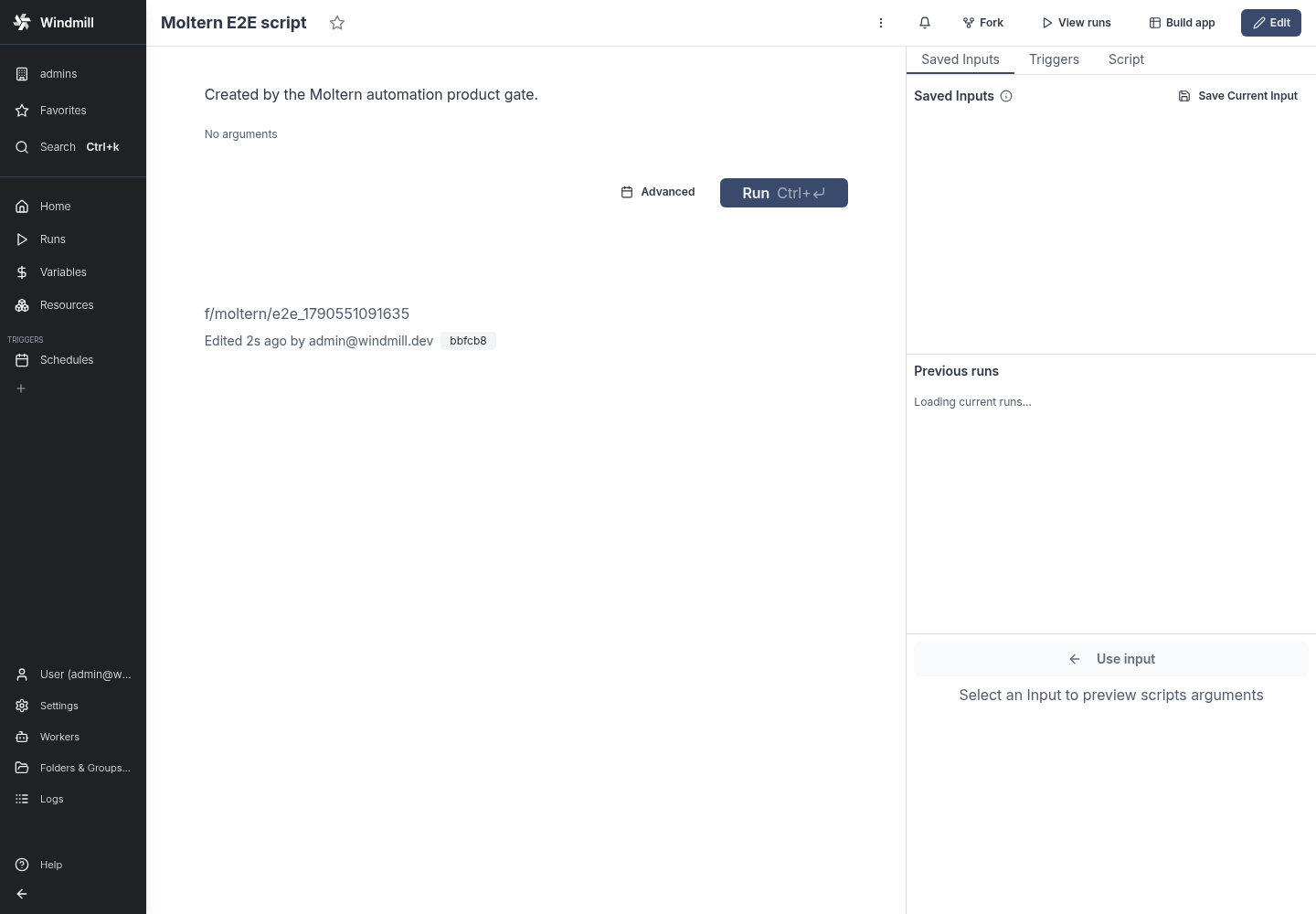
A rendered editor alone is not sufficient. The script must execute and return the expected output before external credentials or schedules are enabled.
Variables, Resources And Private Services
Use Windmill resources and variables for configuration consumed by scripts. Mark sensitive values as secrets and keep them out of source, logs and job arguments.
When Windmill needs a Moltern database or service, create an explicit private connection in Access. Attach only the destination required by the script. Removing the attachment should remove generated runtime context and network permission; remove the corresponding Windmill resource when it is retired.
Persistence And Restart
Scripts, flows, workspaces and execution metadata live in managed PostgreSQL. Stopping and starting Windmill replaces the runtime while retaining that database and the assigned workspace path.
After a restart, sign in, reopen the controlled script and run it again. This verifies both stored script state and the execution path. It does not replace a database backup and restore drill.
Capacity And Metering
Moltern meters Windmill and PostgreSQL independently. Billing shows CPU, memory, instances and measured stored bytes for each workload. Script CPU and memory pressure depend on language, package installation, concurrency and job duration.
The current Windmill runtime starts at 100 mCPU and 512 MiB. Measure queue delay and failures before increasing capacity. A single-instance update or restart can cause a short interruption.
Delete Windmill
- Pause schedules and export scripts, flows and variables that must be kept.
- Remove private attachments no longer needed by other workloads.
- Open Windmill and select Delete Service.
- Choose Delete stored data only when workspace and job history may be destroyed.
- Complete protected account confirmation.
An owned PostgreSQL dependency is removed with the parent. A reused database is not deleted.
Troubleshooting
| Symptom | What to check |
|---|---|
| First deployment remains in progress | Open Live Logs and wait for database migrations and server startup. |
| Only the bootstrap account works | Complete the product's administrator security setup before adding any data. Stop the service if setup cannot be completed. |
| A script is saved but will not run | Inspect the job output, language selection, dependency installation and available memory. |
| A private service is unreachable | Confirm the explicit attachment, environment and destination status. Do not open the entire private network. |
| A script disappears after restart | Verify the same PostgreSQL dependency is Running and contact support before deleting stored data. |
| Jobs stay queued | Review runtime health, worker availability and capacity before increasing concurrency. |
Validation Boundaries
The production gate covers authenticated sign-in, script creation through the Windmill API, real Bash execution, runtime replacement, script execution after restart, point-in-time metering and protected cleanup. It does not certify customer credentials, sustained worker load, distributed workers, backup restore or arbitrary package installation.