Flutter Starter
When To Use It
Use Flutter Starter to prototype a cross-platform interface, test it as a web application, and build an Android package from the same source tree. It is a development workspace, not an application-store release pipeline.
The web preview is publicly reachable. Add application authentication before using sensitive data, and do not put signing keys or production credentials in the starter workspace.
Deploy In Moltern
- Open Services and filter by Development Frameworks.
- Select Flutter Starter and choose its name and environment.
- Review compute and storage in Preview deploy. The verified journey used 500 mCPU / 2 GiB with one instance; this is a tested build size, not a production performance recommendation.
- Confirm the deployment and follow Live Logs while Flutter creates the project and restores packages.
- Open the generated URL when the service reaches Running.
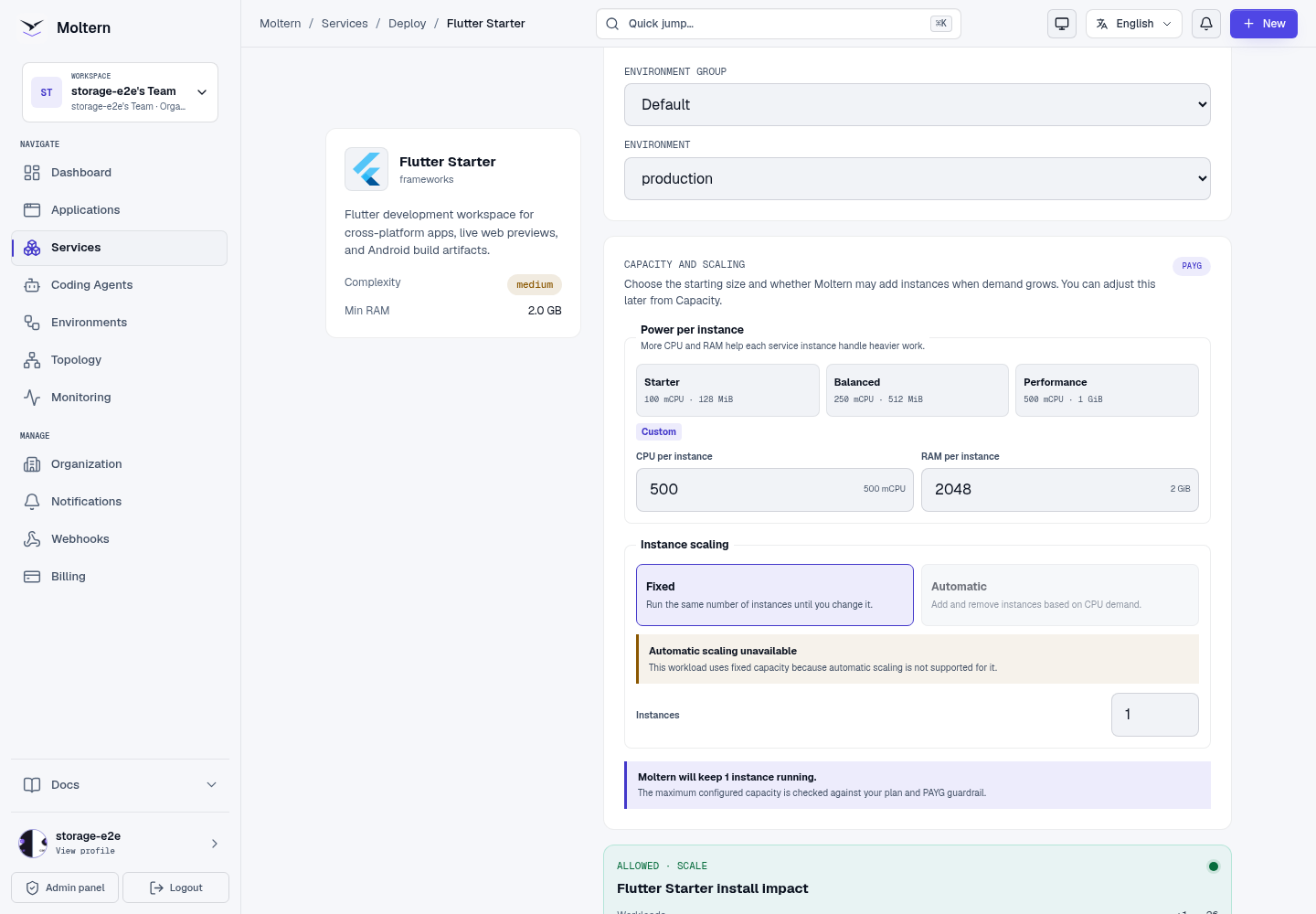
The first deployment downloads and prepares more tooling than a web-only framework, so it normally takes longer. A reachable placeholder or an empty page is not a successful Flutter setup.
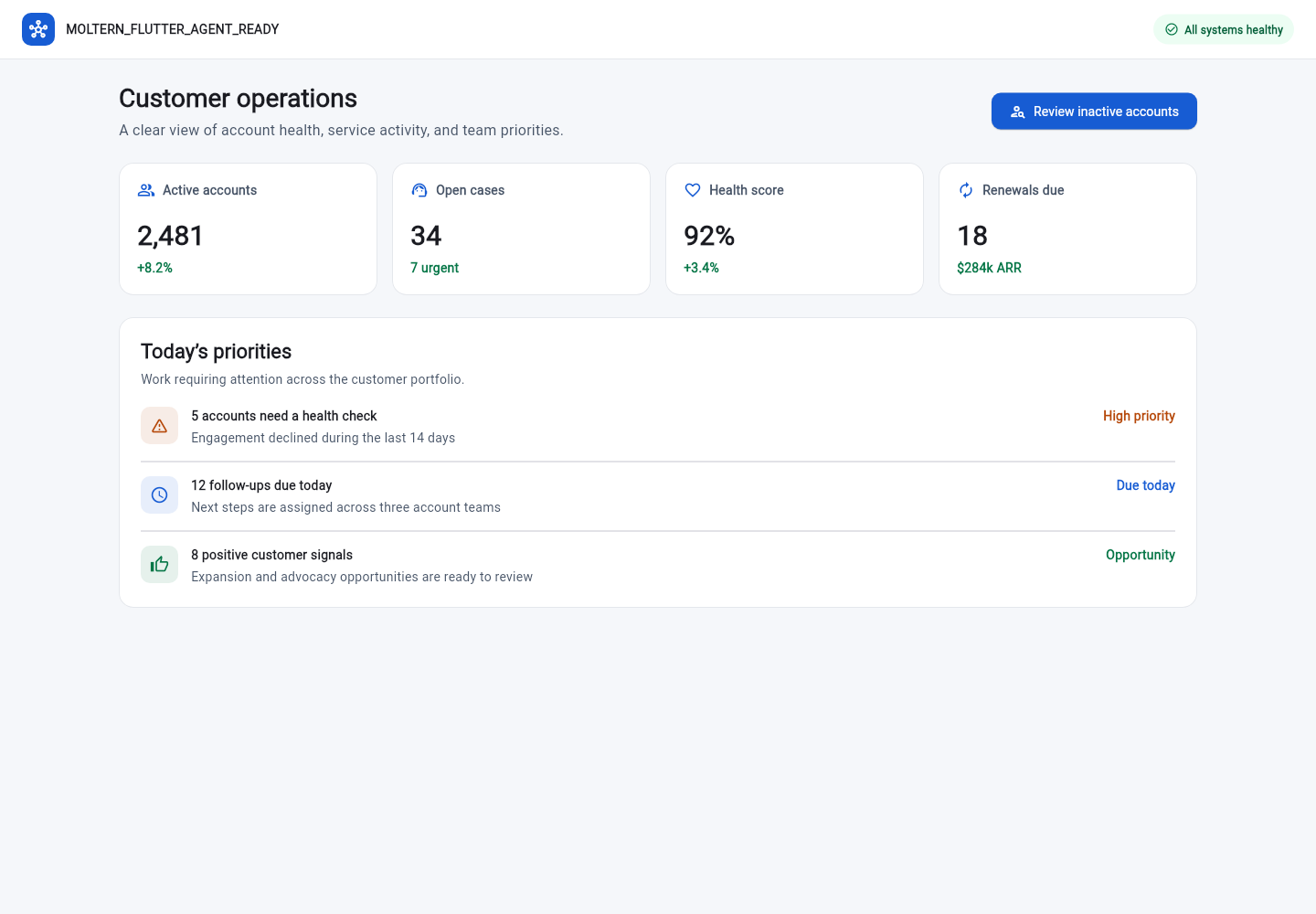
Use The Web Preview
The service URL opens Flutter's web target. Source is stored under:
/workspace/app
Edit lib/main.dart, then restart the development process when the change is
not picked up automatically.
Test And Build Android
Open Terminal, then run:
cd /workspace/app
git --version
flutter doctor
flutter test
flutter build web
flutter build apk --debug
mkdir -p /workspace/artifacts/flutter
cp build/app/outputs/flutter-apk/app-debug.apk /workspace/artifacts/flutter/app-debug.apk
Flutter first creates the debug Android package at:
build/app/outputs/flutter-apk/app-debug.apk
The build directory is runtime-local and can be replaced when the service
restarts. Copy artifacts that must survive a runtime replacement into
/workspace/artifacts; the example keeps the APK at
/workspace/artifacts/flutter/app-debug.apk. Use this debug build for
validation only, then create signed release artifacts from the Git repository
in a controlled release process. Keep signing and store credentials outside
this development workspace.
Work With Git And Coding Agents
The runtime includes Git and SSH tooling but no repository credential. Connect only an approved private repository with a repository-scoped credential.
To involve a Moltern coding agent:
- Add this Flutter service in the agent's Resources settings.
- Select the minimum access scope required for the task.
- Use a private feature branch for the source handoff.
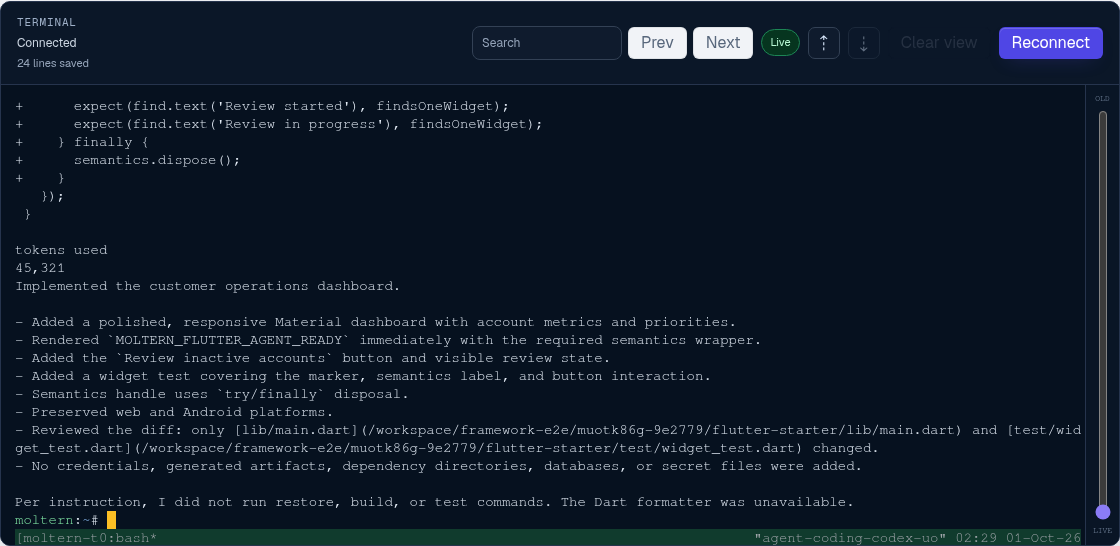
- Let the agent commit its change, then pull and review that commit here.
- Run widget tests, the web build, and the Android build before accepting it.
- Remove temporary Git credentials and unnecessary agent access afterward.

Do not commit .env files, deploy keys, signing material, local credentials,
or generated private configuration.
Storage And Cleanup
Project source lives in the service workspace. Package caches, dependency
metadata, and web or Android build output use runtime-local storage so they do
not inflate shared workspace usage or slow stored-data cleanup. Source and files
explicitly copied under /workspace/artifacts survive a Stop/Start cycle and
count toward workspace storage; generated output left under build/ does not.
Keep the source in Git because persistent workspace files are not a versioned
backup.
To remove the workspace and release its storage allocation, choose Delete Service, keep Delete stored data selected, and complete the protected confirmation flow.
Troubleshooting
- Deployment takes several minutes: review Live Logs; initial Flutter and package setup is heavier than a web-only starter.
- Package restore fails: confirm that the package source is reachable and retry the deployment.
- Web preview returns 503: wait for Flutter's web server to become ready, then inspect logs if it persists.
- Android build fails: run
flutter doctorand address the reported SDK or project error before retrying. - Git authentication fails: verify the repository-scoped credential and remote without printing the private key or token.
Supported Workflow
Use the workspace terminal or an attached coding agent to edit the Flutter project, run widget tests, preview the web application, build a debug Android APK, and synchronize changes with a private Git repository. Source files and builds kept in the workspace remain available after stopping and starting it.
Before publishing a mobile application, configure release signing, test on the devices you support, and follow the target application store's release process.