Deploy Matomo
Matomo is a full web analytics platform for teams that want to control their analytics data. Moltern deploys Matomo with a managed MariaDB dependency, configuration-only workspace persistence and a live HTTPS URL.
What Moltern deploys
| Component | Purpose | Access |
|---|---|---|
| Matomo 5.14 | Analytics dashboard, tracker and administration | Public HTTPS URL with Matomo sign-in |
| Managed MariaDB | Sites, users, reports and analytics records | Private to the selected environment |
| Workspace files | Matomo configuration and installed plugins | Assigned service path |
The application code is recreated from the pinned image at every start. Moltern persists only mutable configuration, while MariaDB owns the analytics data.
Deploy Matomo
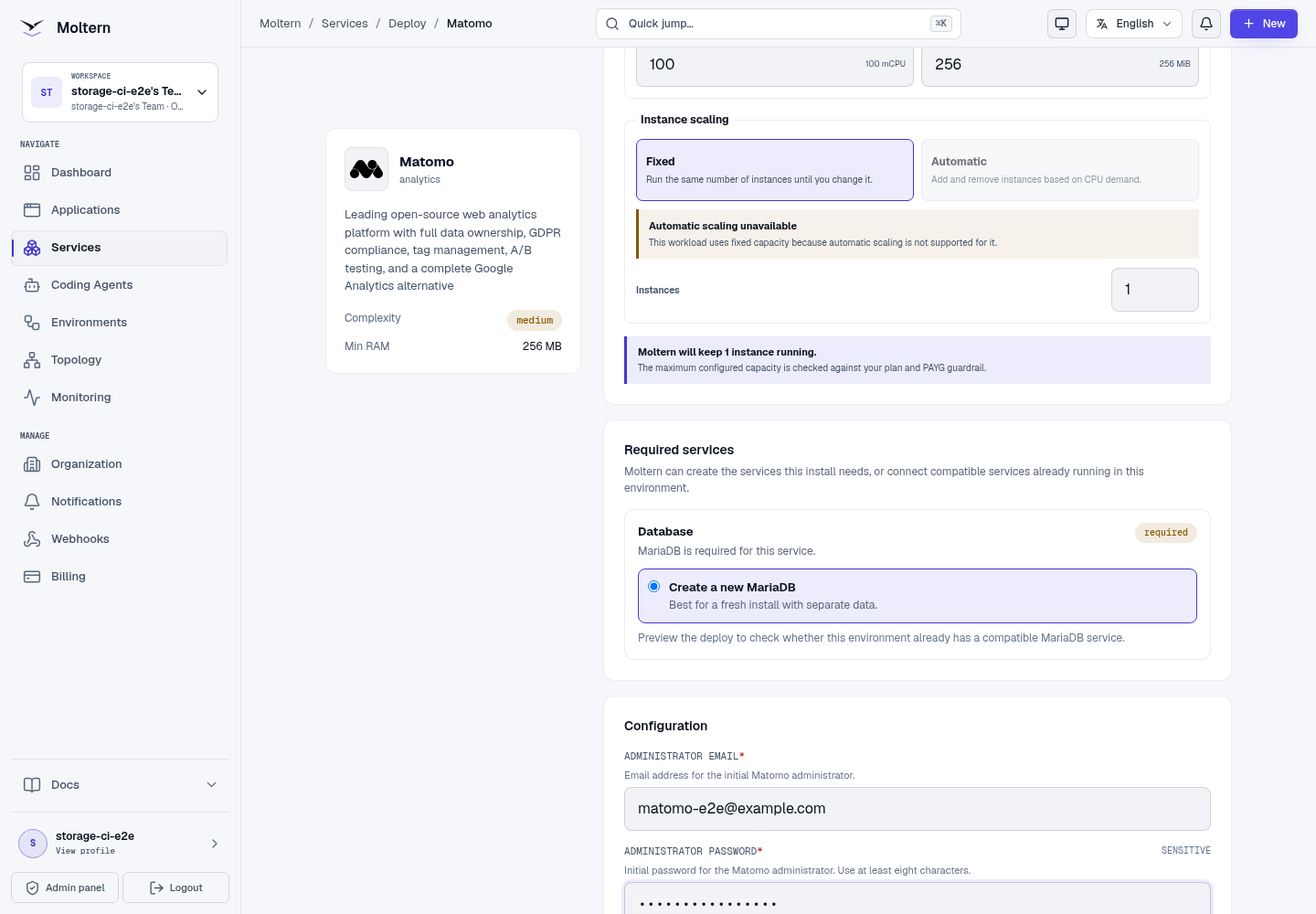
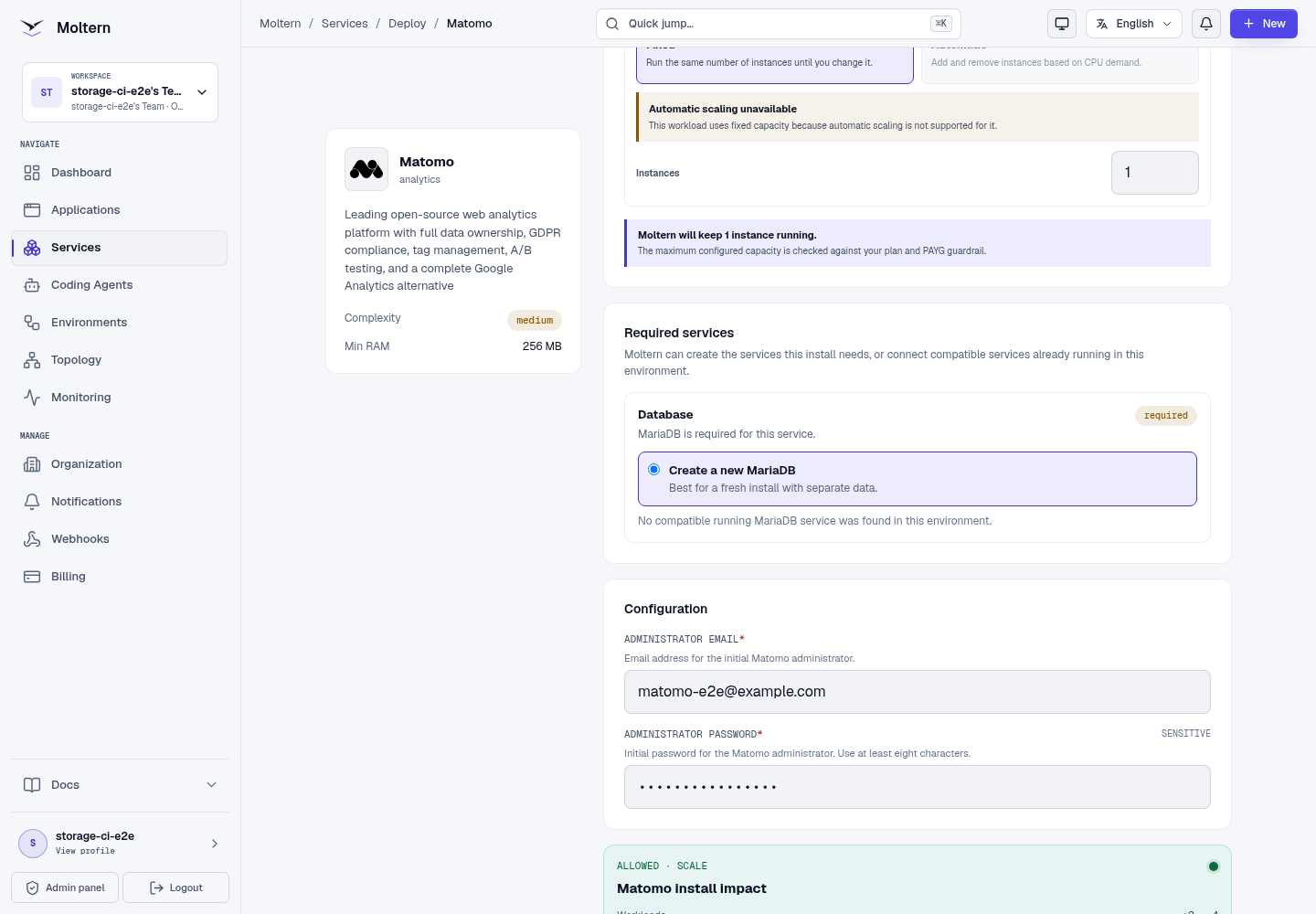
- Open Services and choose Matomo.
- Select the project and environment.
- Enter the administrator email address.
- Set a strong administrator password.
- Review the Matomo and MariaDB install impact.
- Choose Deploy service and wait until both workloads are ready.
Complete the installer
Open the generated URL. Moltern supplies the database host, port, name, user and password to the installer automatically.
- Continue through the system check.
- On Database Setup, verify that every field is already populated. Do not
replace the private host with
localhost. - Continue while Matomo creates its database tables.
- Use
adminas the administrator login and enter the password selected in Moltern. - Add the first website name and public website URL.
- Select the correct reporting timezone and finish the installation.
The managed database is intentionally private and has no public database URL.
Send and verify a page view
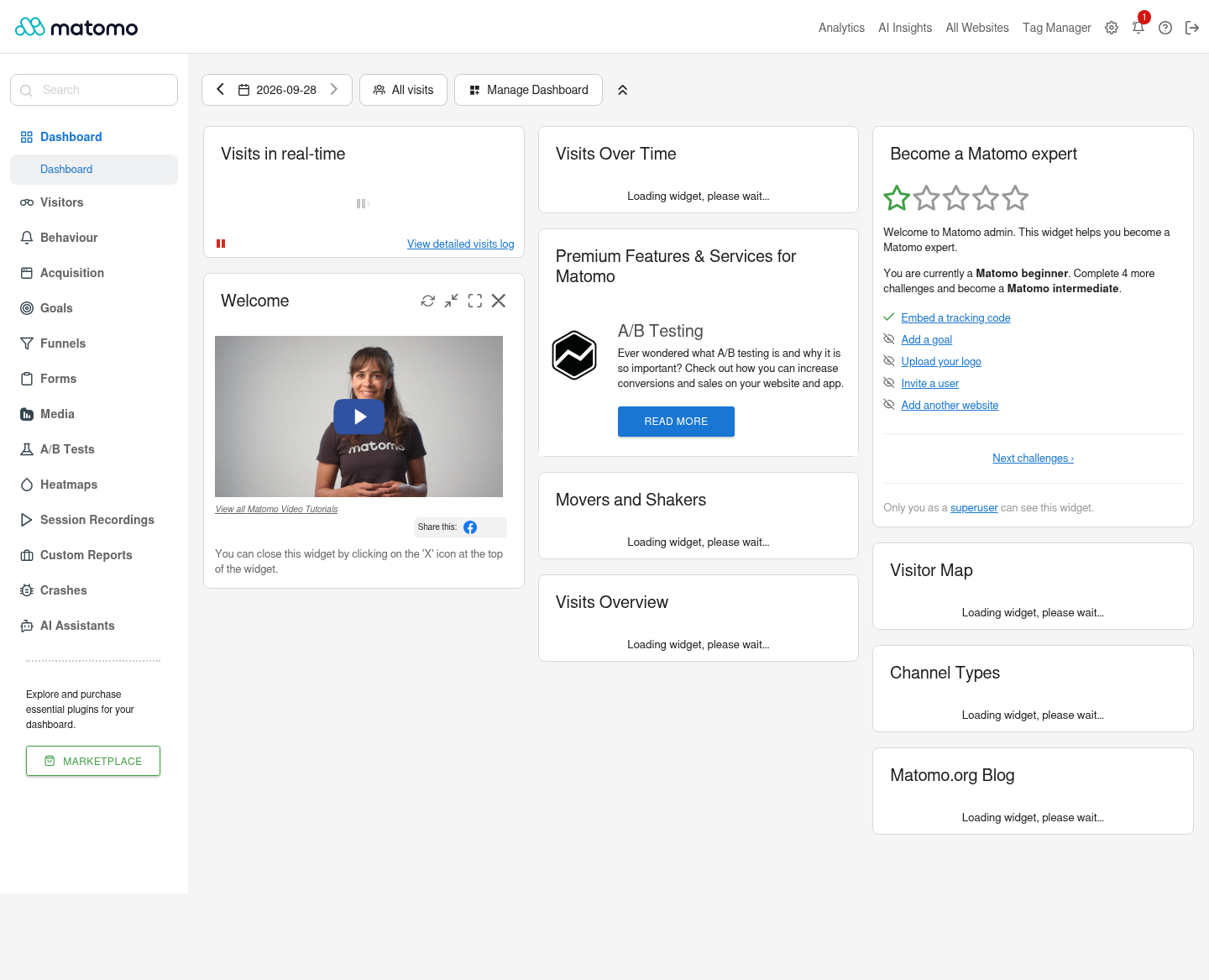
Copy the JavaScript snippet from Administration → Measurables → Tracking Code into the website you want to measure. For server-side integrations, use the generated Matomo URL and the site ID shown in the dashboard.
After sending a page view, open Visitors → Visits Log and confirm that the request appears for the expected site and path.
Credentials and service connections
The administrator email and password selected during deployment are stored as protected service credentials. Reveal them from Service → Settings → Connection details after completing the account security check. Database credentials are managed for the dependency and should not be copied into a public client.
Restart and persistence
Stopping and starting Matomo replaces its web runtime. The site configuration, administrator and collected events remain available through MariaDB and the assigned workspace path. A restart may take longer after a cold image pull; wait for Running before opening the route.
Storage and metering
Moltern accounts for Matomo and MariaDB as separate workloads. Billing shows their CPU, memory, replicas and measured workspace bytes. Both use isolated paths in the team's shared allocation rather than dedicated data disks.
Delete Matomo
Use Delete Service and choose the option to remove stored data. The protected workflow removes Matomo, its auto-provisioned MariaDB dependency, their assigned paths, credentials, route and active usage records.
Troubleshooting
| Symptom | What to check |
|---|---|
| Database setup fields are empty | Wait for the managed dependency to become ready, then retry the deployment instead of entering a public host. |
No such file or directory for the database | The host is blank or localhost; use the prefilled managed database values. |
| Installer returns after restart | Confirm the original MariaDB dependency and workspace data still exist and were not removed during deletion. |
| Tracking requests succeed but reports are empty | Confirm the site ID, website URL, reporting date and timezone. |
| Matomo remains Deploying | Review Live Logs for runtime preparation or database migration errors. |