Deploy Metabase
Metabase is a business intelligence workspace for querying data, building dashboards and sharing reports. Moltern deploys its web runtime with a managed PostgreSQL application database and a live HTTPS URL.
What Moltern deploys
| Component | Purpose | Access |
|---|---|---|
| Metabase 0.58 | Query builder, SQL editor and dashboards | Public HTTPS URL with Metabase sign-in |
| Managed PostgreSQL | Metabase users, settings, questions and dashboards | Private to the selected environment |
The Metabase runtime is stateless. Saved product state belongs to PostgreSQL, which uses an isolated path in the workspace filespace.
Deploy Metabase
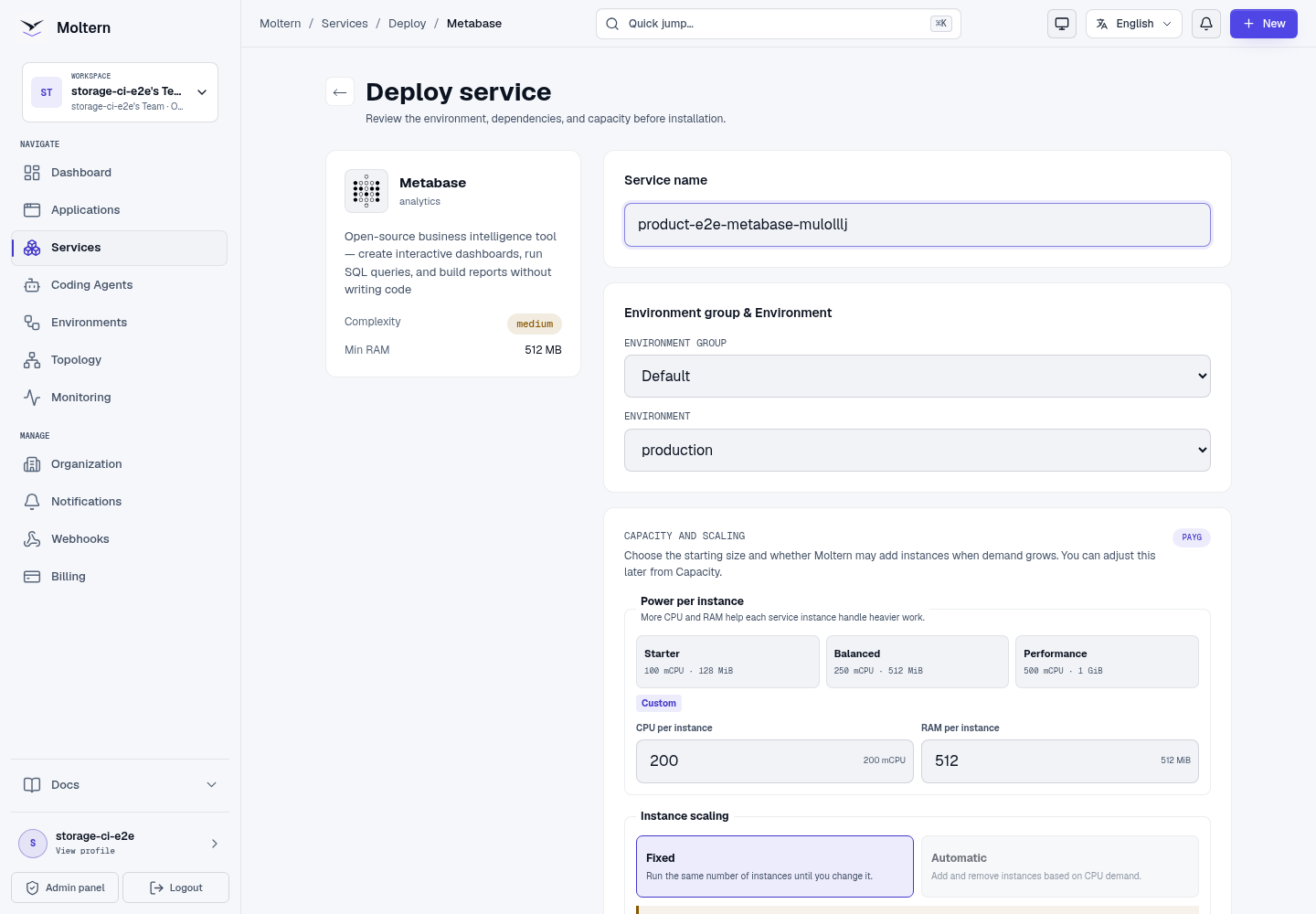
- Open Services and choose Metabase.
- Select the project and environment.
- Enter a service name.
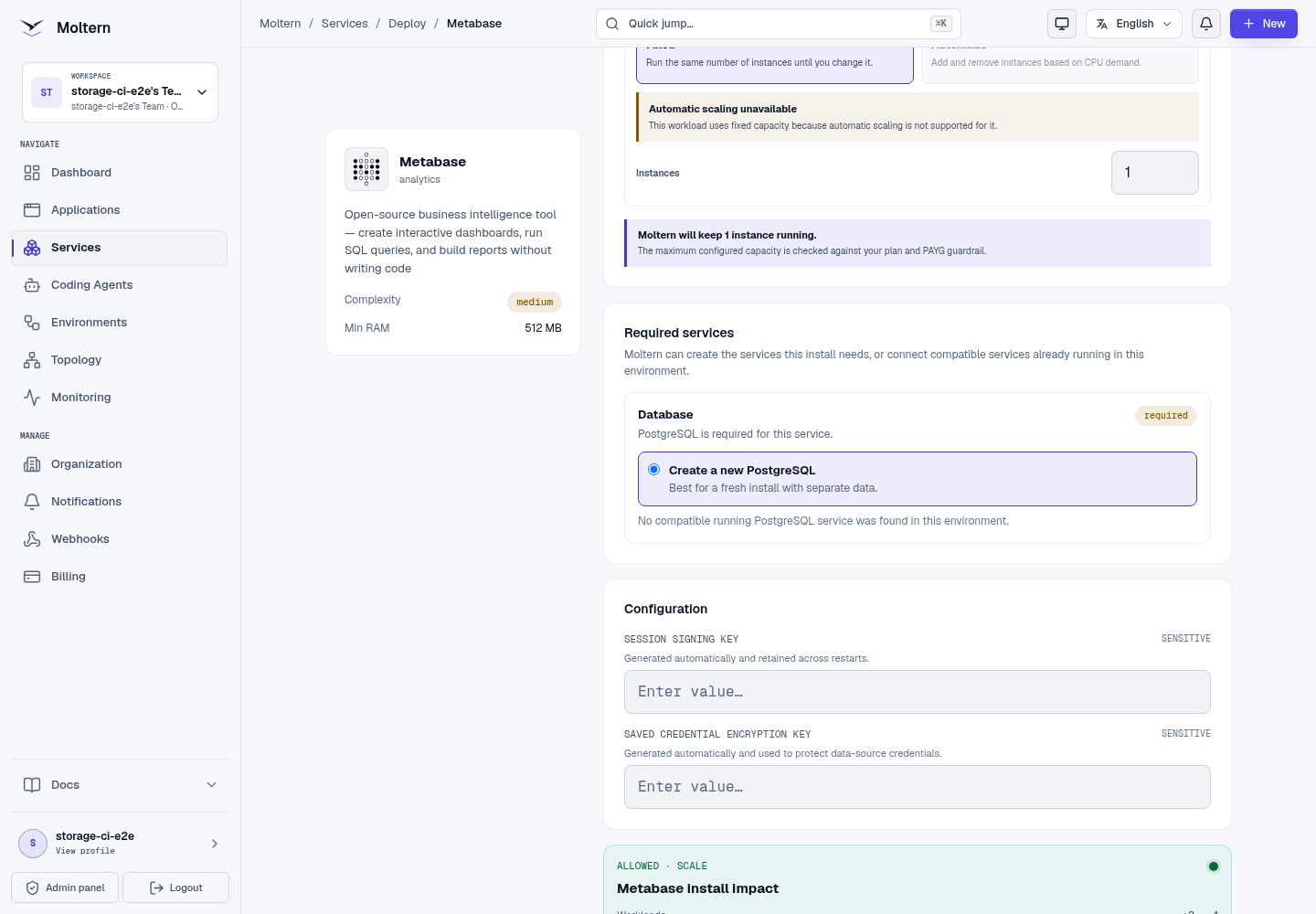
- Review the Metabase and PostgreSQL install impact.
- Choose Deploy service and wait for Running.
Create the first administrator
Open the generated URL and follow Metabase's setup assistant:
- Choose the interface language.
- Enter the first administrator's name, work email and password.
- Give the Metabase site a recognizable name.
- Skip the external data source step if you only want to verify the platform.
- Disable anonymous usage reporting when that matches your company policy.
This account controls Metabase itself. It is separate from credentials for any database you later connect as an analytics source.
Create a dashboard
From the Metabase home page:
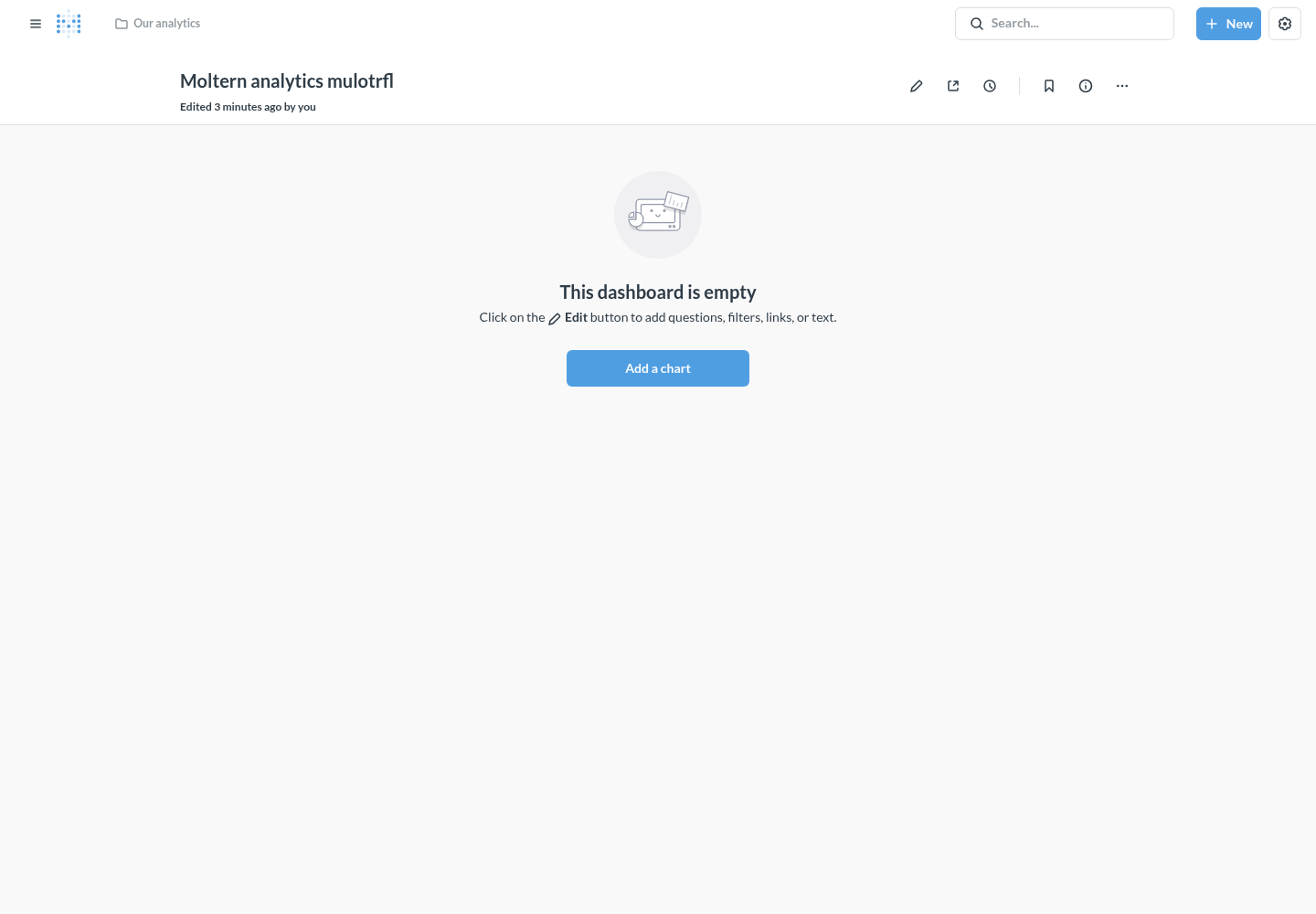
- Choose New → Dashboard.
- Give the dashboard a clear team or workflow name.
- Save it in an appropriate collection.
- Add questions after connecting a data source.
Connect a private database
Deploy the database in the same environment, then use Private service connections on the Metabase service page to grant access. The connection should be explicit: do not rely on broad access to every workload in the workspace.
In Metabase, open Admin settings → Databases → Add a database and use the scoped connection values shown by Moltern. Keep credentials in protected settings and avoid placing them in dashboard descriptions or SQL text.
Restart and persistence
Use Stop service and Start service to replace the Metabase runtime. The administrator, site settings and saved dashboards remain in managed PostgreSQL. After restart, sign in with the same account and reopen a saved dashboard.
Storage and metering
Moltern accounts for Metabase and PostgreSQL independently. Billing reports the requested CPU and memory, active replicas and measured workspace bytes for each workload. Metabase itself has no dedicated persistent path; its managed database owns the durable product state.
Delete Metabase
Choose Delete Service, select removal of stored data and confirm the protected action. Moltern removes Metabase, its auto-provisioned PostgreSQL dependency, database files, route, credentials and active usage allocation.
Troubleshooting
| Symptom | What to check |
|---|---|
| Setup never becomes available | Check the managed PostgreSQL status and Metabase Live Logs for migration progress. |
| A saved dashboard disappears | Confirm the service is attached to its original managed database and was not cloned into another environment. |
| A data source cannot connect | Grant an explicit private service connection and verify the source port and credentials. |
| The browser shows a startup page for several minutes | Metabase performs migrations before accepting requests; keep the service running and follow the live logs. |
| PostgreSQL is visible on a public URL | Do not continue; databases should remain private. Remove the route and contact support. |