ClassicPress
ClassicPress is a community-led content management system with a traditional editor and a familiar WordPress-style administration experience. It is suited to business websites, publishing, and teams that prefer the classic editing workflow.
Before You Deploy
You need permission to create services, an administrator email, and an initial administrator password. ClassicPress accounts are separate from your Moltern account.
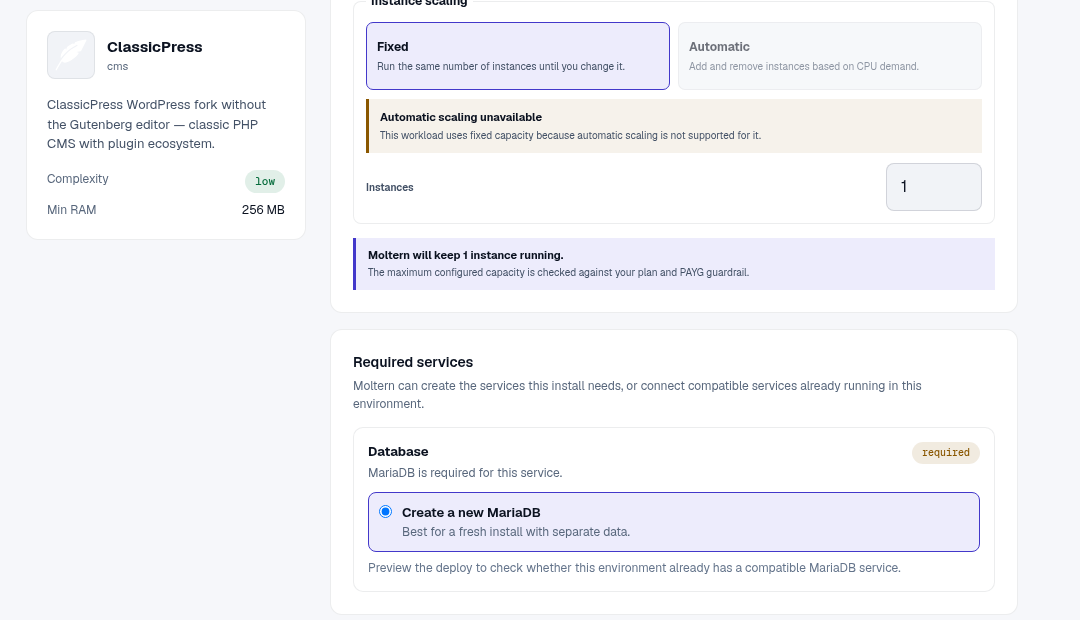
ClassicPress requires MariaDB. Choose a new database for an isolated website, or select a compatible existing dependency when the deploy form offers one. Review that choice before confirming because the selected database becomes part of the site's data boundary.
Deploy ClassicPress
- Open Services, search for ClassicPress, and select Deploy.
- Name the service and choose its environment.
- Enter the initial administrator email and password.
- Review the MariaDB dependency and Capacity and scaling settings.
- Select Preview deploy, review the combined impact, then Confirm deploy.
- Wait for the site and database to report Running.
- Open the generated URL. Moltern completes the initial installation, so the public URL should show a working site rather than the database installer.
Create And Publish Content
- Open
/wp-login.phpon the site URL. - Sign in as
adminwith the password entered during deployment. - Open Pages > Add New.
- Create the page with the classic editor and select Publish.
- Open the public page, reload it, and confirm the content is readable.
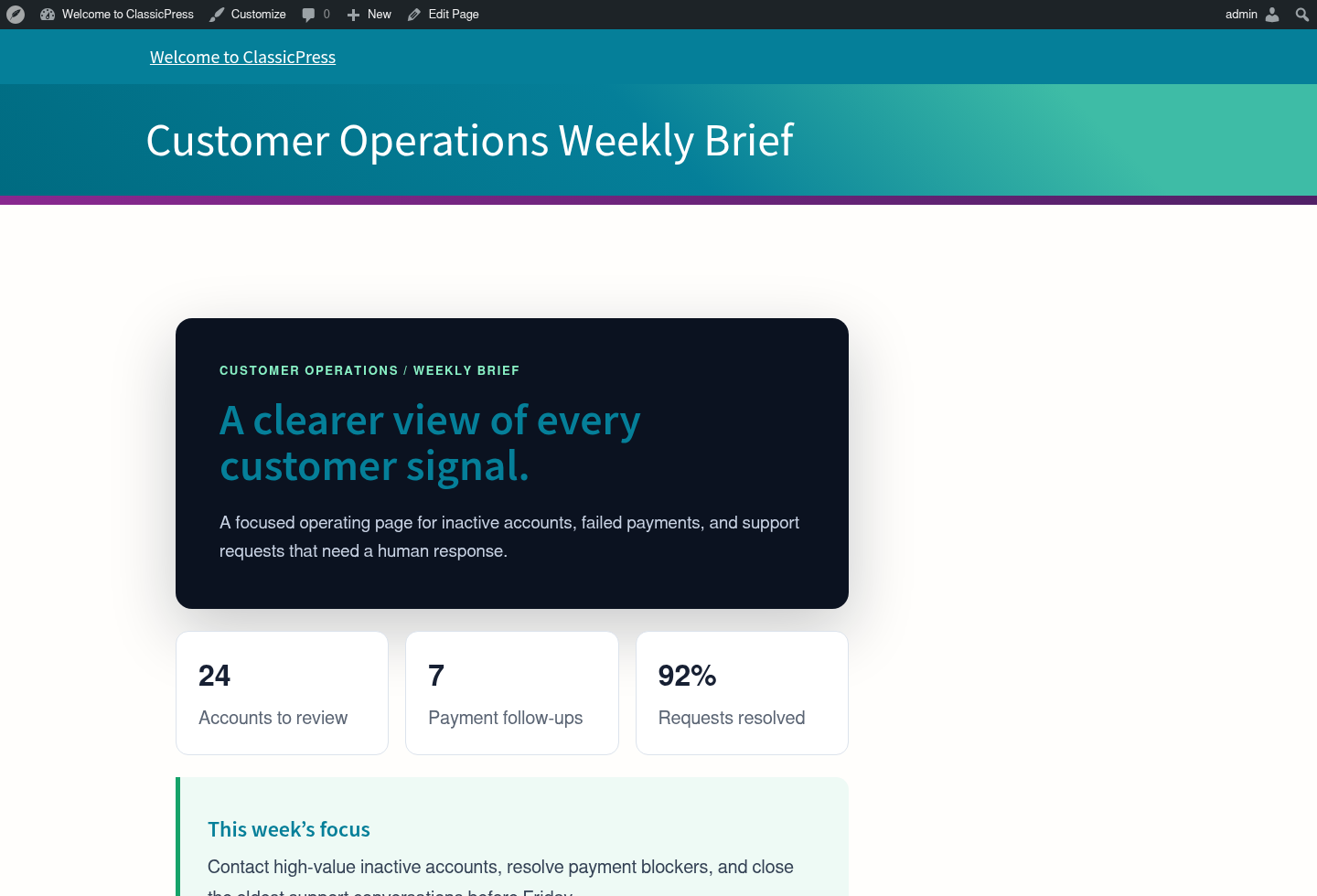
Use Appearance to select a theme and Plugins to extend the site. Treat plugins and themes as application code: verify the source, updates, and required permissions before enabling them.
Credentials And Integrations
The initial ClassicPress login is created from the deploy form. If the password is changed inside ClassicPress, the original deployment value does not automatically become the new application password.
For an external integration, create a dedicated ClassicPress user with the minimum role required. Store any application password or API token in the consumer's protected configuration rather than in source code or agent notes.
Capacity, Persistence, And Cleanup
ClassicPress files and uploads use the service's stored files; posts, settings, and user data are held by MariaDB. Review both workloads when checking storage or changing capacity.
After a stop/start or capacity change, verify the administrator login and one published page. Stopping a service is not a backup. Export important content and database data before deleting the site. Follow the deletion confirmation carefully when deciding whether to remove or retain stored files.
Troubleshooting
| Symptom | What to check |
|---|---|
| Database connection error | Confirm the MariaDB dependency is running and inspect the live logs for both workloads. |
| Administrator login fails | Use username admin and the deployment password, unless it was changed later inside ClassicPress. |
| A page returns 404 | Re-save the permalink settings and check whether a plugin changed routing behavior. |
| Theme or plugin causes an error | Disable the latest extension and inspect logs before increasing capacity. |
| Changes disappear after maintenance | Confirm the service uses stored files and check storage status in Billing. |