WordPress
WordPress is a general-purpose content management system for company websites, blogs, documentation, and online stores. Moltern deploys the web application, connects its required database, and gives the site a live URL.
Before You Deploy
You need permission to create services in the target workspace and an email and password for the first WordPress administrator. WordPress accounts are separate from your Moltern account.
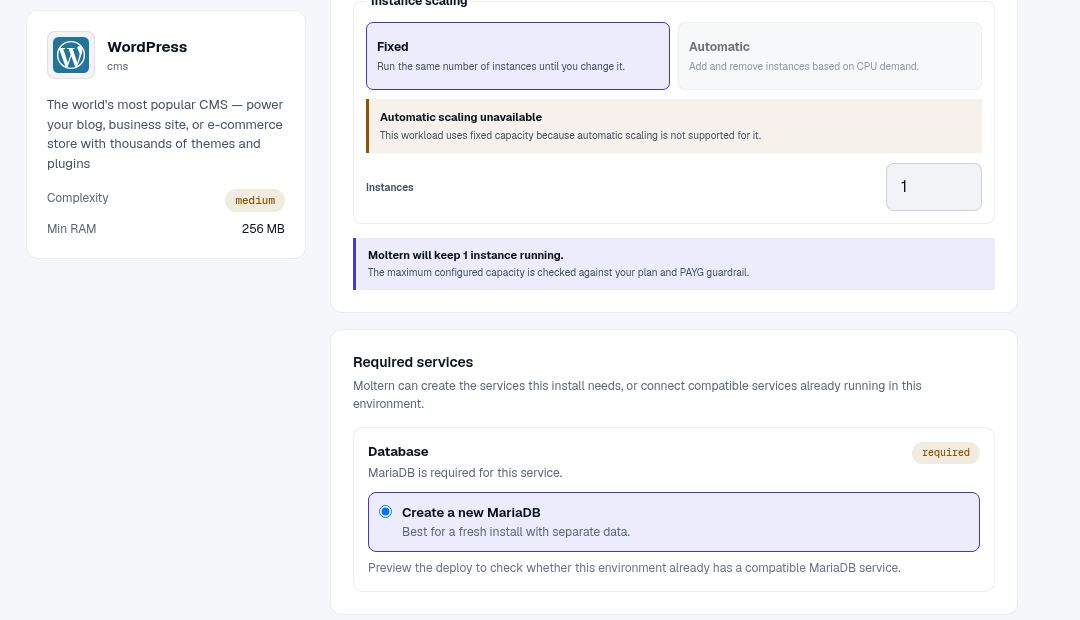
WordPress requires a MariaDB database. During deployment, choose either a new managed database or a compatible existing database offered in the dependency step. Review the selected database before confirming; reusing one can expose existing schemas to the new site.
Deploy WordPress
- Open Services, find WordPress, and select Deploy.
- Enter a service name and choose the environment.
- Enter the administrator email and password. The initial username is
admin. - Review the database choice and Capacity and scaling settings.
- Select Preview deploy and check the combined workload impact.
- Select Confirm deploy and wait until WordPress reports Running.
- Open the generated URL. The installed site should load without a database setup wizard.
The first start can take several minutes while the database and site initialize. Use Live Logs if deployment stops or remains in progress.
Publish Your First Page
- Open
/wp-login.phpon the generated site URL. - Sign in as
adminwith the password entered during deployment. - Open Pages > Add New Page.
- Add a title, page content, and any media required by the site.
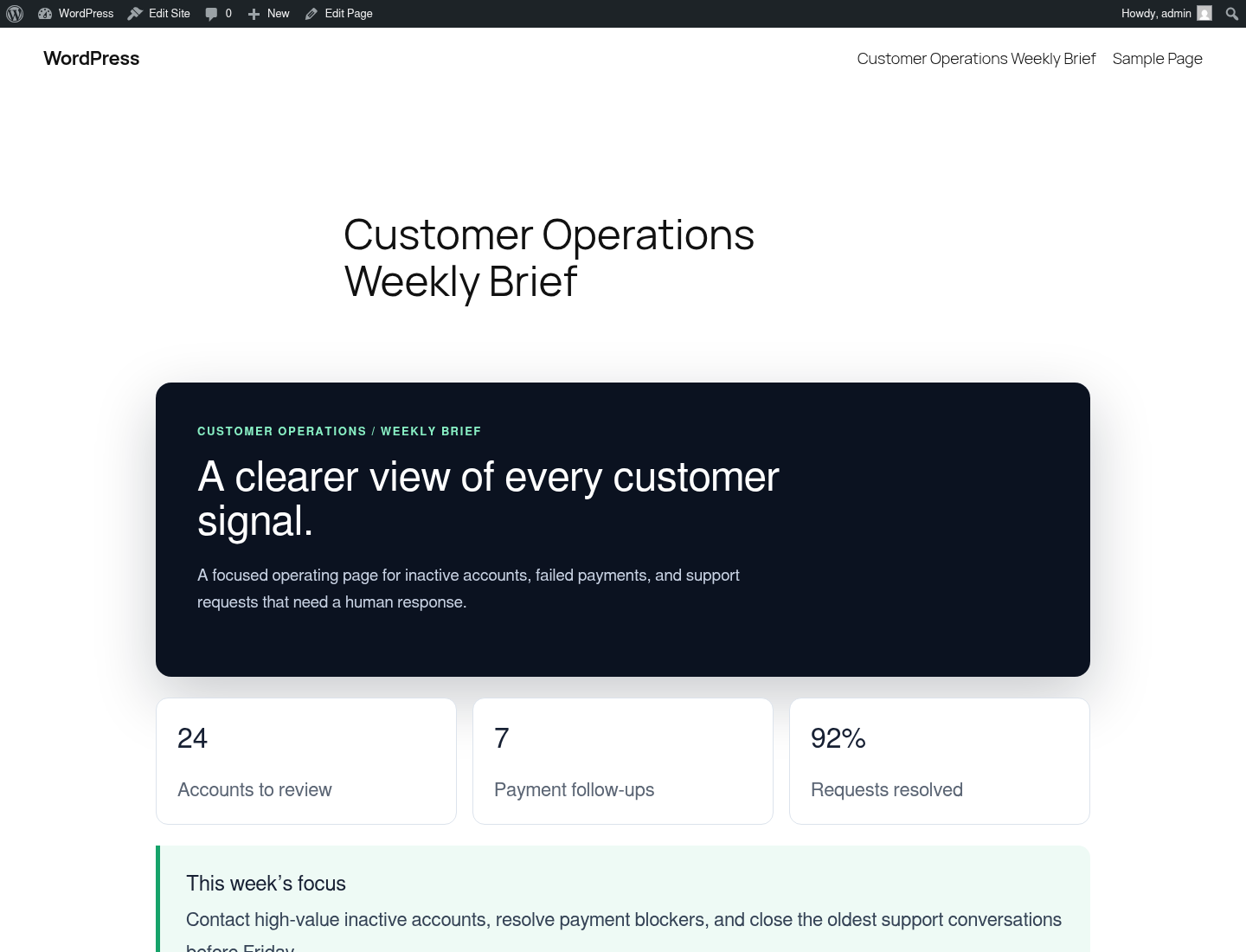
- Select Publish, confirm the action, and choose View Page.
- Reload the public page and confirm the published content is still present.
Themes, Plugins, And Media
Install themes and plugins from the WordPress administration area. Review their publisher, update history, permissions, and compatibility before enabling them. Third-party code runs inside the site and can affect security or performance.
Uploaded media, themes, plugins, and application files use the service's stored files. Database content is kept by the connected MariaDB service. Review both workloads in Billing when estimating storage use.
Credentials And Access
Use the WordPress login for editorial administration. Moltern's service Settings can reveal protected connection details after an account security check, but database credentials are not a replacement for WordPress user access.
For integrations, create a dedicated WordPress user and application password with the minimum role needed. Do not give an application your primary administrator password.
Capacity, Persistence, And Cleanup
Adjust WordPress and its database separately from their Capacity settings. A stateful restart can briefly interrupt the site, so schedule significant changes and verify the public page afterward.
Stopping WordPress pauses the runtime without intentionally deleting stored content. Before deletion, export the site and database or create a backup that you have tested. The delete confirmation explains whether stored files will be removed or retained; retained data continues to count toward storage usage.
Troubleshooting
| Symptom | What to check |
|---|---|
| Error establishing a database connection | Open the MariaDB dependency, confirm it is running, and review both services' logs. |
| Login fails | Use username admin and the password entered during deployment, unless it was later changed in WordPress. |
| Site redirects repeatedly | Confirm the generated URL is configured in WordPress and that plugins are not overriding HTTPS behavior. |
| Upload is rejected | Check the file type, WordPress upload policy, available storage, and any server-side upload limit reported by WordPress. |
| Site is slow after a plugin change | Disable the recent plugin, review runtime usage, and increase capacity only when metrics justify it. |