Drupal
Drupal is a flexible content management system for structured websites, editorial workflows, content APIs, and multilingual publishing. Its content types and permissions make it suitable for sites that need more than a simple blog editor.
Before You Deploy
You need permission to create services, enough workspace capacity for Drupal and
its database, and a strong password for the initial admin account. Store that
password in your password manager. The Drupal account is separate from your
Moltern account.
Deploy Drupal
- Open Services, search for Drupal, and select Deploy.
- Choose the environment and enter a recognizable service name.
- Enter the initial Drupal administrator password.
- Review the required MariaDB dependency. Create a new database for an isolated site or select a compatible existing database only when you intend to reuse it.
- Review Capacity and scaling, select Preview deploy, and confirm the complete impact.
- Wait until Drupal reports Running, then select Open.
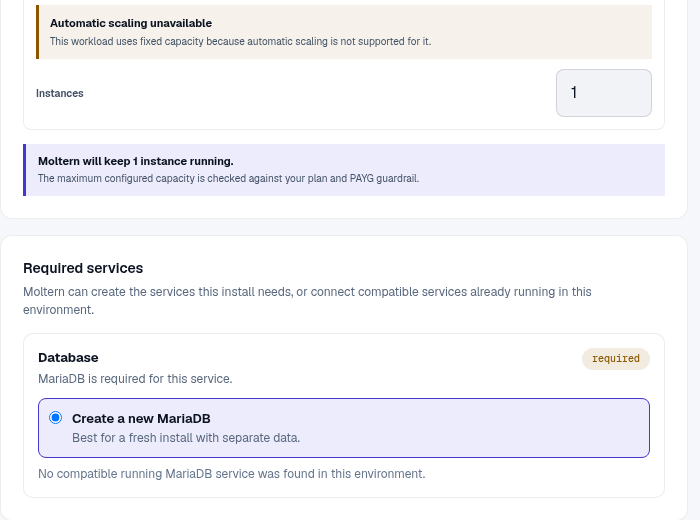
Moltern initializes Drupal and connects the database automatically. You should arrive at the site, not Drupal's database configuration installer. First startup can take several minutes while the site schema and default content are created.
Sign In And Publish A Page
- Open
/user/loginon the generated site URL. - Sign in as
adminwith the password entered during deployment. - Open Content > Add content > Basic page.
- Add a useful title, headings, body copy, links, and media.
- Review the URL alias and publication state, then save the page.
- Open the published page in a signed-out browser when it should be public.
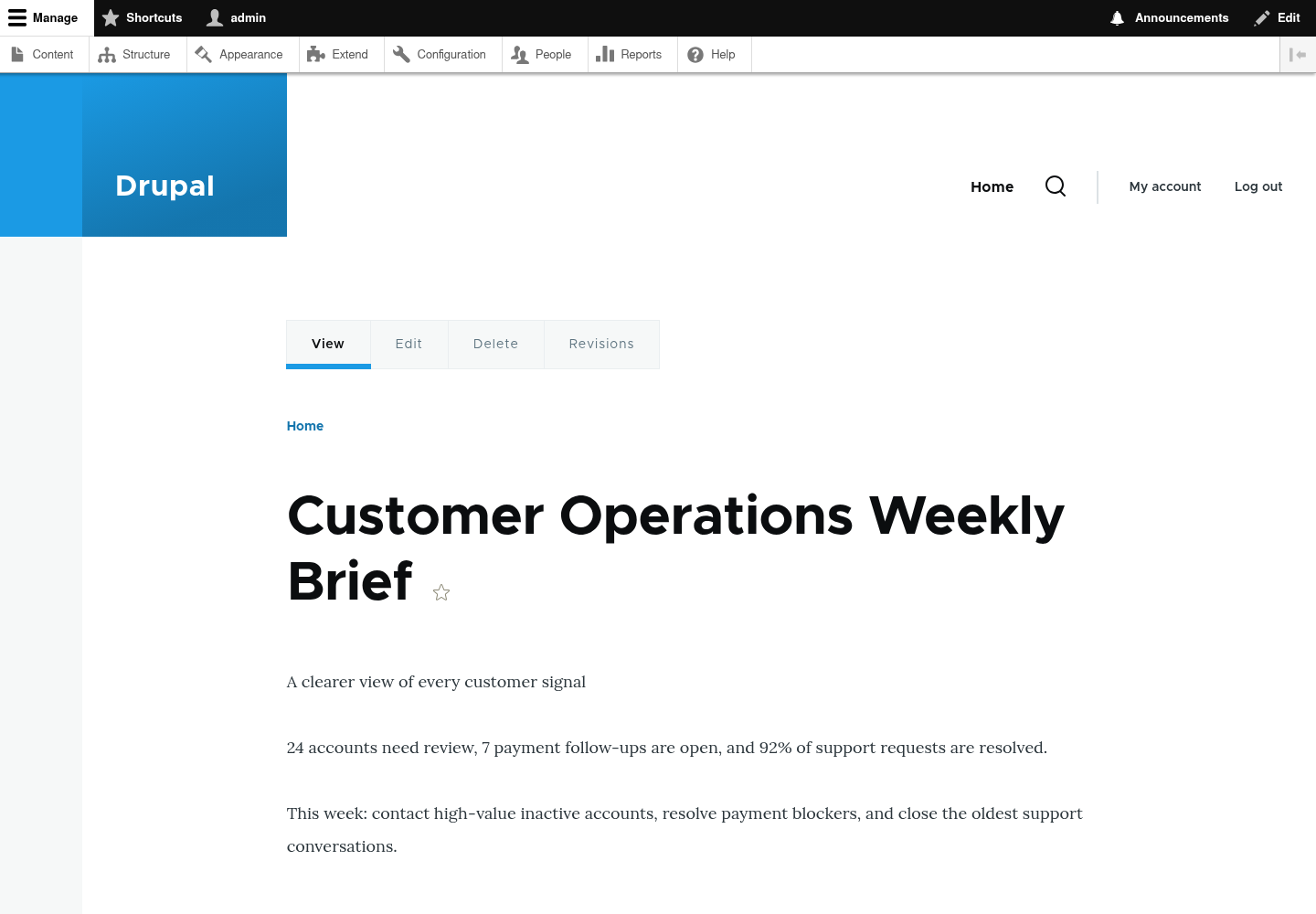
Use Drupal roles and permissions for editors and administrators. Do not share the initial administrator account for routine publishing.
Modules, Themes, And Outbound Access
Review a module or theme's maintenance status and compatibility before adding it. Apply changes in a non-production environment first. When an extension needs an external API, configure only the required endpoint and keep credentials in protected settings rather than page content or source control.
Credentials And Database Access
The database connection is supplied during deployment. Do not replace it with
localhost; the database is a separate private service. Authorized users can
reveal connection values from the service settings after completing the
connection-password check.
If an application or coding agent needs Drupal content, prefer Drupal's HTTP API and a dedicated least-privilege account. Database access bypasses Drupal's permissions and should not be the default integration method.
Capacity, Persistence, And Cleanup
Drupal content is stored in MariaDB while uploaded files and site state use workspace storage. Stop and start should preserve both. Stopping is not a backup.
Resize Drupal and its database independently. Stateful maintenance can briefly interrupt the site; verify administrator login, a public page, and an uploaded file afterward. Review Billing for the service, database, and stored data.
Export or back up important data before deletion. The protected delete flow lets you remove stored data or keep workspace files. Retained files continue counting toward storage usage. Auto-provisioned dependencies are removed with the parent when they are not shared elsewhere.
Troubleshooting
| Symptom | What to check |
|---|---|
| Drupal installer asks for a database | Wait for the deployment to finish and inspect Live Logs; Moltern-managed installs should already be configured. |
| Login fails | Use username admin and the deployment password, unless it was changed later inside Drupal. |
| Database connection error | Check the managed MariaDB dependency and its connection status; do not use localhost. |
| File upload fails | Review workspace storage status and Drupal file permissions before retrying. |
| A module breaks the site | Review Live Logs, disable or roll back the module, and restore from a known backup when needed. |