Strapi
Strapi is a headless content management system for structured content and APIs. Editors work in its administration panel while websites, applications, and automation consume content through REST or GraphQL interfaces.
Before You Deploy
You need permission to create services and enough workspace capacity for Strapi, its database, and media uploads. Prepare the name, email, and password for the first Strapi administrator. This account is separate from your Moltern account.
Deployment on Moltern
- Open Services, search for Strapi, and select Deploy.
- Choose the environment and enter a recognizable service name.
- Review the required PostgreSQL dependency. Create a new database for an isolated CMS or intentionally select a compatible existing service.
- Review Capacity and scaling, then select Preview deploy.
- Confirm the service, database, and storage impact and deploy.
- Wait for Running, then open
/adminon the generated URL.
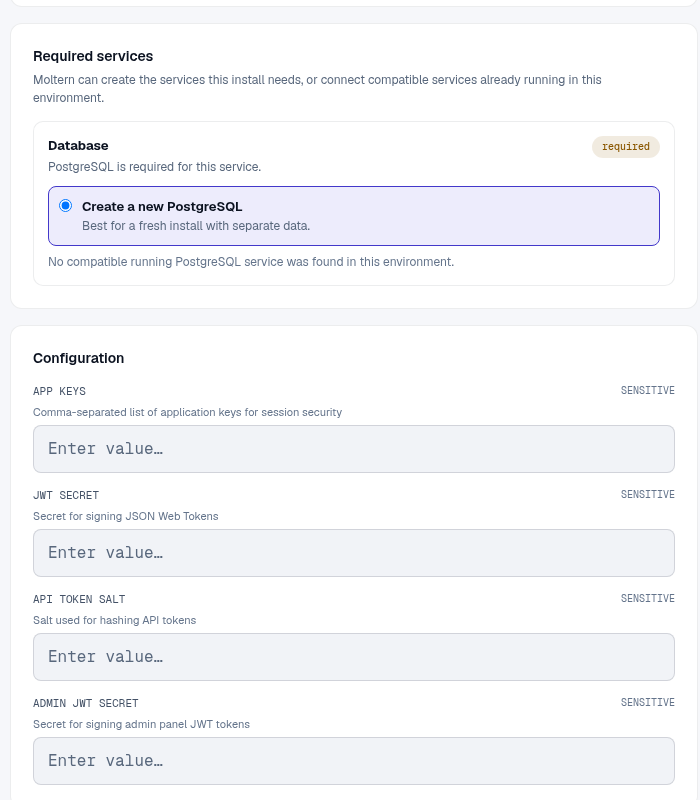
Moltern creates the runtime security values and database connection. There are no shared default administrator credentials.
The first start compiles Strapi's administration interface and can take several minutes. Follow Live Logs until the service reports Running. Do not start a second deployment or restart the service while that initial build is active.
Create The Administrator And Publish Content
- Complete the first-administrator form at
/admin. - Open Content Manager > Page.
- Create a page with a title, slug, summary, body sections, and search metadata.
- Save the entry, review it, and choose Publish.
- Confirm the entry is visible in the Content Manager and through the intended API after permissions are configured.
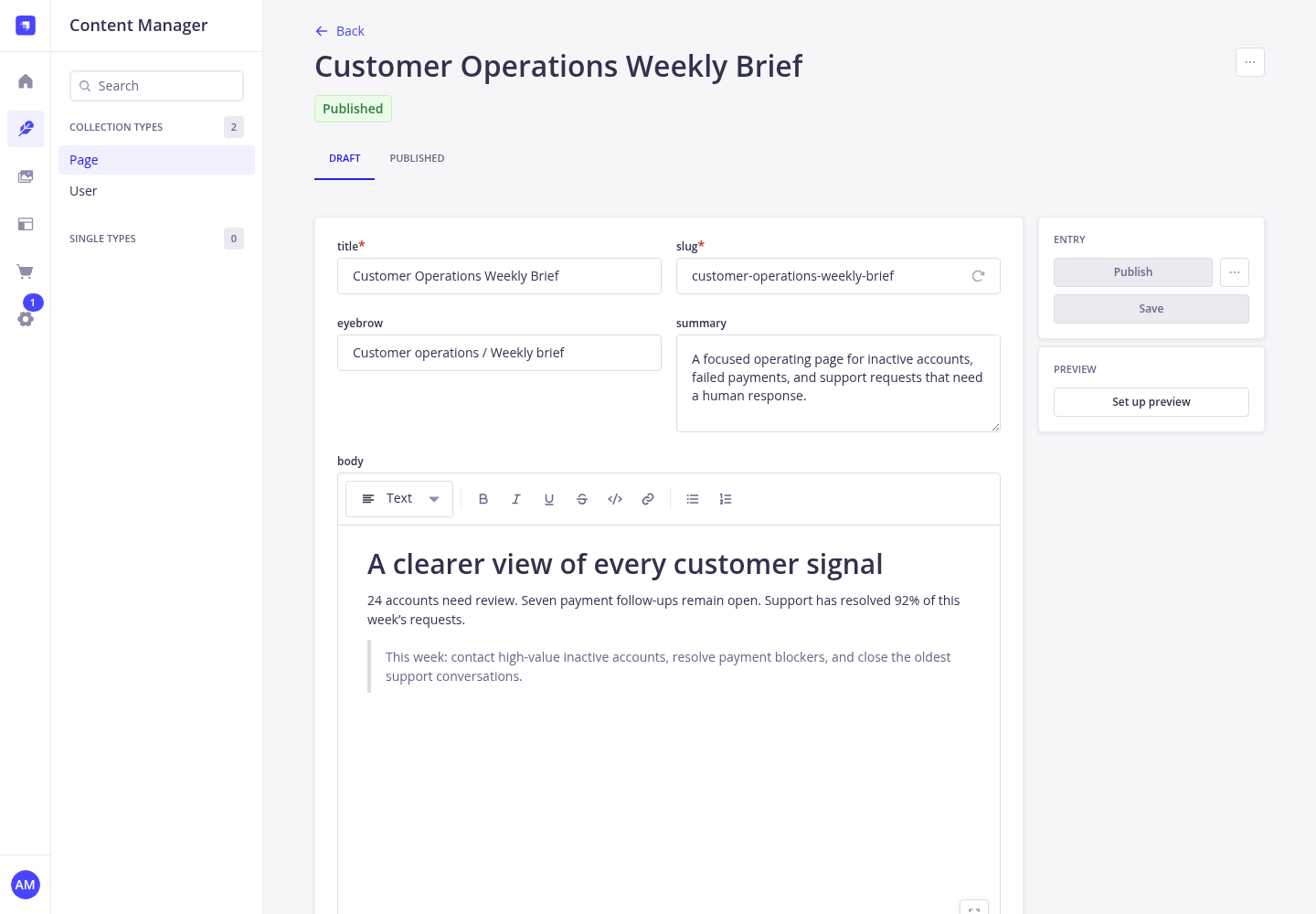
Moltern's Strapi template includes a Pages collection so the first useful content can be created immediately. Extend the content model deliberately and test schema changes outside production before migrating editorial data.
Connect An Application Or Agent
For server-to-server access, create an API token in Strapi settings with only the required permissions and expiry. Store that token in the consuming workload's protected configuration. Do not expose a full-access token in browser code.
Public API access is controlled separately from content publication. A published
entry can still return 403 until the matching role or token has permission to
read it.
Configuration
Use the Strapi administration panel for content, roles, tokens, and supported plugins. Do not edit generated security values after content exists unless you understand how the change affects active sessions and tokens.
Capacity, Persistence, And Cleanup
Structured content and accounts are stored in PostgreSQL. Media uploads use workspace storage. Stop and start should preserve both. Stopping is not a backup.
Resize Strapi and PostgreSQL independently. Stateful maintenance can briefly interrupt the API. Verify administrator login, a published entry, API access, and an uploaded asset afterward. Review Billing for all related workloads and stored data.
Export important content and media before deletion. The protected delete flow lets you remove stored data or retain workspace files. Retained files continue counting toward storage usage. Auto-provisioned dependencies are removed with the parent when they are not shared elsewhere.
Troubleshooting
| Symptom | What to check |
|---|---|
/admin stays unavailable | Allow the first administration build to finish, confirm Strapi and PostgreSQL are running, then review Live Logs. |
| Setup asks for an existing administrator | Open the normal admin login and use the account created previously. |
API returns 401 or 403 | Check the token, role permissions, content publication state, and endpoint path. |
| Uploaded media disappears | Confirm media is stored in the persistent upload area and review workspace storage status. |
| A schema change fails | Review the database logs and migration impact before retrying in production. |