Moodle
Moodle is a learning management system for courses, lessons, assignments, quizzes, grading, and learner progress. Use it for customer education, employee training, classrooms, or structured learning programs.
Before You Deploy
Moodle needs more memory and storage than a small publishing site. Confirm that your workspace has enough capacity for Moodle, its database, course files, and future learner uploads. Prepare an administrator username, email address, and a strong password.
Deploy Moodle
- Open Services, search for Moodle, and select Deploy.
- Choose the environment and enter a recognizable service name.
- Enter the administrator username, email, and password.
- Review the required MariaDB dependency and choose whether to create a new database or intentionally connect a compatible existing service.
- Review Capacity and scaling, then select Preview deploy.
- Confirm the complete impact and start the deployment.
- Wait until Moodle reports Running, then select Open.
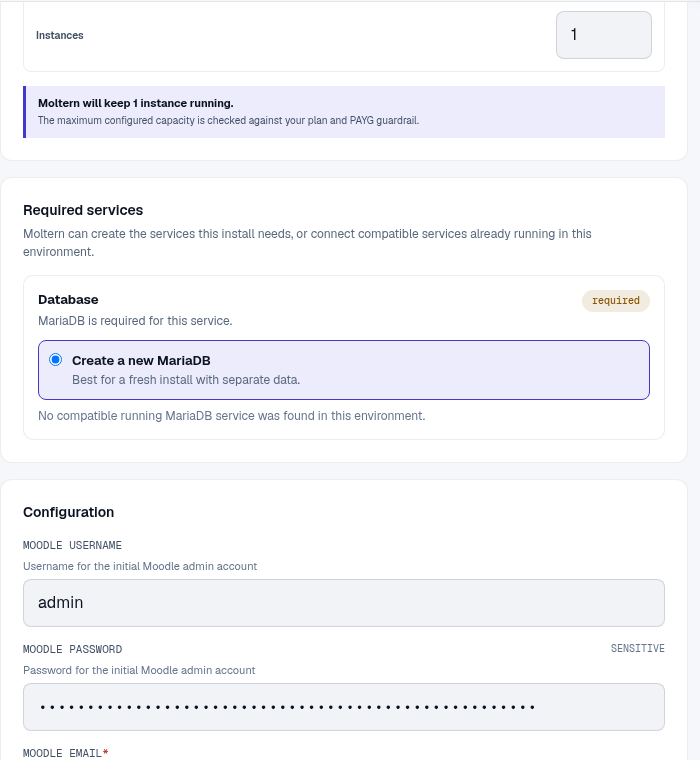
The first start initializes a large application schema and can take several minutes. Follow Live Logs rather than repeatedly restarting the service.
Create Your First Course
- Sign in with the administrator credentials entered during deployment.
- Open Site administration > Courses > Add a new course.
- Enter the full name, short name, summary, visibility, and course dates.
- Save the course and add sections, activities, resources, or assessments.
- Enroll a test learner and complete one activity before inviting a real group.
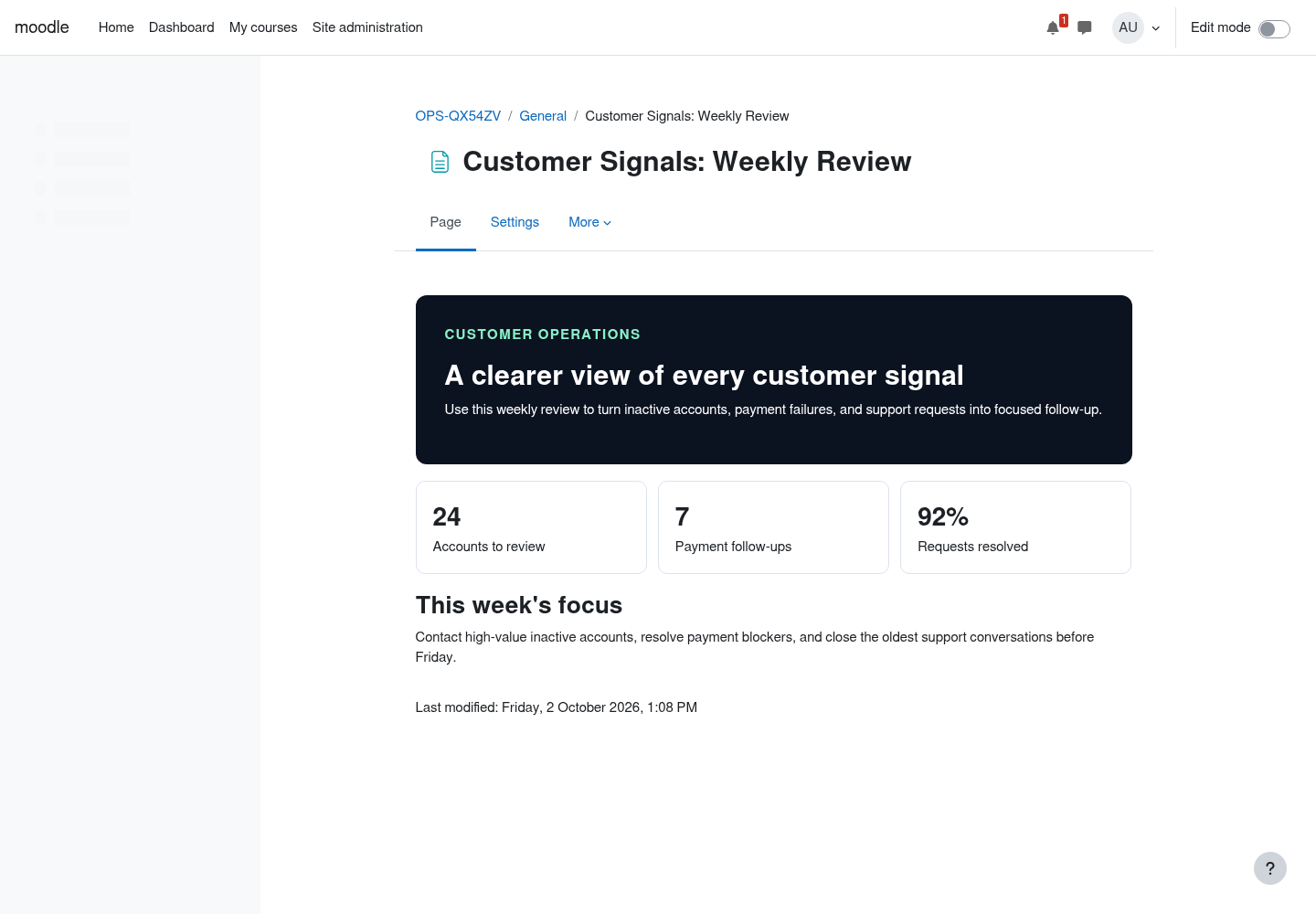
Use roles instead of sharing the administrator account. Teachers should manage course content; learners should receive only the permissions needed to participate.
Email, Scheduled Tasks, And Plugins
Configure Moodle's own outgoing email before relying on enrollment, password reset, or course notifications. Moltern platform email does not automatically configure Moodle email.
Some Moodle features depend on scheduled tasks. Review the scheduled-task status after enabling plugins or automated messaging. Test plugin compatibility in a non-production environment and back up the site before upgrades.
Credentials And Database Access
Moltern supplies the database connection during deployment. Normal Moodle administration should use the web interface and supported web services, not direct database writes. When an integration needs access, create a dedicated Moodle user, role, service, and token with the minimum required capabilities.
Capacity, Persistence, And Cleanup
Courses, users, and grades are stored in MariaDB. Course files and generated content use workspace storage. Stop and start should preserve both. Stopping is not a backup.
Resize Moodle and MariaDB independently. Maintenance can interrupt active users, so schedule it outside teaching windows and verify sign-in, a course page, an uploaded resource, and scheduled tasks afterward. Review Billing for the parent service, its dependency, and stored data.
Back up courses and important site data before deletion. The protected delete flow lets you remove stored data or retain workspace files. Retained files keep counting toward storage usage. Auto-provisioned dependencies are removed with the parent when they are not shared elsewhere.
Troubleshooting
| Symptom | What to check |
|---|---|
| Initial deployment takes a long time | Follow Live Logs while the database schema and site are initialized; avoid parallel retries. |
| Administrator login fails | Use the Moodle username and password from deployment, not your Moltern login. |
| Upload is rejected | Check Moodle upload limits, the activity limit, and available workspace storage. |
| Notifications are not delivered | Configure Moodle's outgoing email and test its mail settings. |
| A plugin breaks the site | Review compatibility and logs, disable the plugin, and restore from a known backup if needed. |