Label Studio
Label Studio is an open-source data-labeling workspace for preparing machine learning datasets. It supports configurable annotation interfaces for text, images, audio, video and structured data. Moltern deploys the service with a protected administrator account, persistent workspace data and a live HTTPS address.
Before You Start
You need:
- a Moltern workspace and environment;
- permission to create services;
- an email address for the Label Studio administrator;
- a strong, unique administrator password;
- at least
200 mCPUand512 MiBof available runtime capacity; - enough workspace storage for project metadata and imported data.
The Label Studio administrator is separate from your Moltern account. Store the password in your organisation's password manager. Do not reuse your Moltern password.
For large image, video or audio collections, keep the original files in appropriate object storage and import controlled references. Label Studio's official guidance does not recommend treating direct UI uploads as durable large-scale media storage.
Deploy Label Studio
- Open Services and select Label Studio.
- Enter a unique service name.
- Select the project and environment that will own the labeling workspace.
- Keep the validated starting capacity or choose a larger fixed size.
- Enter the administrator email and password.
- Select Preview deploy.
- Confirm the workload count, capacity and storage impact.
- Select Confirm deploy and wait for Running.
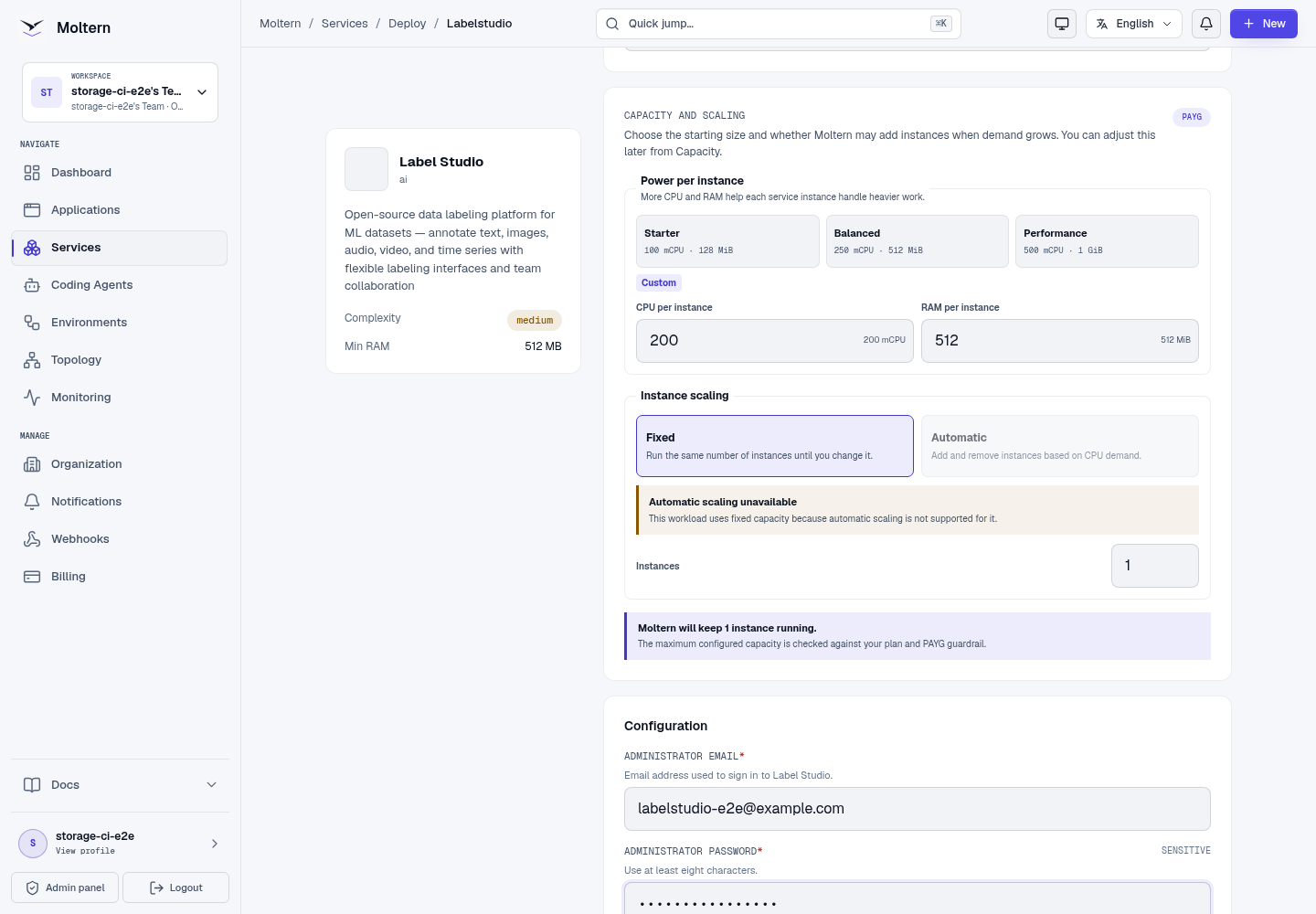
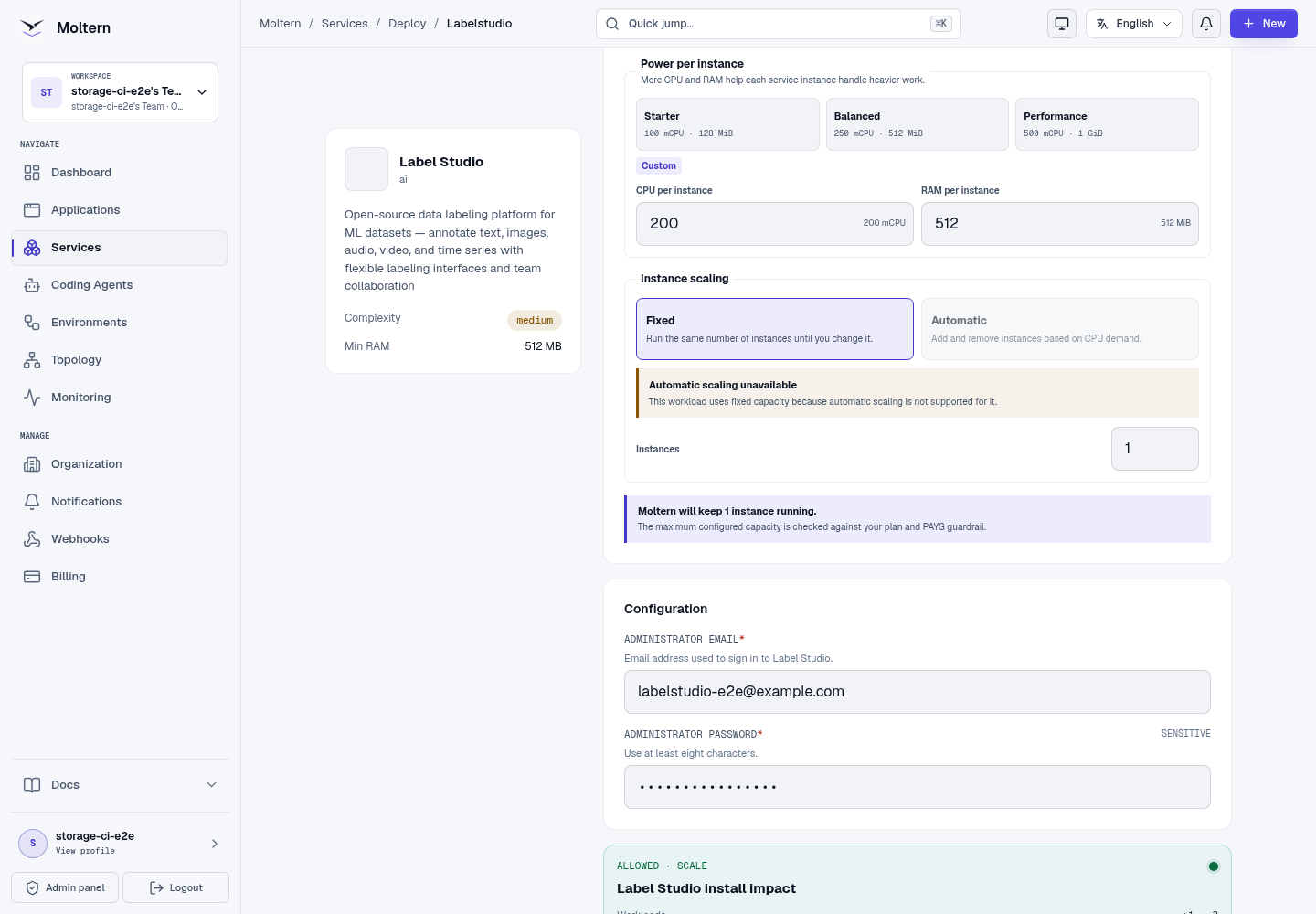
Label Studio currently uses one fixed application instance. The deployment form correctly disables automatic horizontal scaling for this stateful catalog profile. It has no managed service dependency; its local database belongs to the Label Studio workload's assigned path.
Sign In
- Open the Label Studio service in Moltern.
- Select Open service.
- Enter the administrator email and password configured during deployment.
- Keep the browser session private when the dataset contains sensitive data.
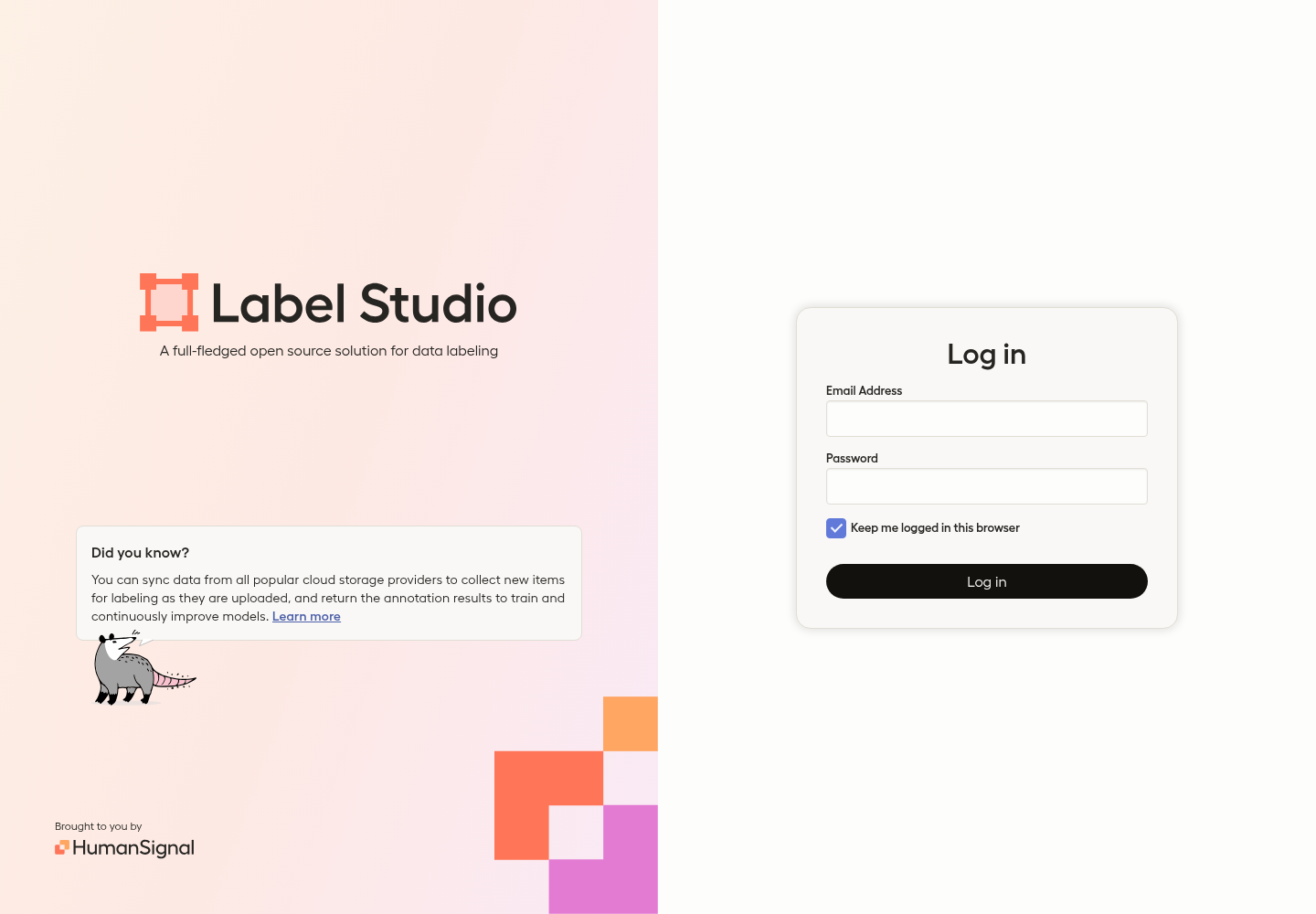
The password is not displayed in public logs or documentation. An authorised workspace member can use the protected connection-details flow in Moltern when the original value must be recovered.
Create An Annotation Project
Every labeling workflow belongs to a Label Studio project.
- Select Create Project.
- Give the project a clear name and description.
- Open Labeling Setup.
- Select a suitable template or define a custom labeling interface.
- Save the project.
The production E2E uses a two-choice sentiment project. Its labeling interface contains a text input and Positive and Negative choices. This verifies that Label Studio accepts a real labeling configuration rather than only loading its home page.
Import And Label Data
For a controlled first test:
- Open the project and select Import.
- Add a small JSON, CSV, TSV or text dataset that matches the labeling interface.
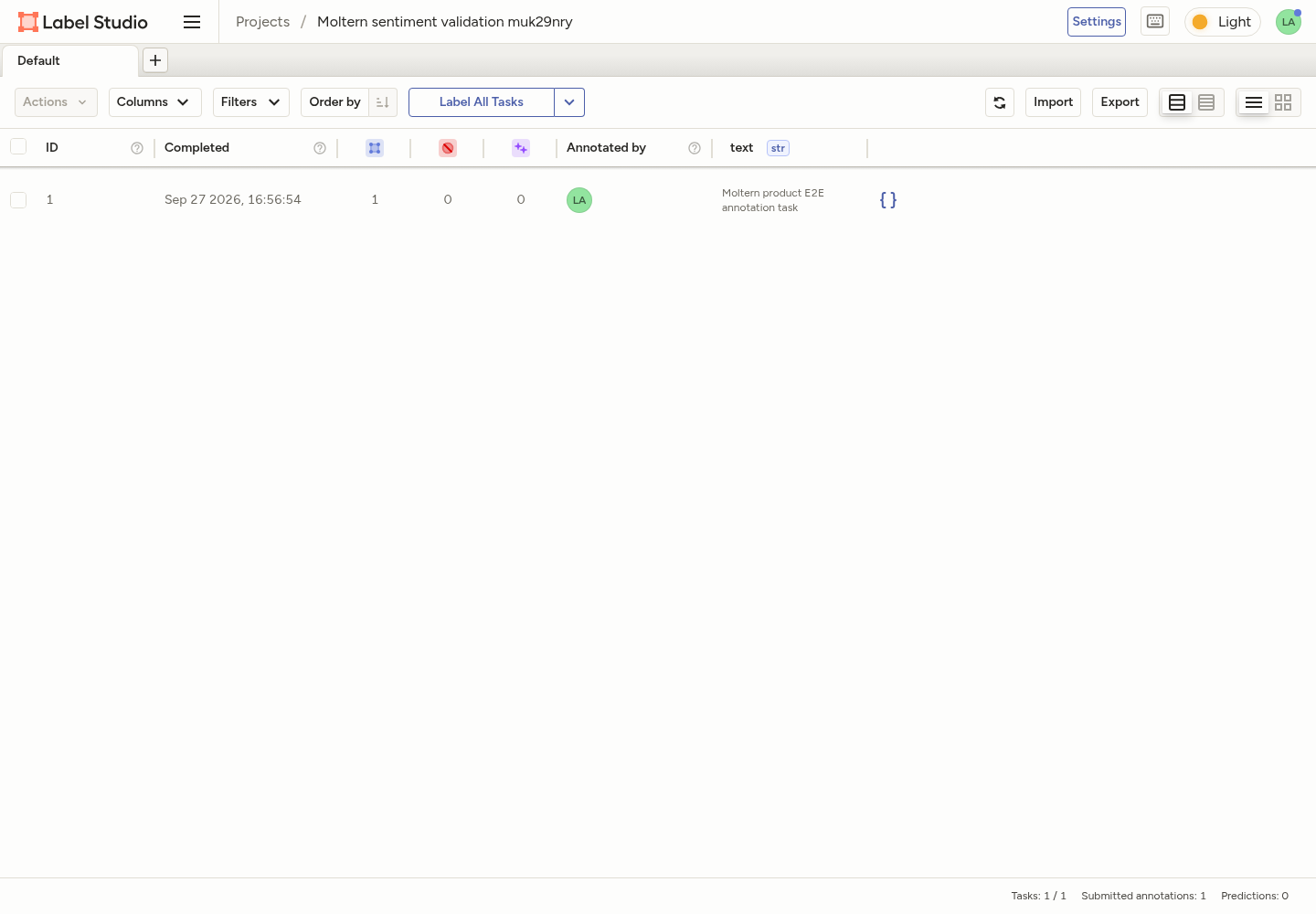
- Confirm the imported tasks appear in the data manager.
- Open a task, choose its label and submit the annotation.
- Return to the data manager and confirm the task is marked complete.
For a text interface whose source field is text, a minimal JSON task looks
like this:
[
  {
    "text": "The deployment completed successfully."
  }
]
The input property must match the source key used by the project's labeling configuration. Import a small representative sample before starting a large job.
Use The API
Label Studio exposes an API for project automation, task import and result export. Create and protect an access token in Label Studio, then grant it only to the workload that needs it.
Typical automation can:
- create projects and labeling configurations;
- import tasks from an approved data source;
- retrieve task and annotation status;
- submit predictions or pre-annotations;
- export completed annotations.
Do not place an API token in a Git repository, browser bundle or screenshot. Use protected application configuration and rotate the token when access is no longer required.
The current Moltern E2E verifies Label Studio's authenticated project, task and annotation APIs from the product session. It does not yet certify an external application attachment or long-running import worker.
Export Results
- Open the project.
- Select Export.
- Choose a format supported by the labeling configuration.
- Download and validate the export before using it for training.
Some export formats contain annotations but not the original source files. Retain the source dataset and a reproducible mapping between task identifiers and source objects. For critical datasets, test both export and restore before starting a large labeling campaign.
Storage And Persistence
Moltern assigns Label Studio a private path in the workspace filespace. The service stores its local database, projects, task metadata, annotations and uploaded working files there. The runtime sees only the path assigned to this service, not the complete team filespace.
The deployment does not request a separate cloud disk. Storage usage is measured against the Label Studio workload path.
Production validation performed a full Stop service and Start service cycle. Moltern replaced the runtime, then the same administrator authenticated and the original project, imported task and submitted annotation remained available.
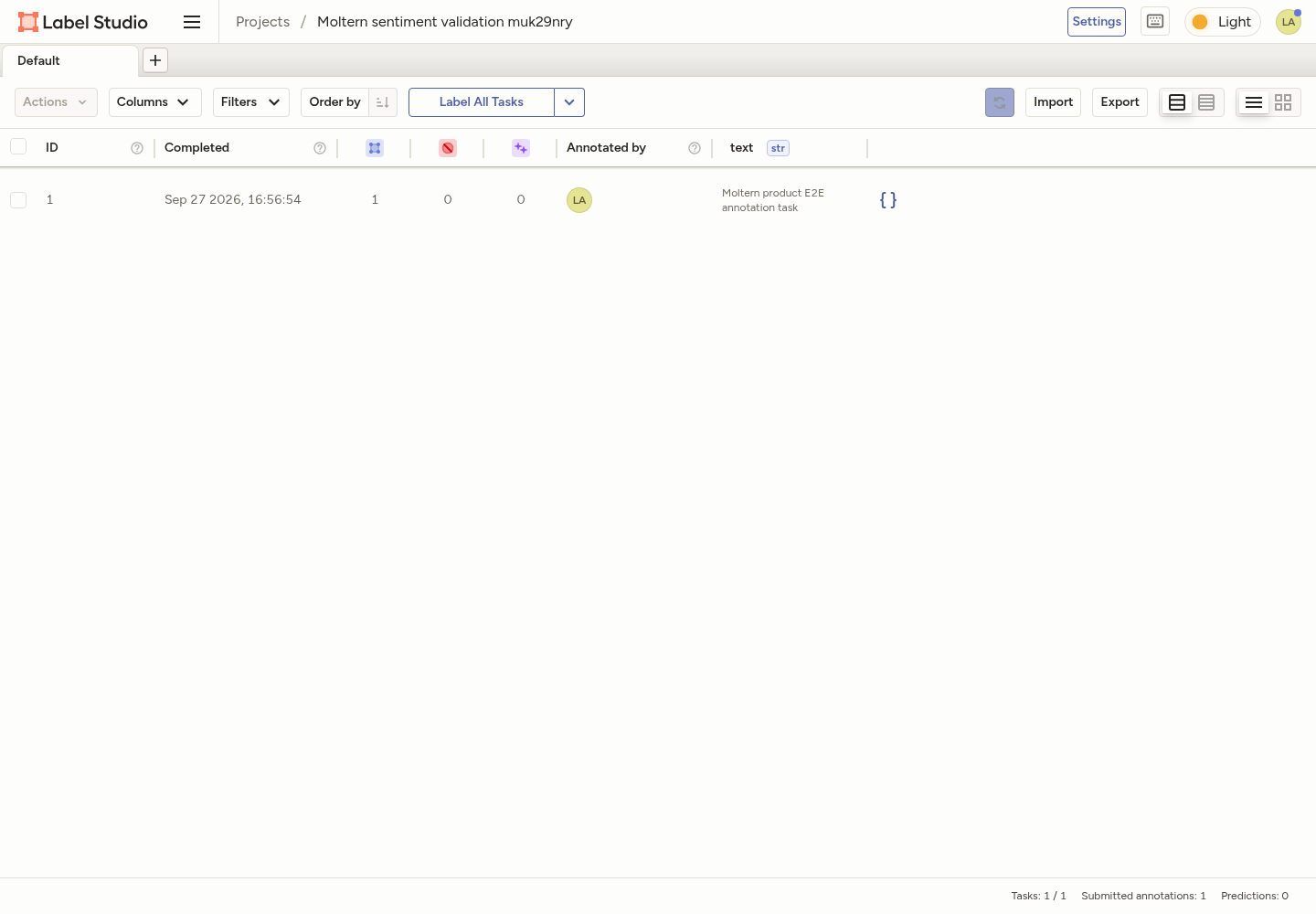
Stop/Start validates runtime replacement and shared-filespace persistence. It is not an independent backup restore. Export important datasets and follow your organisation's recovery policy.
Capacity And Metering
The validated baseline is:
| Resource | Validated value |
|---|---|
| Instances | 1 |
| CPU request | 200 mCPU |
| Memory request | 512 MiB |
| Dedicated volume | 0 GiB |
Workspace storage grows with projects, imported data and annotation history. Moltern reports the assigned path under Billing → Storage by workload.
Increase CPU or memory from Capacity when imports or concurrent annotation sessions are slow. Measure the result before keeping a larger PAYG allocation. Horizontal automatic scaling is not enabled for this catalog profile because its local application state requires a single-writer operating model.
Operate Label Studio
Use the Moltern service page for:
- Overview to open Label Studio and review health;
- Live Logs to diagnose startup, migration and request failures;
- Capacity to adjust CPU and memory;
- Access to review approved workload connections;
- Settings to review protected service configuration;
- Stop service and Start service to replace the runtime without deleting project data.
Label Studio may take longer on its first start while it initializes its local database. Do not submit duplicate deployments while migrations are still running.
Delete Label Studio
- Export annotations and source mappings that must be retained.
- Open the Label Studio service in Moltern.
- Select Delete Service.
- Select Delete stored data only when all Label Studio project data may be removed.
- Complete the protected account confirmation.
- Confirm the service, public address and workload allocation are gone.
Deleting stored data removes only Label Studio's assigned path. It must not remove sibling services or the workspace filespace itself.
Troubleshooting
| Symptom | What to check |
|---|---|
| The service remains in Deploying | Review Live Logs for database initialization and migration progress. Wait for the existing deploy instead of creating a duplicate. |
| Administrator login fails | Use the exact email and password entered at deployment. Confirm keyboard layout and password-manager autofill before changing credentials. |
| The project page keeps loading | Refresh once after the service is Running, then inspect browser requests and Live Logs for failed API calls. |
| Imported tasks are empty | Confirm each input property matches the object name in the labeling configuration. Test one minimal task first. |
| Images or audio do not load | Verify the source URL is reachable from Label Studio and that its access policy permits the request. Avoid embedding expiring credentials in task data. |
| An export omits source files | Keep the original dataset separately. Many exports contain annotation results and source references rather than copied media. |
| The UI is slow during a large import | Split the import into controlled batches and increase capacity only after observing CPU and memory pressure. |
| Data is missing after a destructive delete | Deleting stored data is permanent. Restore from an independently tested export or backup. |
Frequently Asked Questions
Does Label Studio include a machine-learning model?
No. Label Studio manages data-labeling workflows. Model-assisted labeling needs a separately configured ML backend or provider.
Can I label images, audio and video?
Yes. The supported task format depends on the labeling interface. For large binary datasets, use durable source storage and import references instead of relying on direct UI uploads.
Does Stop service delete projects?
No. Stop removes the active runtime. Delete stored data is the destructive operation.
Can several users label the same project?
Label Studio supports collaborative annotation workflows, but this Moltern validation does not certify enterprise identity, advanced reviewer roles or high-concurrency behavior.
Validated Scope
Production E2E build 223 covered deployment through the live Moltern UI, protected administrator login, project creation, a real text labeling configuration, task import, annotation submission, public HTTPS access, Stop/Start runtime replacement, project/task/annotation persistence, point-in-time parent allocation metering and protected data cleanup.
The validation does not certify large-media ingestion, cloud-storage connectors, external ML backends, external application attachments, advanced role design, concurrent load, independent backup restoration, automatic horizontal scaling or elapsed invoice reconciliation.