Mage AI
Mage AI is an open-source data-pipeline workspace for building, running, monitoring and scheduling data workflows. It combines a visual pipeline editor with code-first Python, SQL and R blocks.
Moltern deploys Mage as a protected, persistent service with a live HTTPS address. Pipeline files and project metadata remain in the workspace when the runtime is replaced.
Before You Start
You need:
- a Moltern workspace and environment;
- permission to create services;
- an owner email, username and strong password;
- at least
250 mCPUand1 GiBof available runtime capacity; - enough workspace storage for pipeline code, logs and intermediate files;
- protected credentials for any external data source used by a pipeline.
The Mage owner account is separate from your Moltern account. Store its password in your organisation's password manager and do not embed data-source credentials in pipeline code.
Deploy Mage AI
- Open Services and select Mage AI.
- Enter a unique service name.
- Select the project and environment that will own the pipeline workspace.
- Keep the validated starting capacity or choose a larger fixed size.
- Enter the first owner's email, username and password.
- Select Preview deploy.
- Review the workload, capacity and storage impact.
- Select Confirm deploy and wait for Running.
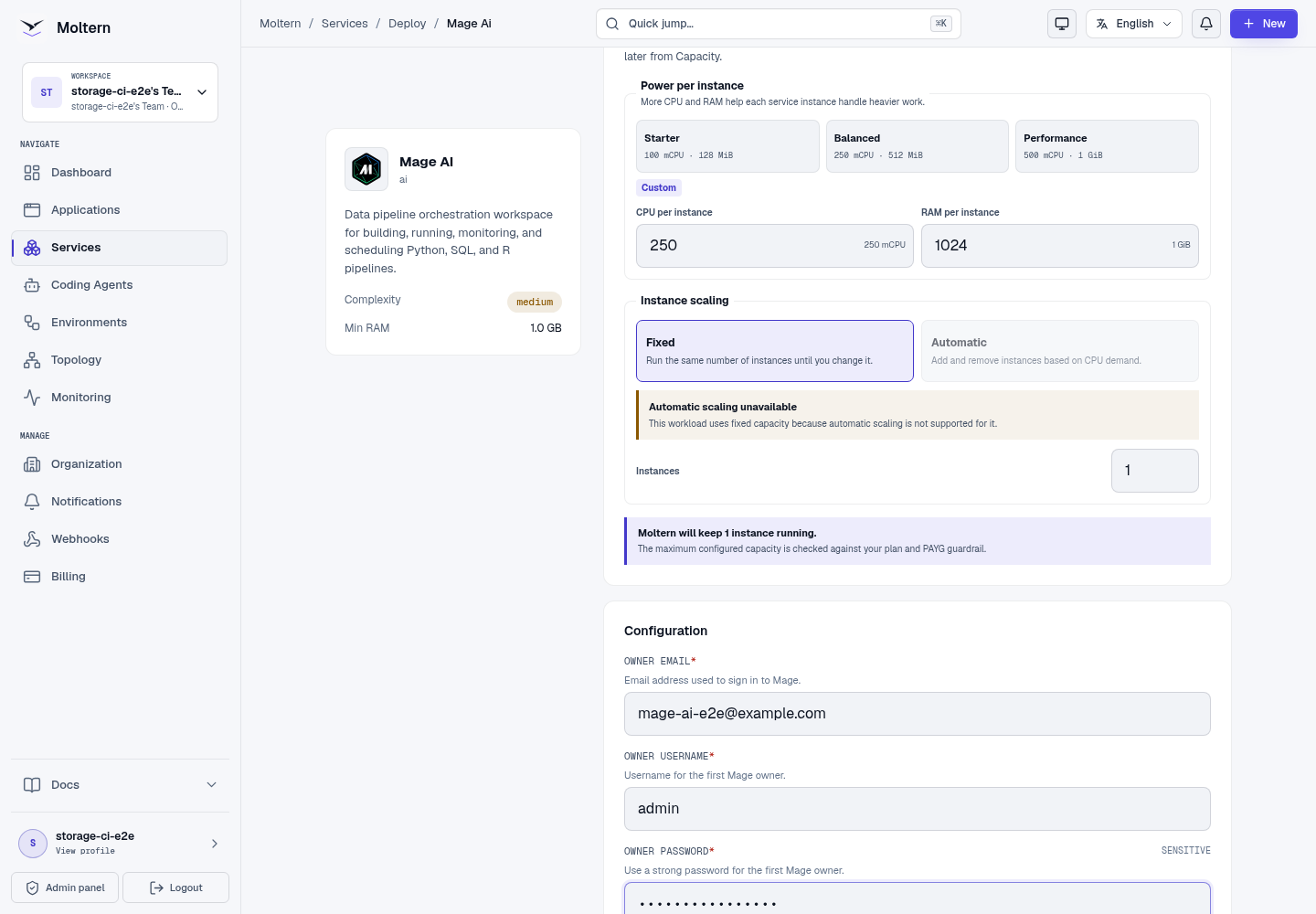
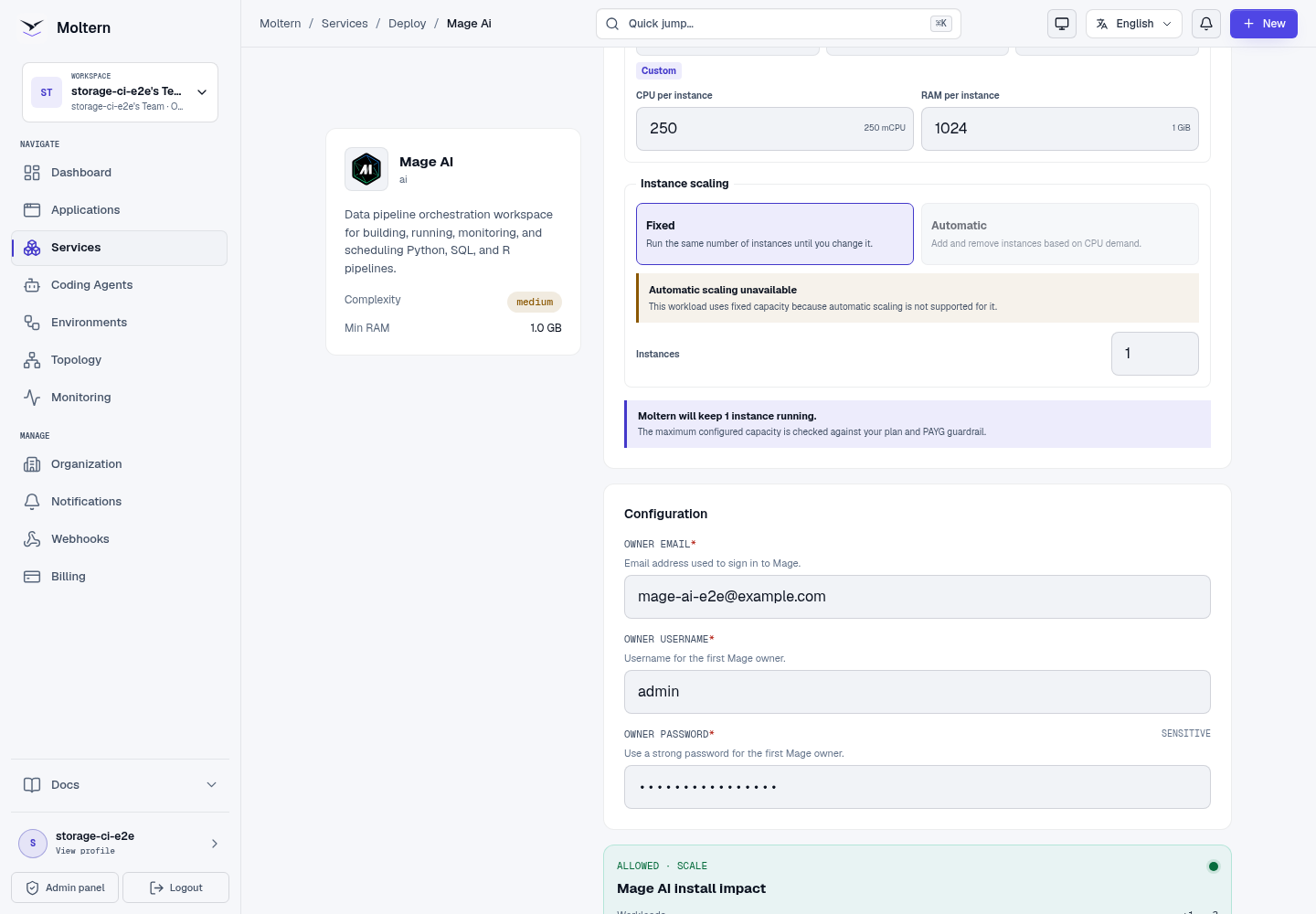
This catalog profile has no managed service dependency. Add each database, object store or API through an approved connection when the pipeline needs it.
Mage uses fixed capacity in the current catalog profile. A single workspace owns local pipeline files and project metadata, so automatic horizontal scaling is not presented as safe for this profile.
Sign In
- Open the Mage AI service in Moltern.
- Select Open service.
- Enter the owner email and password configured during deployment.
- Select Sign into Mage.
- Confirm that the pipeline workspace loads.

An authorised workspace member can use Moltern's protected connection-details flow when an original managed credential must be recovered. Credentials are not shown in deployment logs or public documentation.
Create A Pipeline
- Open Pipelines.
- Select New pipeline.
- Enter a descriptive pipeline name.
- Choose the pipeline type that matches the workflow.
- Add a data-loader block.
- Add transform and export blocks as needed.
- Save the pipeline before running it.
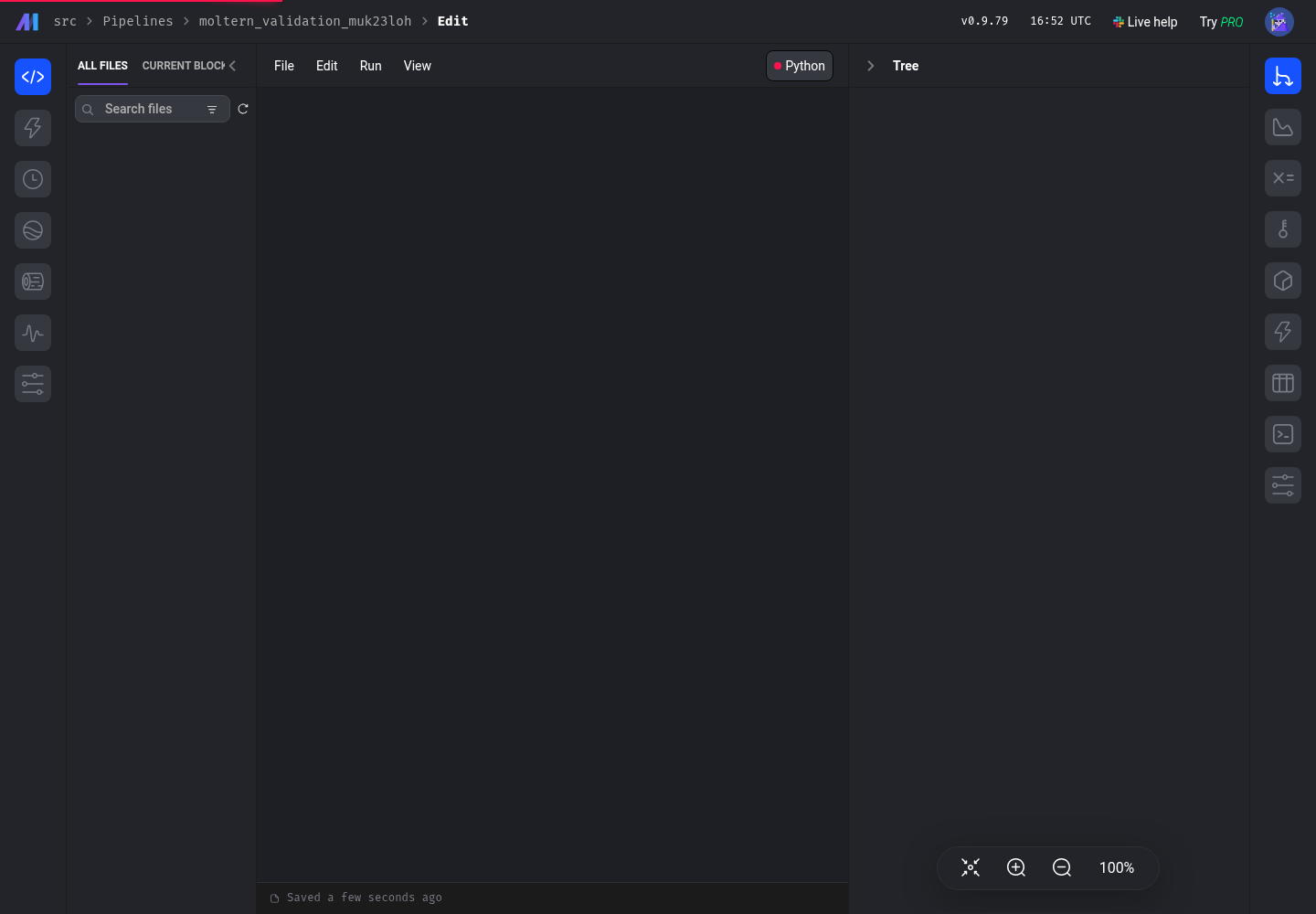
The production E2E creates a real Python pipeline and a data-loader block whose code returns a controlled record. It then opens that exact pipeline in Mage's editor. This validates pipeline and code creation rather than only checking the home page.
Build A Reliable Workflow
Keep blocks small and explicit:
- loaders should read from one documented source;
- transformers should return predictable tables or records;
- exporters should make retries safe where possible;
- credentials should come from protected configuration;
- large temporary files should have a documented retention policy;
- pipeline names should identify the owning team and business purpose.
Run a small representative input before scheduling a large job. Validate row counts and output schemas between blocks so a source change fails visibly.
Connect Data Sources
Mage supports databases, warehouses, object storage and HTTP APIs. Use the connection method supported by the target system and keep credentials in protected runtime configuration.
Before enabling a schedule:
- verify network reachability from the Mage runtime;
- test the least-privilege data-source account;
- confirm the pipeline can retry safely;
- validate the destination schema;
- record who owns rotation and incident response for the credential.
The current production validation does not certify a specific external database, warehouse or provider attachment. Test the exact integration in a non-production environment before relying on it.
Run And Schedule Pipelines
Use a manual run for the first execution:
- open the pipeline editor;
- run the loader block with controlled input;
- inspect block output and logs;
- run downstream blocks in order;
- confirm the destination received the expected result;
- configure a schedule only after the manual run is repeatable.
Monitor scheduled runs for duration, retries and failed blocks. A green service status means the Mage workspace is available; it does not mean every scheduled pipeline succeeded.
Storage And Persistence
Moltern assigns Mage a private path in the workspace filespace. The runtime sees only the path assigned to this service, not the complete team filespace.
Pipeline code, project configuration and local workspace state are retained in that path. The deployment does not request a separate cloud disk, and storage use is measured against the Mage workload path.
Production validation performed a full Stop service and Start service cycle. Moltern replaced the runtime, then the same owner authenticated and the original Python pipeline and data-loader code remained available.
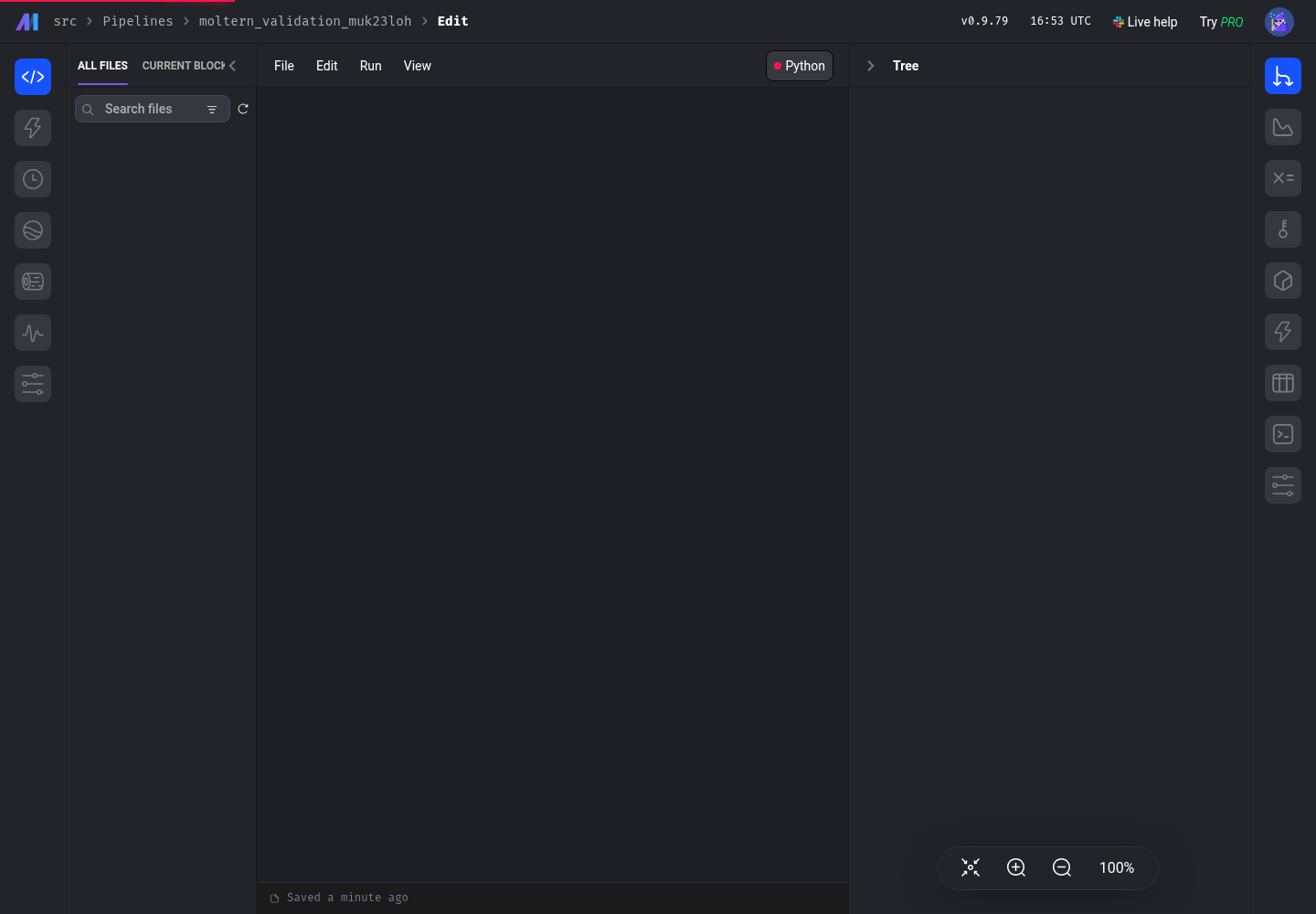
Stop/Start validates runtime replacement and workspace persistence. It is not an independent backup restore. Keep pipeline code in version control where appropriate and follow your organisation's recovery policy.
Capacity And Metering
The validated Mage baseline is:
| Resource | Validated value |
|---|---|
| Instances | 1 |
| CPU request | 250 mCPU |
| Memory request | 1,024 MiB |
| Dedicated volume | 0 GiB |
Workspace storage grows with project code, logs and intermediate files. Moltern reports the assigned path under Billing → Storage by workload.
Increase CPU or memory from Capacity when block execution is resource-bound. Measure a representative run before keeping a larger PAYG allocation. A larger runtime does not correct inefficient queries or unbounded intermediate data.
Operate Mage AI
Use the Moltern service page for:
- Overview to open Mage and review service health;
- Live Logs to diagnose startup and request failures;
- Capacity to adjust CPU and memory;
- Access to review approved workload connections;
- Settings to review protected service configuration;
- Stop service and Start service to replace the runtime without deleting the project workspace.
First startup can take several minutes while Mage prepares the project workspace. Do not submit duplicate deployments while the active deployment is still progressing.
Delete Mage AI
- Export or commit pipeline code that must be retained.
- Preserve run evidence required by your audit or recovery policy.
- Open the Mage AI service in Moltern.
- Select Delete Service.
- Select Delete stored data only when the project workspace may be removed.
- Complete the protected account confirmation.
- Confirm the service, generated address and workload allocation are gone.
Deleting stored data removes only Mage's assigned path. It must not remove sibling services or the workspace filespace itself.
Frequently Asked Questions
Does Mage AI include a data source?
No. Create a pipeline and configure each database, object store or API through an approved private connection or protected credential.
Do pipelines survive Stop/Start?
Supported project and pipeline files in the assigned workspace path remain available after the replaceable Mage runtime starts again.
Is Stop/Start a backup test?
No. It validates runtime replacement and persistence. Critical pipelines still need an independently tested export and recovery process.
Troubleshooting
| Symptom | What to check |
|---|---|
| The service remains in Deploying | Review Live Logs for workspace initialization. Wait for the active deploy instead of creating a duplicate. |
| Owner sign-in fails | Use the exact owner email and password entered during deployment. Confirm keyboard layout and password-manager autofill. |
| The pipeline editor is blank | Wait for the named pipeline to finish loading, then refresh once. Review browser requests and Live Logs if it remains blank. |
| A block cannot reach its data source | Confirm the target address, approved connection and least-privilege credentials. Test DNS and TCP reachability without printing secrets. |
| A scheduled run does not start | Confirm the schedule is enabled, the service is Running and the pipeline has no unresolved configuration. Review the run history and logs. |
| A pipeline is slow or runs out of memory | Inspect the slow block and intermediate data size. Increase capacity only after measuring the same controlled run. |
| Project code is missing after a restart | Stop changes, verify that the original service was restarted rather than deleted with stored data, and contact support before recreating files. |
Validated Scope
The current production validation covers:
- deployment through the Moltern UI;
- protected owner authentication;
- real Python pipeline creation;
- real data-loader block and source-code creation;
- opening the named pipeline in the Mage editor;
- pipeline and code persistence after Stop/Start runtime replacement;
- point-in-time replica, CPU, memory and dedicated-volume accounting;
- protected service and data cleanup with allocation removal.
Block execution against an external data source, scheduling accuracy, concurrent developers, large datasets, sustained load, high availability, independent backup restore and elapsed-time invoice reconciliation remain outside this validation.