LibreChat
LibreChat is a multi-provider AI conversation interface with conversation history, file support, presets and model selection. Moltern deploys LibreChat with a protected administrator, a managed database, persistent service files and a live HTTPS address.
For a private model workflow, attach an Ollama service from the same Moltern environment. Ollama remains private while LibreChat receives only the scoped connection it needs.
Before You Start
You need:
- a Moltern workspace and environment;
- permission to create services and private connections;
- an administrator name, email, username and strong password;
- at least
100 mCPUand1 GiBof available runtime capacity; - workspace storage for uploads and local service files;
- a private Ollama service with a downloaded model for local inference.
The LibreChat administrator is separate from your Moltern identity. Store the password in your organisation's password manager.
Deploy LibreChat
- Open Services and select LibreChat.
- Enter a unique service name.
- Select the project and environment that will own the chat workspace.
- Review the initial CPU and memory values.
- Enter the initial administrator details.
- Select Preview deploy.
- Review the LibreChat workload, managed database and storage impact.
- Select Confirm deploy and wait for Running.
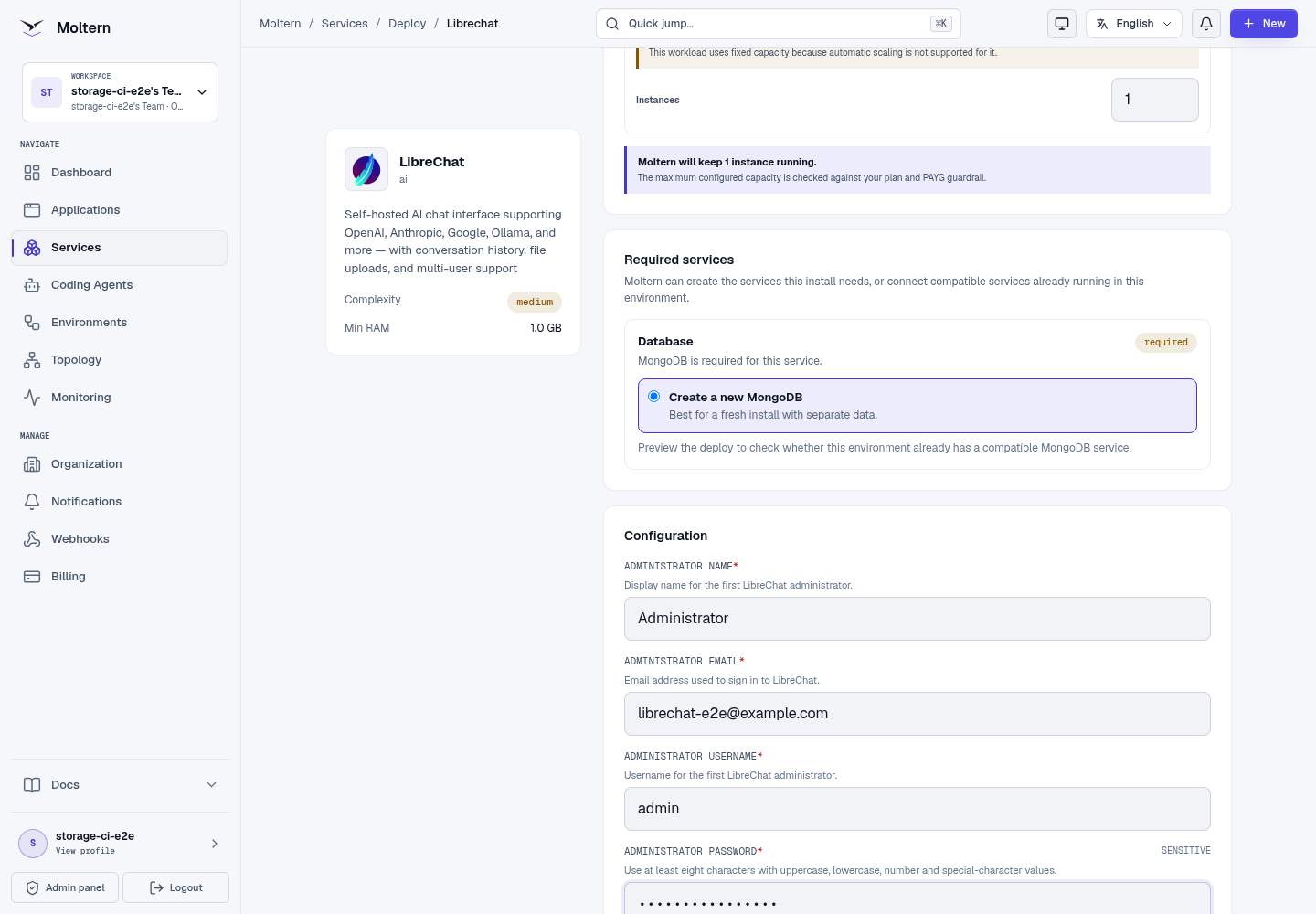
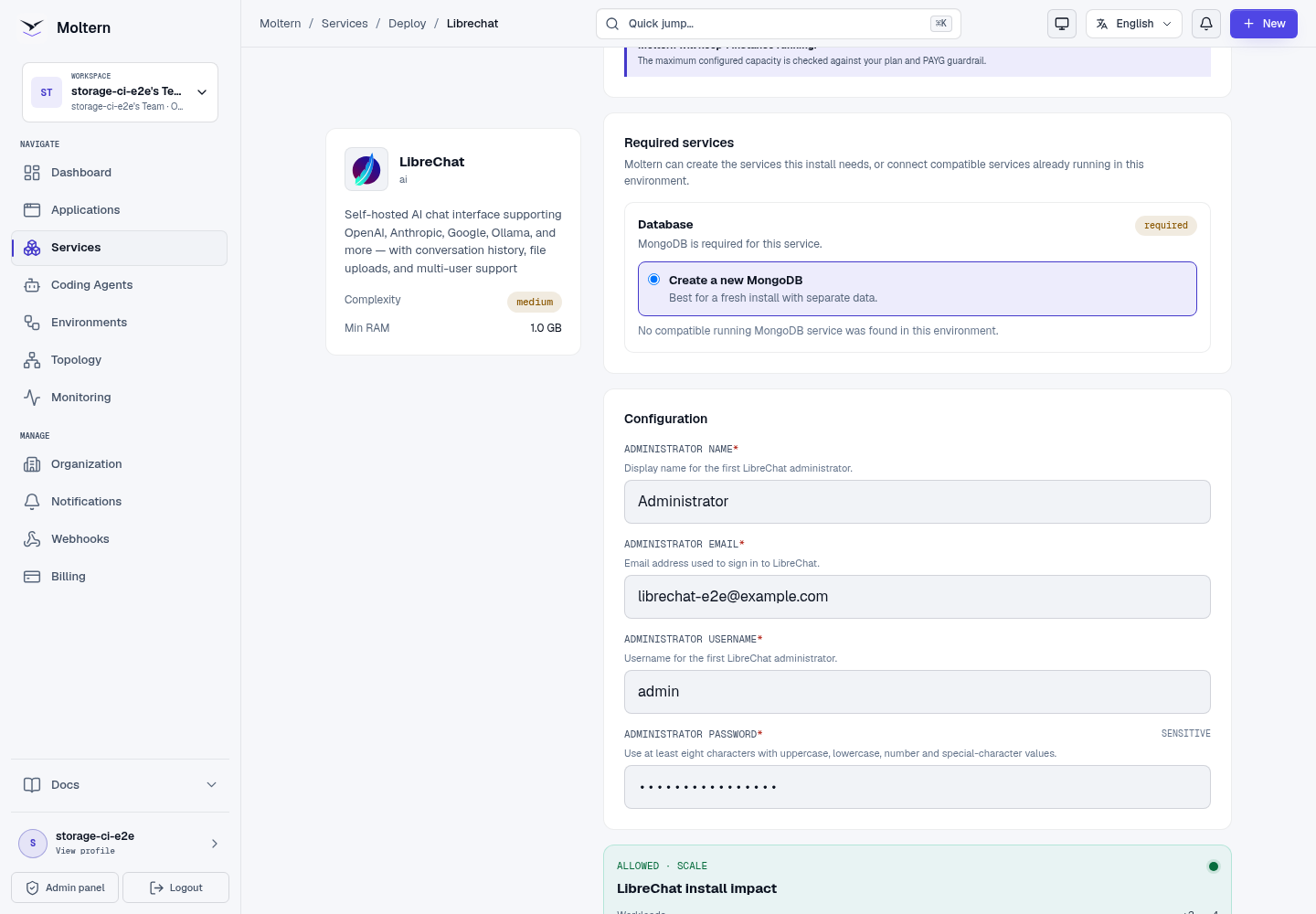
First startup includes database preparation and administrator creation. Keep the original deployment active while that process finishes instead of creating a second service. MongoDB is a managed dependency of this LibreChat deployment.
Sign In
- Open LibreChat from the Moltern service page.
- Enter the administrator email and password used during deployment.
- Select Sign in.
- Confirm the new-conversation workspace opens.
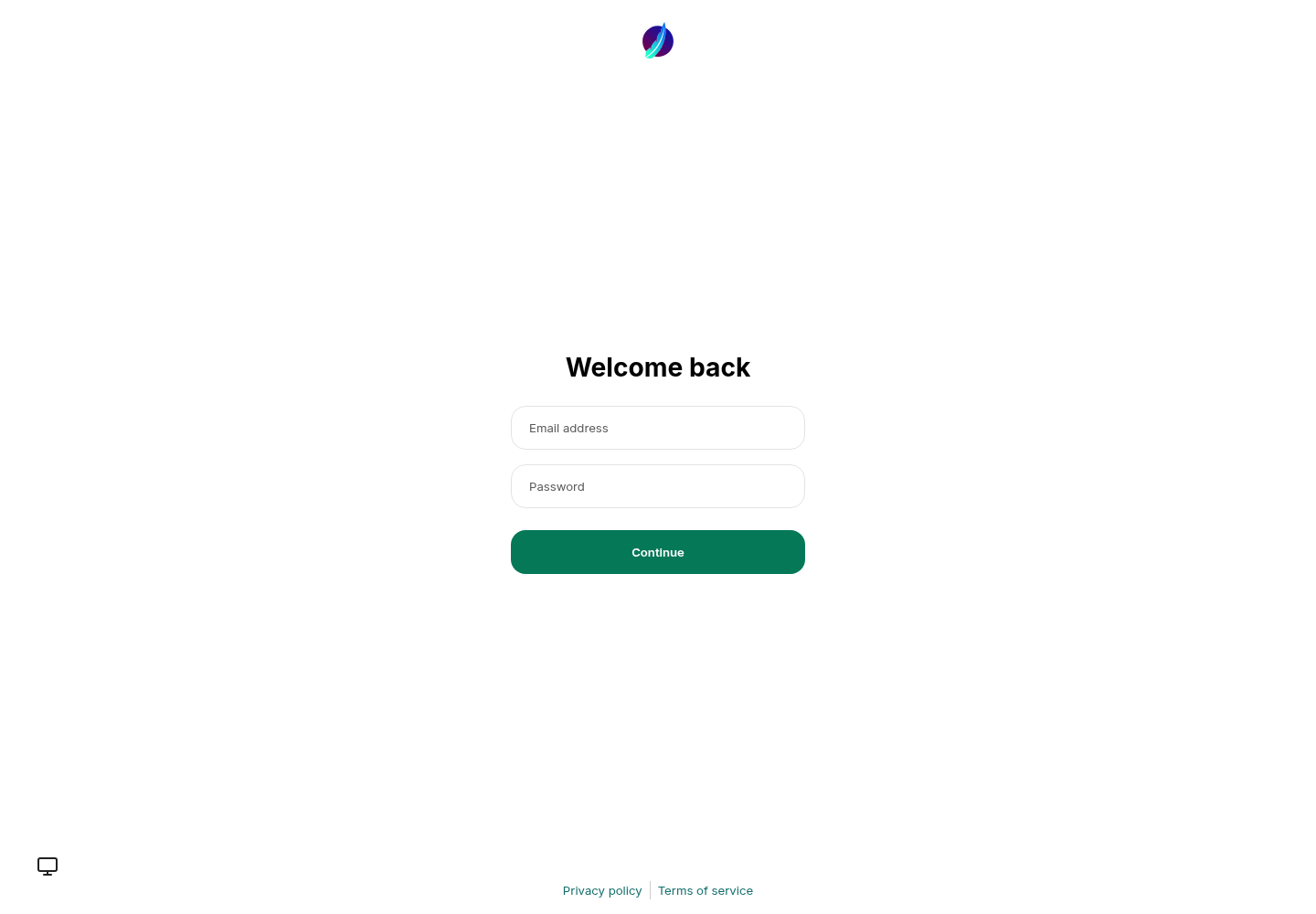
Use Moltern's protected connection-details flow when an authorised workspace member must recover a managed credential. Do not place the password in a chat, repository or screenshot.
Connect Private Ollama
Create the Ollama service in the same environment and pull a model before attaching it.
- Open LibreChat in Moltern.
- Open Access or Private service connections.
- Select Connect service.
- Choose the Ollama service.
- Confirm the connection and wait for LibreChat to return to Running.
- Open LibreChat and select the Ollama endpoint.
- Choose one of the models returned by the private Ollama service.
Moltern replaces the LibreChat runtime when the connection changes. The managed database and assigned files remain intact. The Ollama address is not made public.
Send A Real Prompt
- Open a new conversation.
- Select the Ollama endpoint and a downloaded model.
- Send a short controlled prompt.
- Wait for a visible assistant message.
- Confirm the response came from the intended model rather than a provider that is missing credentials.
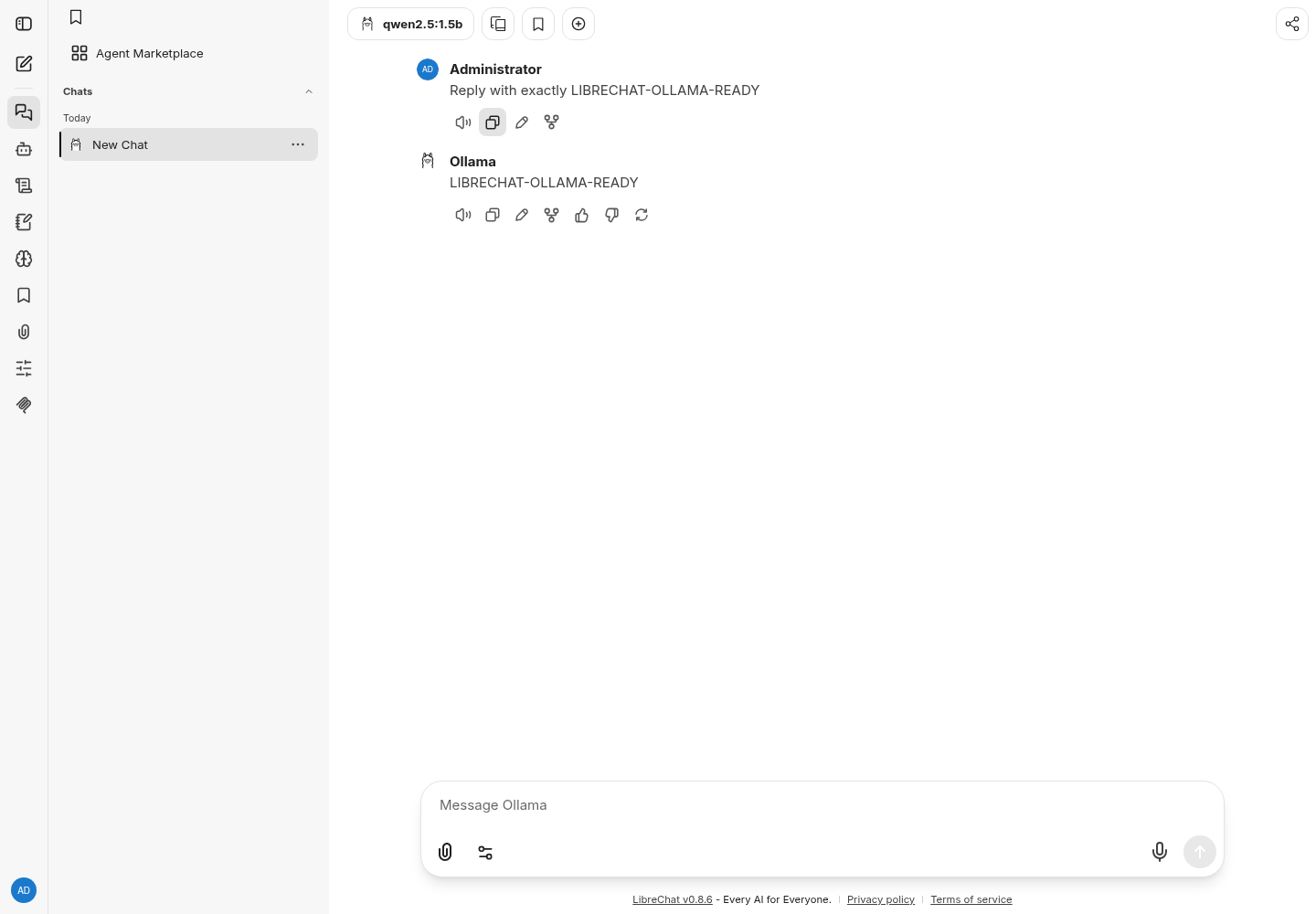
A model appearing in the selector is only a discovery check. A useful validation must generate a response. The first response may take longer while Ollama loads model weights.
Configure Other Providers
LibreChat supports additional providers through its own configuration model. For each provider:
- create a least-privilege API key;
- keep the key in protected runtime configuration;
- test with non-sensitive input;
- review the provider's retention and regional-processing policy;
- rotate the key when access changes.
The current Moltern production validation covers private Ollama. It does not certify every provider offered by LibreChat.
Data And Persistence
LibreChat stores accounts, conversations and configuration in its managed database. Its assigned workspace path retains supported local files and uploads. The database and files are separate from the replaceable LibreChat runtime.
Production validation uses Stop service and Start service to replace the runtime, then signs in again and requires a second visible response from the same private model.
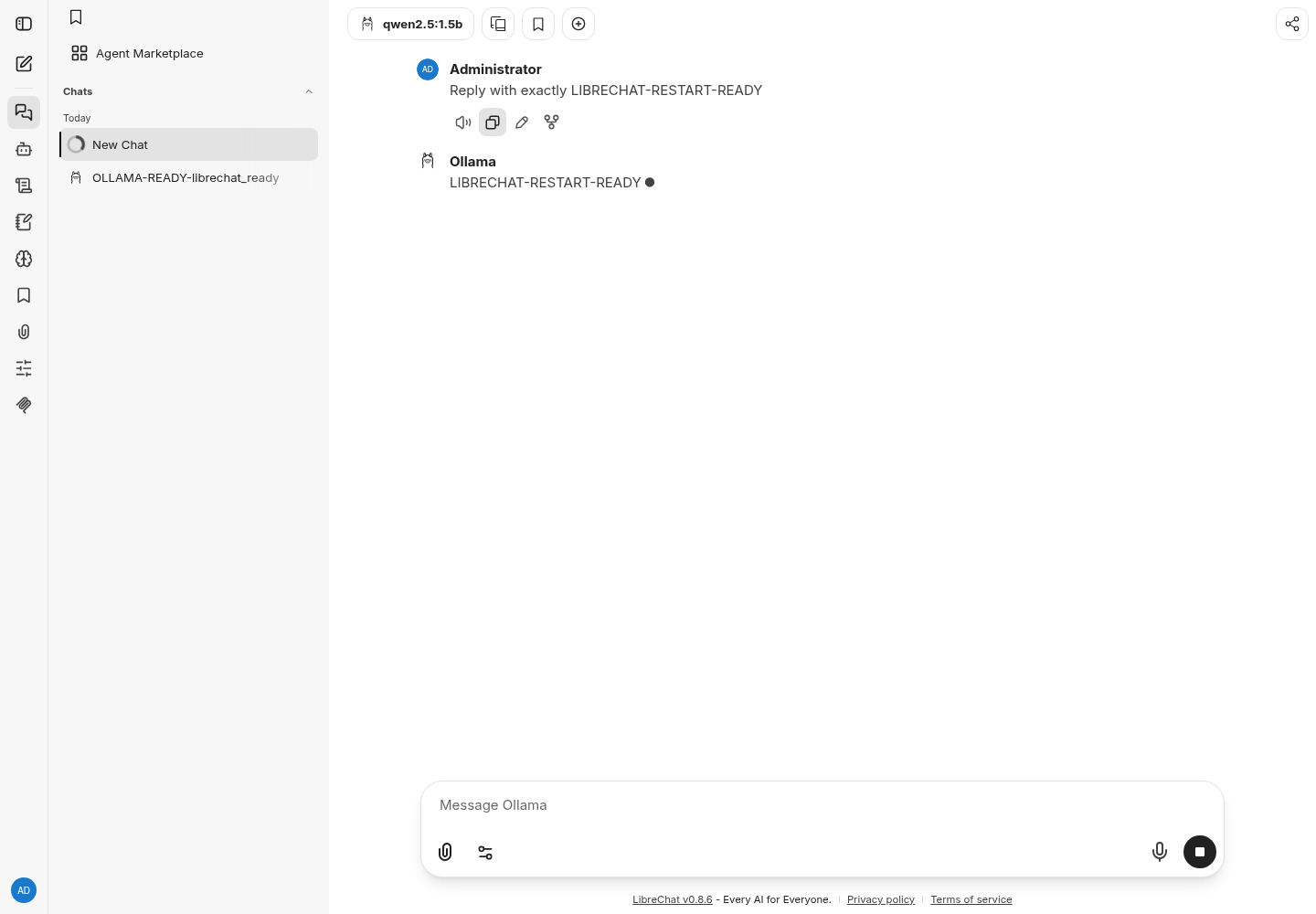
Runtime replacement is not an independent backup restore. Export important content and test your recovery policy before relying on the service for critical conversations or files.
Capacity And Metering
The validated parent baseline is:
| Resource | Validated value |
|---|---|
| Instances | 1 |
| CPU request | 100 mCPU |
| Memory request | 1,024 MiB |
| Parent dedicated volume | 0 GiB |
The managed database, LibreChat files and attached Ollama model store are measured under their respective workloads. Review them together when estimating the full service cost.
Increase LibreChat capacity when the web service itself is constrained. Model loading and inference capacity belong to Ollama.
Operate LibreChat
Use the Moltern service page for:
- Overview to open LibreChat and review health;
- Live Logs to diagnose startup, authentication and provider failures;
- Capacity to adjust CPU and memory;
- Access to add or revoke private connections;
- Settings to review protected configuration;
- Stop service and Start service to replace the runtime without deleting conversation data.
Delete LibreChat
- Export conversations or files that must be retained.
- Revoke external provider keys that are no longer needed.
- Open the LibreChat service in Moltern.
- Select Delete Service.
- Select Delete stored data only when the service data may be removed.
- Complete protected confirmation.
- Confirm the parent, managed database, assigned path and active allocations are gone.
A separately created Ollama service is not deleted with LibreChat because it may be shared by other authorised workloads.
Frequently Asked Questions
Does LibreChat include an AI model?
No. Attach a private Ollama service or configure another supported provider. The chat interface and its managed data do not replace an inference service.
Is the attached Ollama service public?
No. Moltern grants LibreChat a scoped private connection; Ollama keeps no public browser address unless you deploy a separate public-facing workload.
Are conversations retained after Stop/Start?
Yes for supported persisted data. Stop/Start replaces the LibreChat runtime without deleting its managed database or assigned files.
Troubleshooting
| Symptom | What to check |
|---|---|
| LibreChat remains in Deploying | Review the parent and managed-database progress and logs. Wait for the active deployment rather than creating another. |
| Administrator sign-in fails | Use the exact email and password entered during deployment. Confirm the managed database is Running. |
| Ollama is not available as an endpoint | Confirm both services share an environment, Ollama contains a model and the private connection is active. Wait for rollout completion. |
| A model appears but returns a key error | Confirm the Ollama endpoint is selected, not an external provider that requires a separate key. |
| The first response times out | Test the model directly in Ollama, check its memory requirements and try a smaller model. |
| Uploads consume unexpected storage | Review LibreChat under Billing → Storage by workload and remove unneeded files using the product workflow. |
| Data is missing after Delete stored data | That action is destructive. Restore only from an independently tested export or backup. |
Validated Scope
The production customer E2E covers UI deployment, protected administrator login, managed-database readiness, private Ollama attachment, model selection, a visible assistant response, runtime replacement, a second post-restart response, point-in-time parent metering and protected cleanup.
External providers, large uploads, many concurrent users, sustained load, high availability, GPU behavior, independent restore and elapsed invoice reconciliation remain outside this validation.